

What you can post
Text
Up to 1,024 bytes. A plain Latin letter is one byte, while accented letters, emoji and other scripts take 2 to 4, so text with them fits fewer characters.
Media
Up to 4 images. Video is refused.
Post types
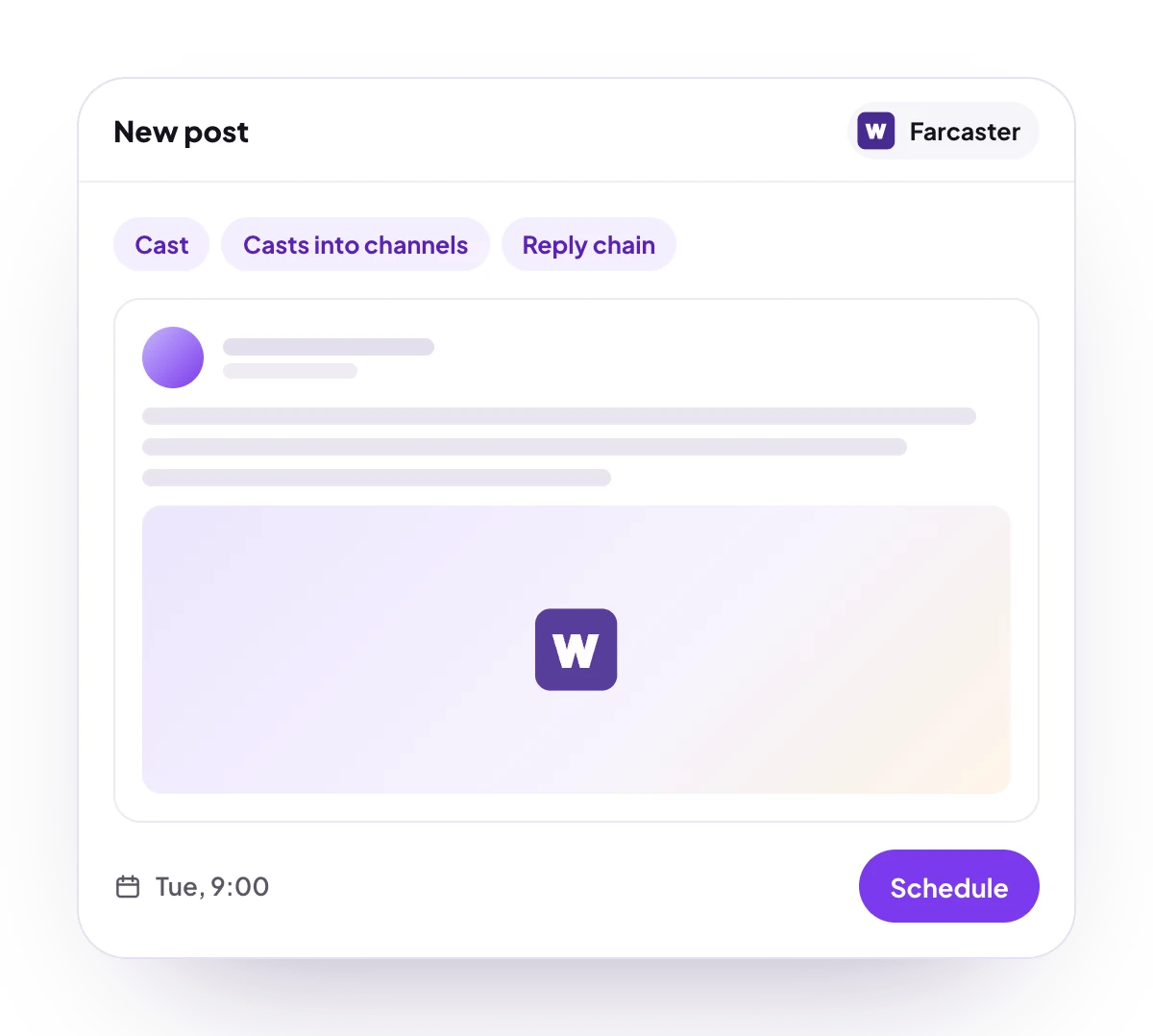
A cast to your home feed or to Farcaster channels, and follow-up replies.
Analytics
No analytics for Farcaster.
Connect Farcaster
You approve PostQueen in the Farcaster app on your phone.1
Open Add Channel
Open Channels and choose Add Channel, then Farcaster.
2
Open the link on your phone
Scan the QR code with your phone, or copy the link and open it on your phone.
3
Approve PostQueen
Approve PostQueen in the Farcaster app. The channel connects once the approval arrives.
4
Check that it connected
The channel appears in the Channels list with its avatar and name.
Post settings
Each Farcaster post in the composer has one setting:- Add Channel: adds a Farcaster channel to the post. Search by name under Search Channel and pick one from the list. Add as many as you like.
Good to know
- Before a cast is scheduled, PostQueen checks that it is at most 1,024 bytes, has at most 4 images, and has no video. The composer counts characters, so a cast in accented or non-Latin text can pass the composer’s count and still be refused for its size in bytes.
- Continue thread adds follow-ups, each with its own delay. Each one replies to the cast before it, in every channel the post went to, and can carry images.
Next steps
Create a post
Write once for several channels, then schedule it, save a draft or post now.
All channels
What each network posts, its text limit and how to connect it.
Post from an AI agent
Ask Grok Bot, Muse, ChatGPT, Claude or another agent to schedule the post for you.
A post did not go out
Why a post fails and what to do about it.