

Add a feed
1
Start a new feed
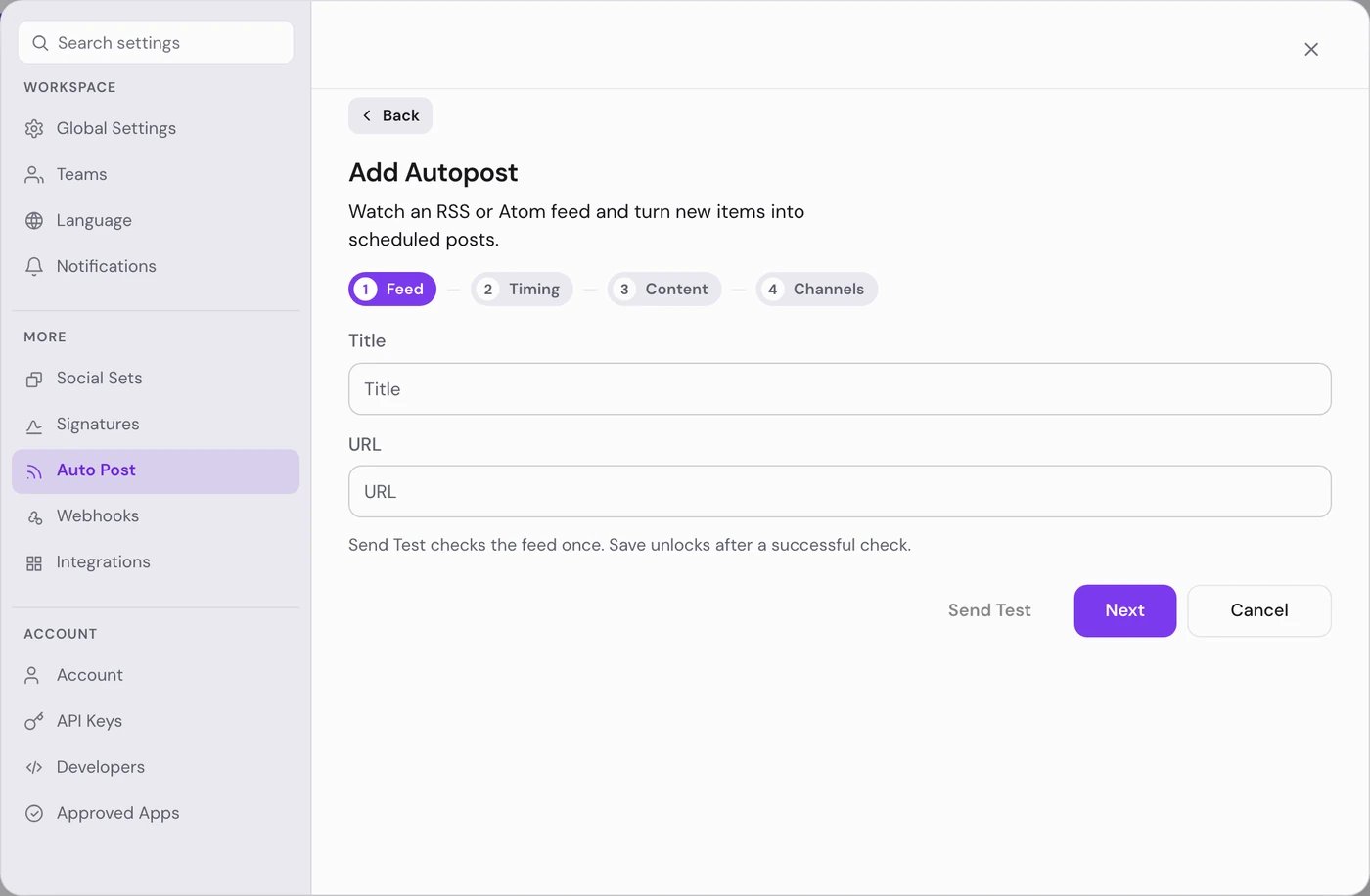
Choose Add an autopost. The form has four steps: Feed, Timing, Content and Channels. You need a connected channel first.
2
Feed: name it and test it
Enter a Title for your own use and the feed’s URL, then choose Send Test. “RSS valid!” means PostQueen can read the feed. Save stays locked until the test passes.
3
Timing and Content
Choose Next and answer each question, as in the table below.
4
Channels
Choose All channels, or Specific channels and select the ones you want.
5
Save the feed
Choose Save. “Autopost added successfully” confirms it. The first check runs right away.
What happens to each new item
- Each hour PostQueen takes the newest item in the feed. If it took that item last time, nothing happens. When several items appear within one hour, only the newest is posted.
- The post is the text, a blank line, then the item’s link.
- It goes on your calendar at the next free posting time.
- With Create a draft for review, every chosen channel gets a draft. Nothing goes out until you open the draft and schedule it.
- With Publish automatically, the post is scheduled on each channel where it passes that network’s checks. A channel that needs settings of its own, such as a title, gets a draft instead, and a notification names it. Channels that are disabled or need reconnecting are skipped.
Check that a feed can post
A feed’s toggle and Test connection only tell you about the feed. A badge next to the feed’s title tells you about its channels. Which channels count against the feed depends on what it does with new items:- With Publish automatically, a channel counts when it is disabled, needs reconnecting, was never finished connecting, or was deleted, because the feed skips it.
- With Create a draft for review, only a deleted channel counts. A channel that is disabled or needs reconnecting still gets its drafts, so the feed is still running for it.
With no badge, every chosen channel can take the feed’s posts. A Create a draft for review feed set to All channels never shows a badge. Hover a badge for a one-line reminder.
What happens to new items meanwhile depends on the feed:
- With Publish automatically, the channels that cannot post are skipped. When none is left, the item is skipped for good and the bell shows “Autopost has no channel to post to”.
- With Create a draft for review, channels that are disabled or need reconnecting still get their drafts, which wait for you to fix the channel.
Good to know
- Each saved feed has a toggle that pauses the hourly check and keeps the setup.
- Test connection on a saved feed reads it again and changes nothing.
If something goes wrong
Next steps
Posting times
Set the time slots that feed items land on.
The calendar
Review the drafts Auto Post creates.
Webhooks
The other direction: tell your tools when a post goes live.
n8n
Build your own feed workflow when you need more control.