Where the times live
Slots belong to a channel, not to your workspace, so your company account and your side project never have to share a rhythm.1
Open the channel menu
In the left sidebar, click the three dots next to a channel name.
2
Choose Edit Time Slots
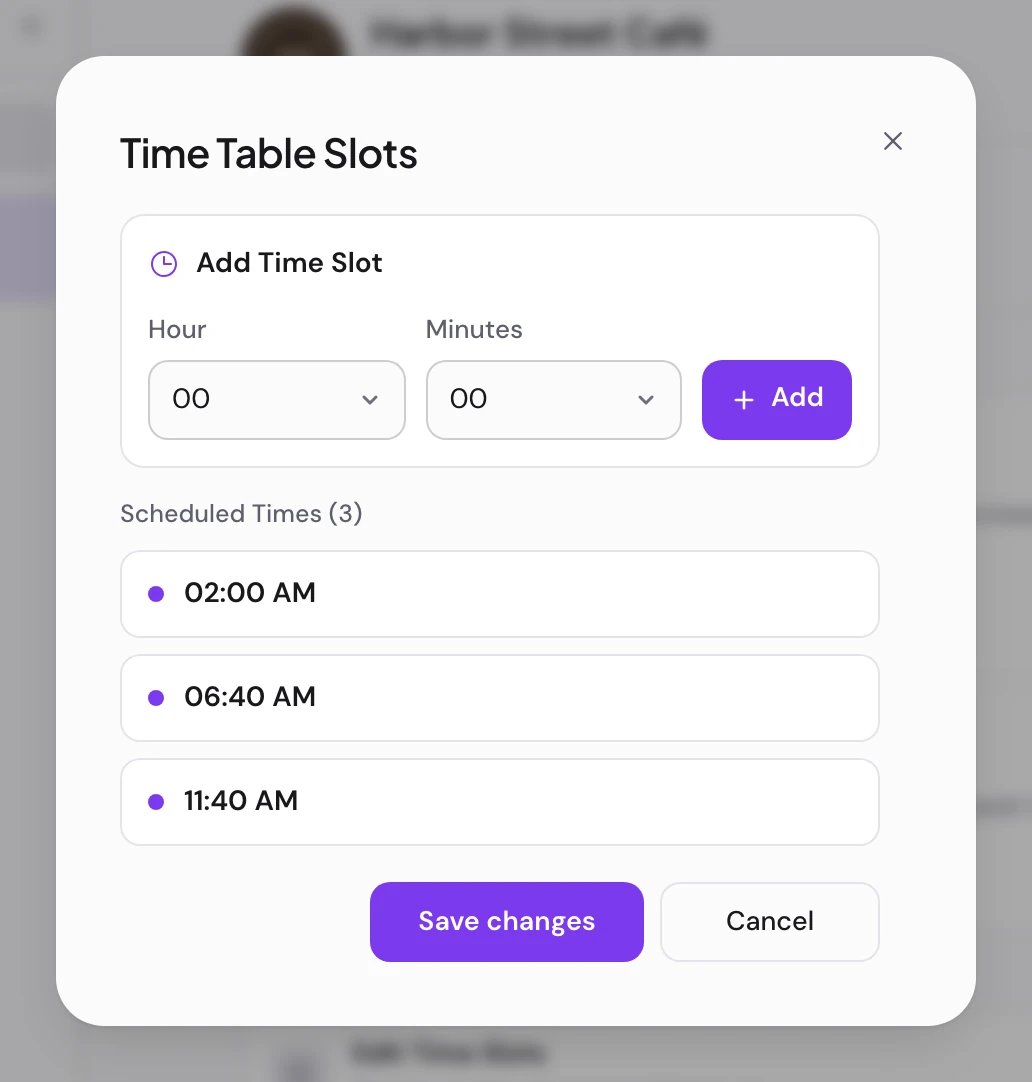
A window opens with the title Time Table Slots.
3
Add a time
Add Time Slot sits at the top with an Hour list, a Minutes list and an Add button. Hours run 00 to 23 and minutes run 00 to 59, so any minute of the day is yours to take.
4
Watch the list build
New times join Scheduled Times below, with the count in the heading. The order comes from the underlying UTC time rather than the local time on screen, so a slot near midnight can look out of place in your own timezone. An untouched channel with nothing left on it reads No time slots added yet.
5
Save Changes
Nothing reaches the server until you press it.
Your clock and hers
The hour and minute you pick are read in your timezone, taken from your saved setting or guessed from your browser. What she stores is the same moment counted as minutes past midnight UTC, and the list reads back through your timezone again on the way out. That matters the moment someone else opens the channel. A colleague two hours ahead of you sees the same slots written as different numbers, because they are the same moments told on a different clock.What a new channel starts with
Connect a channel and it arrives with three times already on it.
Those three are a starting point rather than a recommendation. Replace them with the times you actually post at.
How she picks the next free slot
You press a button, she comes back with a date. Underneath that there are six steps, and they run in this order every time.
Exactly that minute is the whole of the rule. A post at 11:41 leaves the 11:40 slot open. Taken is also counted across the workspace rather than per channel, so a post on Instagram at 11:40 sends her past that slot when she is looking for a time for LinkedIn.
State does not come into it either. A draft parked at 11:40 holds that minute just as firmly as a scheduled post, because a draft still carries a date. Deleted posts release theirs.
Add the same time twice and it shows twice in the list, since the window stores what you typed. The lookup counts it once.
Who asks her for one
The slot lookup is quiet work. It happens behind a button you already press, and these are the places it runs.
In every case the date lands in the editor or on the post as a starting point. Change it and she does what you say. Nothing about a slot forces a post to stay in it.
Reading the API answer
The public endpoint answers with one field.Z before parsing it if your client insists on one.
Slots are read through the public API, never written. Adding and removing times is work for the app, through the channel menu.
Slots on the calendar
Day view is where the times stop being an abstraction. It does not draw a bare twenty-four hour column. It draws one labelled row for every posting time on your channels, plus a row for every time you already have a post that day, sorted up the page. An empty row there is a slot with nothing in it. Hover and the avatars of the channels for that time light up, click and the editor opens on it.Keep going
The calendar
Where the slots show up, and how to drag a post out of one
RSS AutoPost
A feed item becomes a draft in your next open slot, once an hour
Find Available Slot
The same lookup, called from your own scripts
Next steps
The calendar
Where the slots you set show up
Writing a post
How a post takes the next open slot
Find a slot over the API
The same answer, in JSON
RSS AutoPost
A feed that fills those slots on its own