

Add parts to a post
1
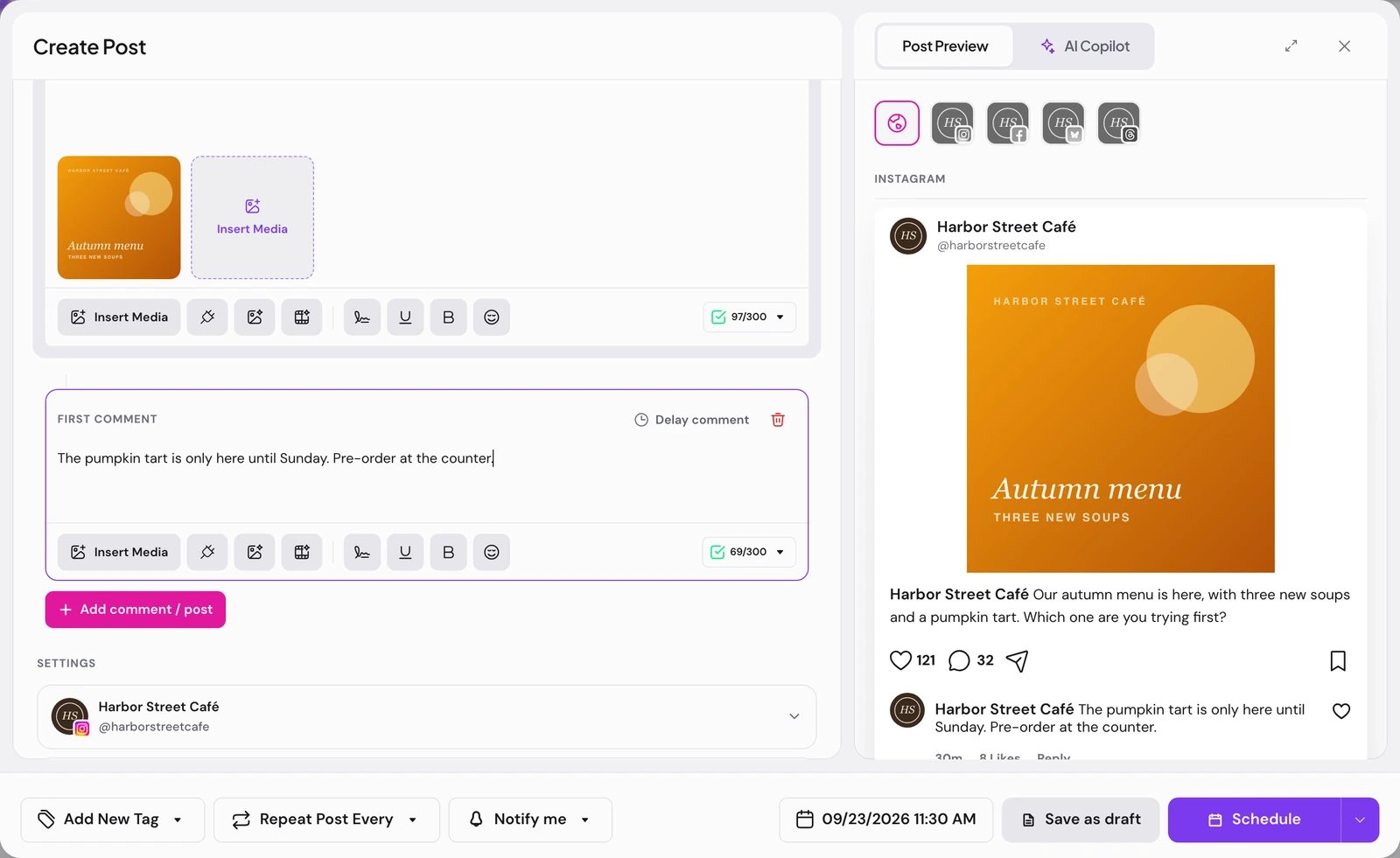
Open the first comment
Under the post text, choose Add comment. A First Comment card opens with its own text box and attachments.
2
Add more parts
The button under the last card adds the next part. In global mode it reads Add comment / post. On a channel’s own tab it reads Continue thread on networks that chain replies, and Add comment on networks that comment under the post. Later cards are headed Comments.
3
Space them out (optional)
Choose Delay comment on a card to hold that part back after the one before it: 1m, 2m, 5m, 10m, 15m, 30m, 1h or 2h, or a number of minutes with Custom min and Set. Remove delay publishes it right after the previous part.
4
Schedule as usual
Choose Schedule. The parts go out after the post, each one after its delay.
What each network does with the parts
For networks you can connect today:
X, Threads, Facebook, Instagram, TikTok and YouTube are In review, each with the limit its page states. The Soon networks and their comment support are on Channels and their status.
Good to know
- The badge under the editor lists any picked channel that cannot take the parts under Comments cannot be published on. On those channels only the post goes out.
- A part needs text or a picture. An empty card shows “Your comment should have at least one character or one image.”
- Parts count against each network’s character limit like the post does.
- The delay starts when the part before it is published, not when the post was scheduled.
If something goes wrong
Next steps
Create a post
The composer, per-channel versions and the ways to save.
The calendar
Check the post and its time, then move or preview it.

Bluesky
Connect Bluesky and post threads to it.
A post did not go out
Why a post or one of its parts did not go out.