

postqueen CLI, the public API and automation tools. All of them use the workspace API key, and the cards show the address or header with your key already filled in.
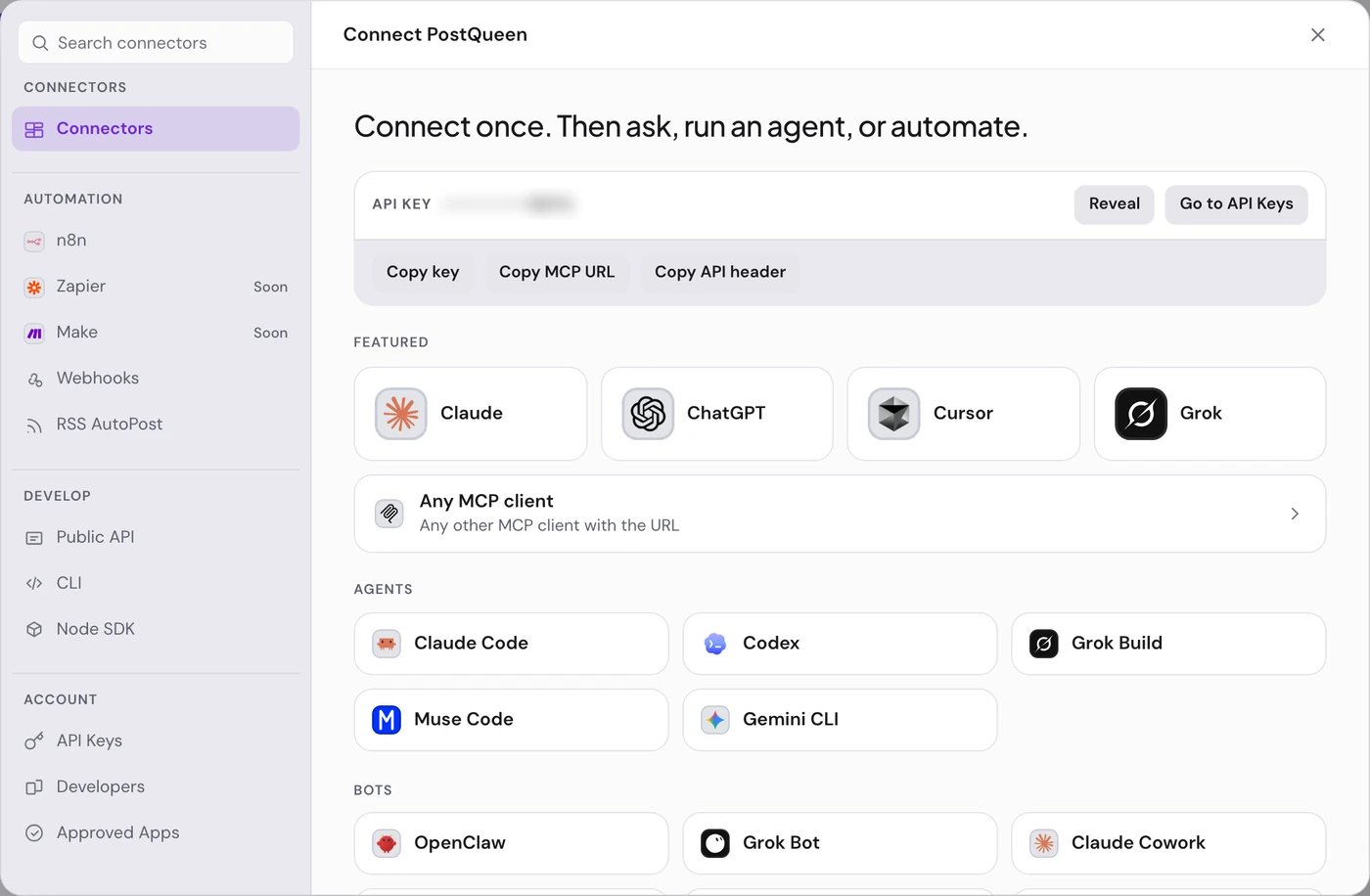
Connect an agent
1
Find its card
Under Connectors, pick a card from Featured or from a category, or type its name in Search connectors.
2
Follow How to connect
The card opens on How to connect: the agent’s own steps, with the commands to copy.
3
Copy your address
The API key tab shows your key and, for an agent, the MCP URL with the key in it. Paste what the steps ask for into the agent.
4
Try it
When the card has Examples, try one of its prompts in the agent.
What Connections holds
Rotate the API key
1
Open API Keys
In Connections, choose API Keys in the Account group.
2
Rotate
Choose Rotate key, then Rotate to confirm. PostQueen makes a new key at once.
3
Update what used it
The old key stops working right away, so paste the new one, or the new MCP address, into every agent, script and n8n credential that used it.
Your MCP address
PostQueen has tested the key address (with Claude and ChatGPT) and the Bearer header (with Grok Bot). The sign-in address has not been tested end to end yet. Clients that still use the older SSE transport can connect to
https://api.postqueen.ai/sse/YOUR_API_KEY.
Developers and Approved Apps
- Developers is for building your own product on PostQueen. An admin chooses Create OAuth App and fills in App Name, Description, Profile Picture and Redirect URL. The Client Secret is shown only when the app is created or the secret is rotated, so copy it then. A workspace has one OAuth app. See OAuth apps.
- Approved Apps lists the apps you approved, with the date. Only an Admin or Super Admin can approve an app, and an approved app can act for the whole workspace. Choose Revoke to cut an app off.
If something goes wrong
Next steps
AI agents
Every agent PostQueen works with, and what each one can do.
MCP server
The addresses, the tools and what an agent cannot do.
CLI
Install
postqueen and run a first command.Public API
Call PostQueen from your own code.