

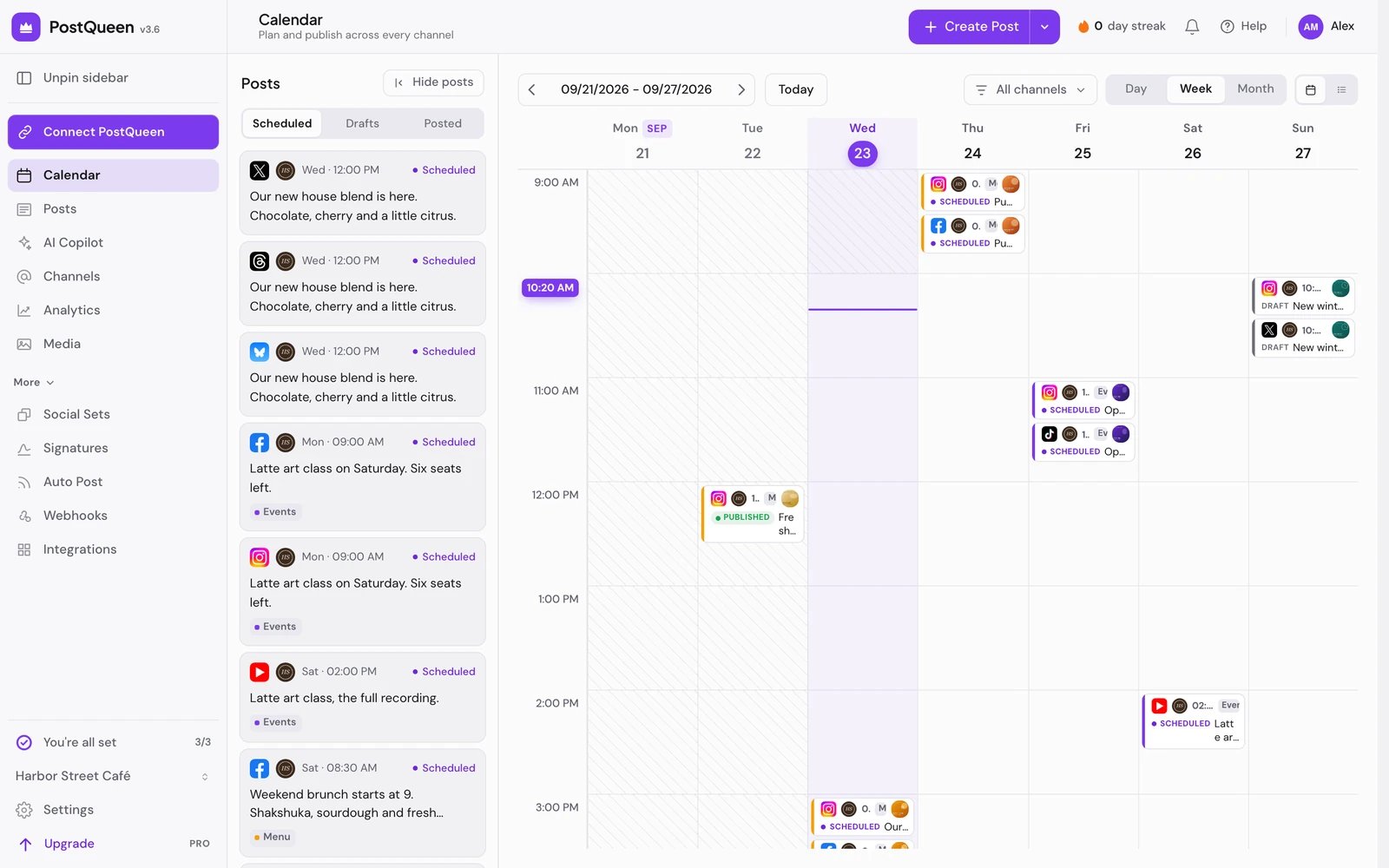
Pick a view
The Day, Week and Month switch sets the grid; the calendar opens on Week. Today returns to now.- Day shows all 24 hours. An empty hour ahead reads Add a post at and the time.
- Week shows as many cards as fit in an hour, then See all N posts, which opens that day in the list.
- Month shows three posts a day, then +N more, which opens that day in the list.
Use the Posts list
The list groups posts under their date, 100 to a page, with Previous and Next.
Beside the grid, the Posts panel has Scheduled, Drafts and Posted tabs. Hide posts folds it away and Show posts brings it back. Drag a scheduled post from the grid onto the panel and it becomes a draft (“Moved to drafts”).
Narrow the view with All channels (pick the channels to show) and, once your channels are in more than one customer group, Select Customer. In the Posts list and panel, the channel filter applies to every page, so each page holds 100 posts of those channels and the page count is theirs.
Move a post
1
Drag the card
Drag a post onto another slot that is not in the past. In Month view, drop it on a day.
2
Check the new time
A scheduled post shows “Scheduled for” and its new time. A draft stays a draft; only its date changes.
3
Answer for a post that already went out
If the post was published, or its time has passed, PostQueen asks “This post was already published, what do you want to do?”. Just update the post details changes the date only. Reschedule the post puts it back in the queue, so it is published again at the new time. Closing the dialog cancels the move.
Manage a post
Click a card to open it in the composer. Hover it for these actions:
In the Posts list, a published post also has Post Statistics. Channel-wide numbers are on Analytics.
Connect a TikTok post to its video
A TikTok post sent with Upload content to TikTok without posting it goes to your TikTok inbox, and TikTok does not tell PostQueen which video it becomes. The post counts as published, but PostQueen cannot read its numbers until you connect it to the video.1
Publish the video in TikTok
Finish the post in the TikTok app and publish it.
2
Open Connect Post
In the Posts list, choose Post Statistics on the post. Instead of the numbers, the Connect Post window opens with “Select the content that matches this post:” and the channel’s 20 most recent TikTok videos.
3
Pick the video
Click the video’s cover, then choose Connect Post. The Statistics window opens with the post’s numbers.
Start a post from an empty slot
Click an empty slot to open the composer at that time; in the current hour it starts ten minutes from now. A day in Month view starts at a random hour, so set the time before you save. With no channels connected, the calendar offers Add your first channel instead.Good to know
- Times show in the time zone of your computer or phone, as your browser reports it. You cannot pick another one in PostQueen yet: Settings > Account shows it under Timezone with a Coming soon badge. To plan in another time zone, change your device’s time zone and reload. See Your time zone.
- Choose AM:PM or 24 hours under Settings > Global Settings > Date Metrics.
- A card’s colored stripe takes the color of its first tag, or else its status. Drafts carry a Draft label.
- A repeating post appears on every repeat inside the range you are looking at. Once you choose Stop repeating on it, it shows on its first date only. See Repeat a post.
If something goes wrong
Next steps
Create a post
Write once for several channels and schedule it.
Posting times
Set the times each channel posts at.
Sets, signatures and tags
Reuse channel groups and text, and color the calendar.
A post did not go out
Why a post did not go out, and how to send it again.