

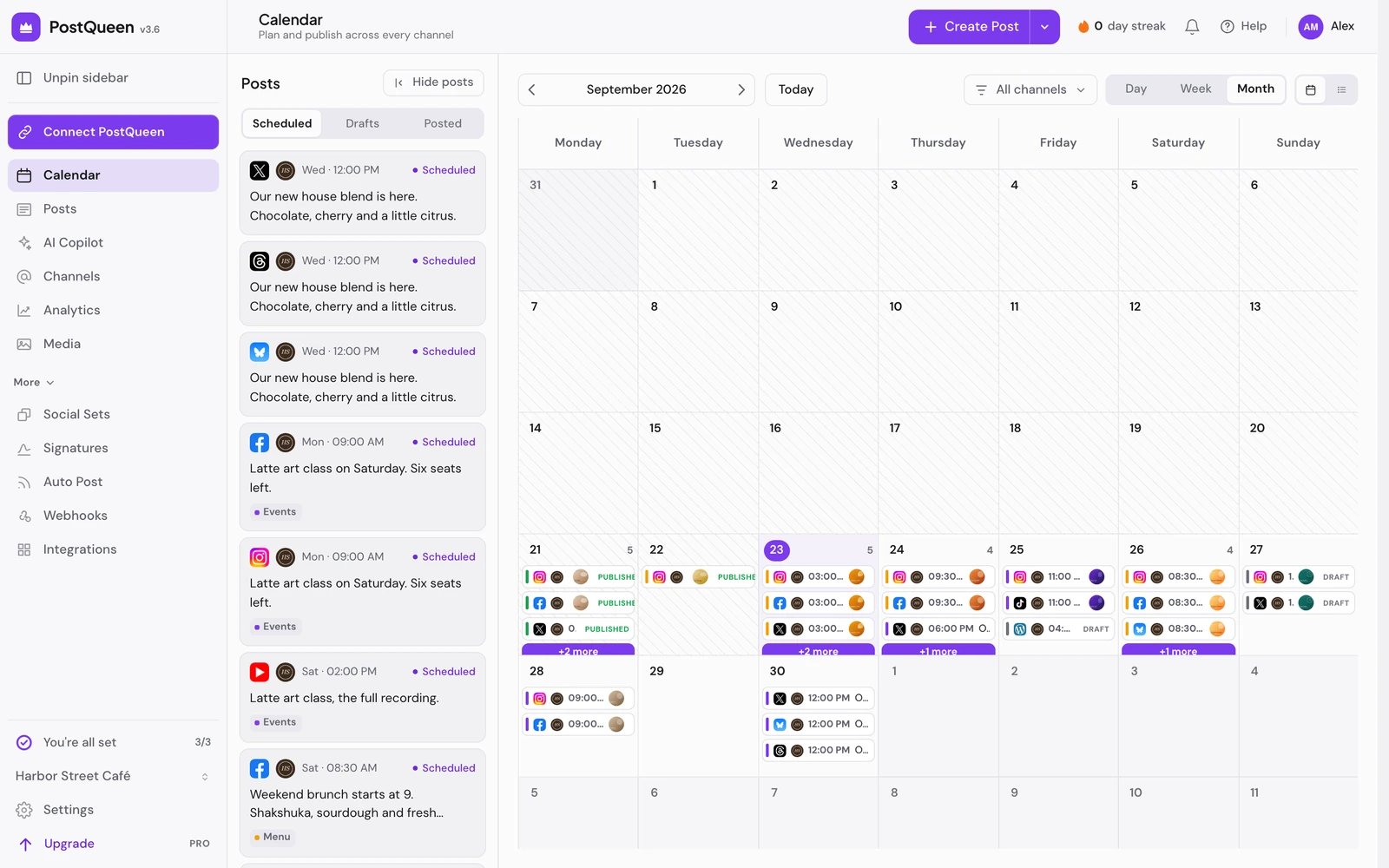
The left rail
Connect PostQueen sits at the top of the rail. It opens Connections: your AI agents, the MCP address, the CLI, the public API and the API key. The first group has no heading:
The More group below it folds open and shut from its heading. Each item opens a tab of Settings: Social Sets, Signatures, Auto Post, Webhooks and Integrations.
The bottom of the rail holds:
- Getting started, a checklist with Connect your channel, Create a post and Publish a post. When all three are done, Got it puts it away.
- The workspace switcher. It shows the current workspace’s name and lists every workspace you belong to. When you belong to more than one, Leave workspace at the end of the list leaves the current one: see Leave a workspace.
- Settings.
- For workspace admins, a row to the Billing page. It reads Upgrade, Billing & invoices on the Ultimate plan, or Founding member for founding members.
The header
- Create Post opens a new post. The arrow next to it offers Blank post and AI post, which opens Generate Posts: it writes a post or a thread from your prompt and opens it in the composer for you to check. With no channel connected yet, Create Post opens Add Channel instead. If the workspace has Social Sets, you first choose one in Select a Set, or Continue without set.
- Your posting streak, and the bell for Notifications. See Notifications and your posting streak.
- Help: Take a tour, Documentation, Contact support and Report a bug.
- Your avatar opens the account menu: Settings, Billing & invoices for admins (Lifetime deal for founding members), Affiliate when it is offered, Theme for light or dark, and Sign out.
Settings
Settings opens over the page you were on, with its tabs in three groups:
Search settings at the top filters the list. What each tab holds, and who sees it: Settings.
Words the app uses
Next steps
Connect a channel
Add a network, reconnect one, or remove it.
Create a post
Write once for several channels, then schedule it, save a draft or post now.
The calendar
Find, move, preview and share your scheduled posts.
Plans and limits
What each plan includes, and the message you see at each limit.