

What you can post
Text
An article body of up to 10,000 characters, written in Markdown, and a title of at least 6 characters.
Media
One cover image. Pictures inside the article are not uploaded.
Post types
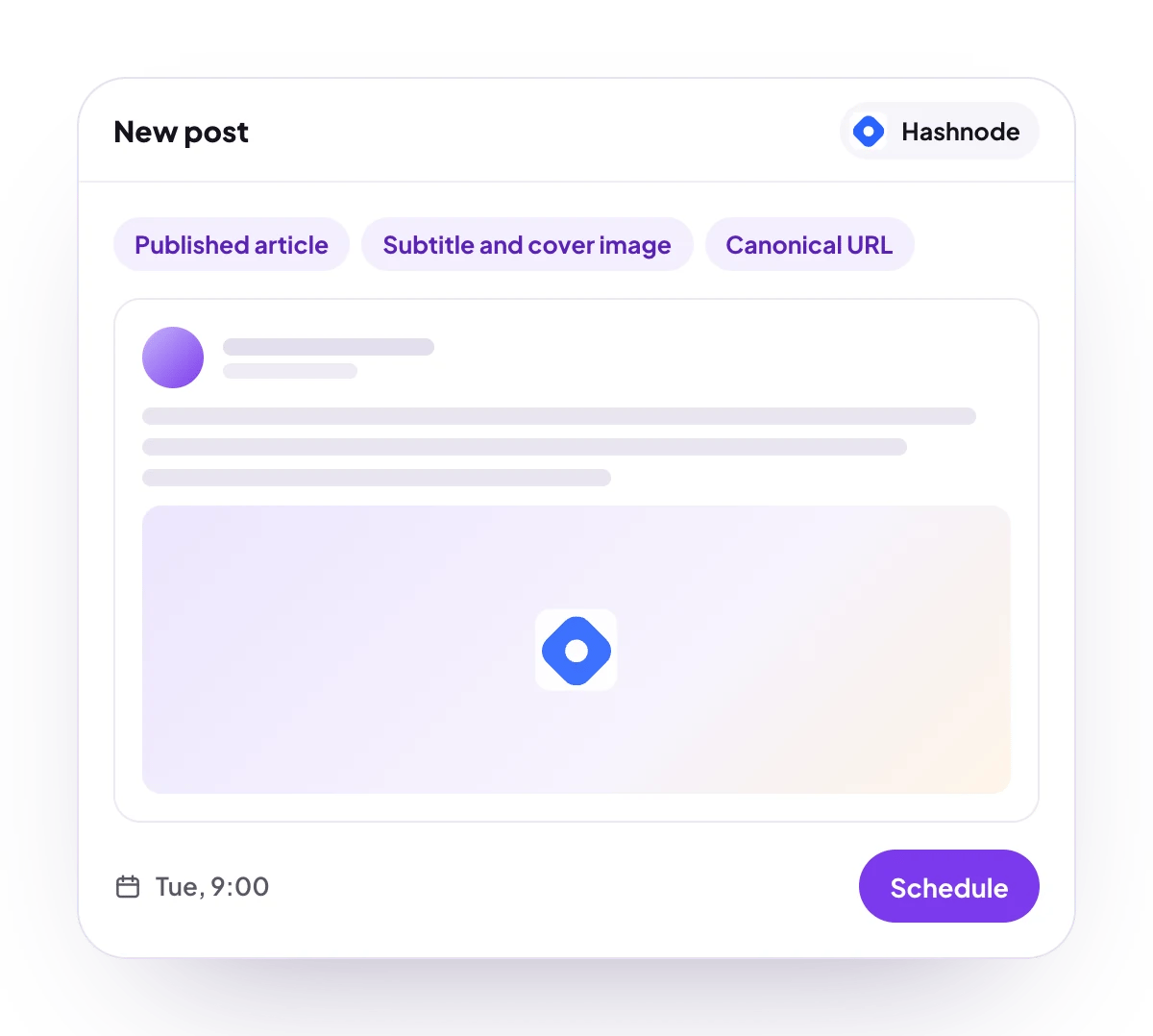
A published article in the publication you pick, with a subtitle, cover image, canonical link and 1 to 4 tags.
Analytics
No analytics for Hashnode.
Checked before scheduling
PostQueen refuses a post that breaks these rules and shows the message in the composer:
The tag picker stops at 4. The Pro plan is not checked first: Hashnode itself refuses a publication without it.
Connect Hashnode
Hashnode answers API requests only for publications on its Pro plan, and PostQueen publishes through that API. Without Pro, Hashnode refuses the connection, or the article when it is published, with its own upgrade message. PostQueen does not include Hashnode Pro.
1
Check the plan of your publication
In the dashboard of the Hashnode blog you want to publish to, open Billing and make sure it is on the Pro plan.
2
Generate a personal access token
On Hashnode, open Settings, then Developer (hashnode.com/settings/developer), generate a new token and copy it.
3
Open Add Channel
In PostQueen, open Channels and choose Add Channel, then Hashnode and Enter details.
4
Paste the token
Paste the token in API key and choose Connect.
5
Check that it connected
The channel appears in the Channels list with your Hashnode avatar and name.
Post settings
Each Hashnode post in the composer has these settings:- Title: required, at least 6 characters.
- Subtitle: optional, at least 2 characters when you give one.
- Canonical Link: where the article first appeared. Type a web address, or choose the lightning icon next to the label to pick another post you scheduled in PostQueen: its live address is filled in when the article is published.
- Cover picture: the image at the top of the article.
- Select publication: where the article goes. Required. The list shows your first 50 publications.
- Tags: 1 to 4 tags from Hashnode’s list.
Comments and threads
Hashnode takes no follow-up comments, so the composer shows no Add comment button for a Hashnode post.Good to know
- The article is published on Hashnode at the scheduled time. It is never saved as a Hashnode draft.
- When a connect fails, PostQueen tells a wrong token apart from a publication without Pro, and shows Hashnode’s own message for the plan.
- If Hashnode stops accepting the token when an article goes out, the channel shows Needs reconnecting. Generate a new token and enter it with Update Credentials under Access on the channel’s page.
- Invite by link does not offer Hashnode, because the token is typed into PostQueen. Connect it with Connect myself.
- During the free trial, a Hashnode account that another PostQueen workspace already connected is refused until you end the trial.
Troubleshooting
Invalid credentials
Invalid credentials
Hashnode did not accept the token. Generate a new one under Settings, Developer, and connect again.
Hashnode's message about the Pro plan
Hashnode's message about the Pro plan
The publication is not on Hashnode Pro. Upgrade it under Billing in its dashboard, then connect again or schedule the article again.
Could not reach the Hashnode API. Please try again later.
Could not reach the Hashnode API. Please try again later.
Hashnode did not answer. Wait a few minutes and connect again.
Hashnode did not publish the post
Hashnode did not publish the post
Hashnode refused the article without saying why. Check the title, the tags and the publication, then schedule it again.
Next steps
Create a post
Write once for several channels, then schedule it, save a draft or post now.
Channels and their status
Which networks you can connect today, what each one posts, and its text limit.
Post from an AI agent
Ask Claude, ChatGPT, Grok Bot or another agent to schedule the post for you.
A post did not go out
Why a post fails and what to do about it.