> ## Documentation Index
> Fetch the complete documentation index at: https://docs.postqueen.ai/llms.txt
> Use this file to discover all available pages before exploring further.
> ## Agent Instructions
> PostQueen's hosted API is https://api.postqueen.ai. The public API base is https://api.postqueen.ai/public/v1 and takes the raw API key in the Authorization header, with no Bearer prefix.
> The MCP server for posting is https://api.postqueen.ai/mcp/YOUR_API_KEY (or /mcp with Authorization: Bearer YOUR_API_KEY). docs.postqueen.ai/mcp only searches these docs and cannot post.
> The API key is under Connections > API Keys in the app, and only workspace admins can see it.
# Webhooks
> Get an HTTP call at your own URL each time PostQueen publishes a post on one of your channels.
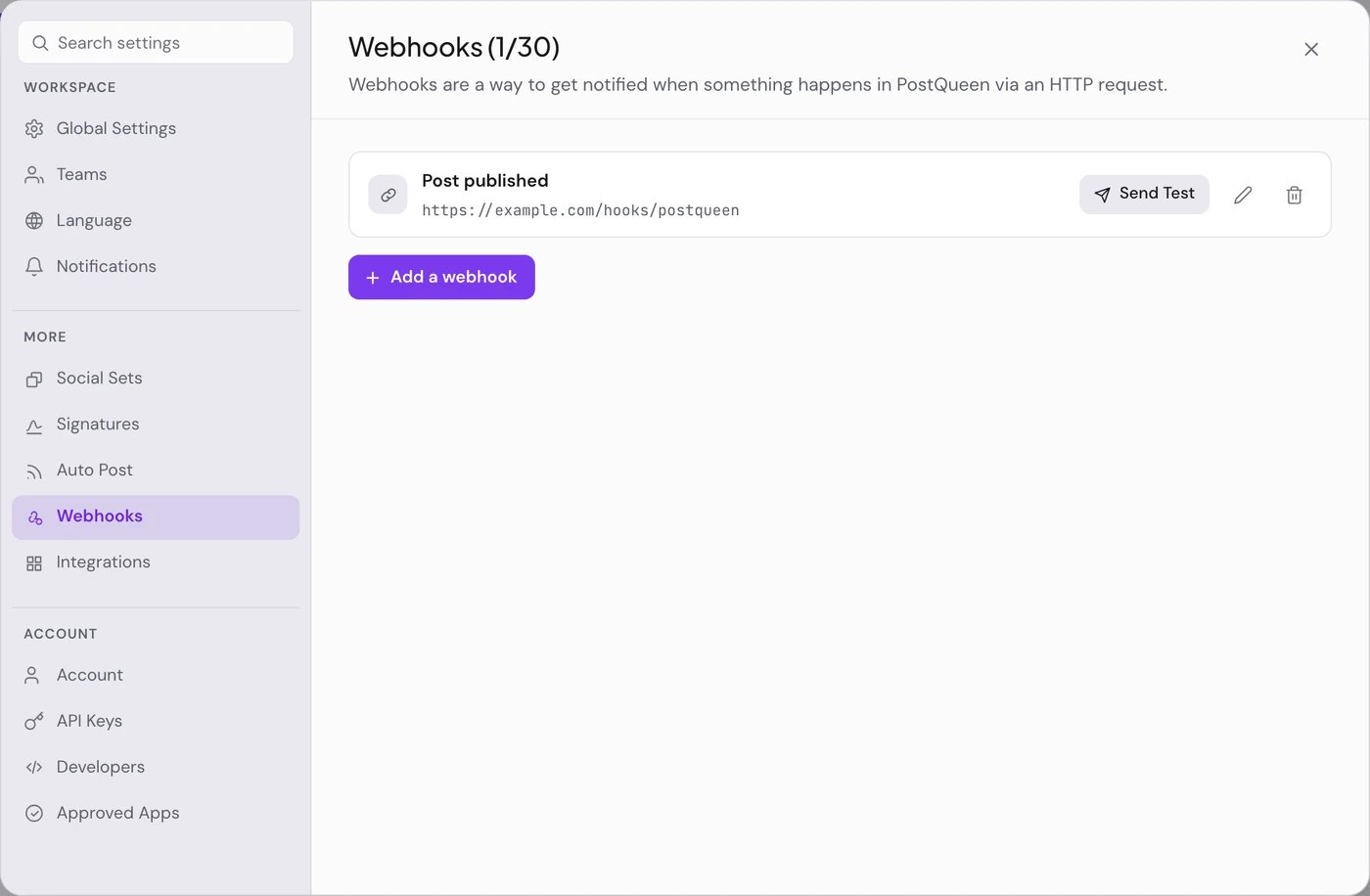
**Where:** **Settings > Webhooks**, in the More group. The **More** group in the left rail links there too.
A webhook sends a `POST` request to a URL you own each time a post goes live. Use it to start a workflow in Zapier, Make or n8n, or to update a sheet, a team chat or your own system.
 ## Add a webhook
Choose **Add a webhook**. The pane's title counts your webhooks against your plan, for example **Webhooks (1/10)**. You need at least one connected channel first.
**Name** is for you. **URL** is where PostQueen sends the request. It must be a public `https://` address.
**All channels** fires for posts on every connected channel. **Specific channels** fires only for the channels you select.
Choose **Send Test**. PostQueen sends a sample payload to the URL and tells you whether your endpoint accepted it. Set up the receiving side before you save.
Choose **Save**. "Webhook added successfully" confirms it. Each saved webhook shows its name and URL, a **Send Test** button, and buttons to edit or delete it.
## What arrives
The request has `Content-Type: application/json`. The body is a JSON array that holds the post that just went live on one channel.
```json theme={"system"}
[
{
"id": "cm6tcts4f0005qcwit25cis26",
"content": "Our spring release is live.",
"publishDate": "2026-09-23T13:09:00.000Z",
"releaseURL": "https://bsky.app/profile/example.bsky.social/post/3k2a",
"state": "PUBLISHED",
"integration": {
"id": "cm6s4uyou0001i2r47pxix6z1",
"name": "Example",
"providerIdentifier": "bluesky",
"picture": "https://example.com/avatar.jpg",
"type": "social"
}
}
]
```
| Field | What it holds |
| ------------- | -------------------------------------------------------------------------- |
| `id` | PostQueen's id for the post |
| `content` | The text that was published |
| `publishDate` | The publish time, ISO 8601 in UTC |
| `releaseURL` | The link to the post on the network |
| `state` | `PUBLISHED` |
| `integration` | The channel: its id, name, network (`providerIdentifier`), avatar and type |
## Check that a webhook can fire
A webhook fires only when one of its channels publishes. A badge next to its name tells you when some of those channels cannot publish: they are disabled, need reconnecting, were never finished connecting, or were deleted.
| Badge | What it means | What to do |
| ----------------------------- | ---------------------------------------------------------------------------------------------------------------------------------------------------- | -------------------------------------------------------------------------------------- |
| **Not running** | None of the webhook's channels can publish, so it will not be called. On a webhook set to **All channels**, no channel in the workspace can publish. | Reconnect or enable the channels on **Channels**, or edit the webhook and pick others. |
| **2/3 channels**, for example | Only that many of its chosen channels can publish. Posts on the others do not go out, so they call nothing. | Fix the other channels, or edit the webhook and remove them. |
With no badge, every chosen channel can publish. **Send Test** does not check the channels: it only proves your URL answers. See [Connect a channel](/using/connect-a-channel) to reconnect or enable a channel.
## Webhooks per plan
| Plan | Webhooks |
| -------- | -------- |
| Creator | 2 |
| Growth | 10 |
| Pro | 30 |
| Ultimate | 10,000 |
At the limit, **Add a webhook** is switched off and the pane says "Your plan is at its webhook limit. Remove one or upgrade to add another." See [Plans and limits](/cloud/plans).
## Good to know
* **Once per channel.** A post scheduled to three channels publishes three times, so a webhook on **All channels** is called three times, once as each channel goes live.
* **Only on publish.** Drafts, and posts that fail to publish, send nothing.
* **No retries.** PostQueen waits up to 10 seconds for your endpoint and follows redirects. If the endpoint is down, slow or answers with an error, the delivery is not retried and not reported.
* **No signature.** The request carries no secret or signature header. Use a long URL that is hard to guess, and treat the body as untrusted input.
## If something goes wrong
| Message | What to do |
| ------------------------------------------------------------------------------------------------------------------------------- | -------------------------------------------------------------------------------------------------------------- |
| “Webhook URL must be a public HTTPS URL and cannot point to internal network addresses” | Use a public `https://` address. For a service on your own computer, put a public HTTPS tunnel in front of it. |
| “The endpoint did not accept the test webhook”, or an HTTP status such as `HTTP 404` | Check that the URL is right and that your endpoint accepts a JSON `POST`. |
| “Pick at least one channel.” | Select a channel, or choose **All channels**. |
| “You have reached the maximum number of webhooks for your subscription. Please upgrade your subscription to add more webhooks.” | Delete a webhook you no longer use, or move to a bigger plan. |
## Next steps
Catch the webhook and carry on in a workflow.
Start an n8n workflow from each published post.
The other direction: new feed items become posts.
Schedule, list and delete posts from your own code.
## Add a webhook
Choose **Add a webhook**. The pane's title counts your webhooks against your plan, for example **Webhooks (1/10)**. You need at least one connected channel first.
**Name** is for you. **URL** is where PostQueen sends the request. It must be a public `https://` address.
**All channels** fires for posts on every connected channel. **Specific channels** fires only for the channels you select.
Choose **Send Test**. PostQueen sends a sample payload to the URL and tells you whether your endpoint accepted it. Set up the receiving side before you save.
Choose **Save**. "Webhook added successfully" confirms it. Each saved webhook shows its name and URL, a **Send Test** button, and buttons to edit or delete it.
## What arrives
The request has `Content-Type: application/json`. The body is a JSON array that holds the post that just went live on one channel.
```json theme={"system"}
[
{
"id": "cm6tcts4f0005qcwit25cis26",
"content": "Our spring release is live.",
"publishDate": "2026-09-23T13:09:00.000Z",
"releaseURL": "https://bsky.app/profile/example.bsky.social/post/3k2a",
"state": "PUBLISHED",
"integration": {
"id": "cm6s4uyou0001i2r47pxix6z1",
"name": "Example",
"providerIdentifier": "bluesky",
"picture": "https://example.com/avatar.jpg",
"type": "social"
}
}
]
```
| Field | What it holds |
| ------------- | -------------------------------------------------------------------------- |
| `id` | PostQueen's id for the post |
| `content` | The text that was published |
| `publishDate` | The publish time, ISO 8601 in UTC |
| `releaseURL` | The link to the post on the network |
| `state` | `PUBLISHED` |
| `integration` | The channel: its id, name, network (`providerIdentifier`), avatar and type |
## Check that a webhook can fire
A webhook fires only when one of its channels publishes. A badge next to its name tells you when some of those channels cannot publish: they are disabled, need reconnecting, were never finished connecting, or were deleted.
| Badge | What it means | What to do |
| ----------------------------- | ---------------------------------------------------------------------------------------------------------------------------------------------------- | -------------------------------------------------------------------------------------- |
| **Not running** | None of the webhook's channels can publish, so it will not be called. On a webhook set to **All channels**, no channel in the workspace can publish. | Reconnect or enable the channels on **Channels**, or edit the webhook and pick others. |
| **2/3 channels**, for example | Only that many of its chosen channels can publish. Posts on the others do not go out, so they call nothing. | Fix the other channels, or edit the webhook and remove them. |
With no badge, every chosen channel can publish. **Send Test** does not check the channels: it only proves your URL answers. See [Connect a channel](/using/connect-a-channel) to reconnect or enable a channel.
## Webhooks per plan
| Plan | Webhooks |
| -------- | -------- |
| Creator | 2 |
| Growth | 10 |
| Pro | 30 |
| Ultimate | 10,000 |
At the limit, **Add a webhook** is switched off and the pane says "Your plan is at its webhook limit. Remove one or upgrade to add another." See [Plans and limits](/cloud/plans).
## Good to know
* **Once per channel.** A post scheduled to three channels publishes three times, so a webhook on **All channels** is called three times, once as each channel goes live.
* **Only on publish.** Drafts, and posts that fail to publish, send nothing.
* **No retries.** PostQueen waits up to 10 seconds for your endpoint and follows redirects. If the endpoint is down, slow or answers with an error, the delivery is not retried and not reported.
* **No signature.** The request carries no secret or signature header. Use a long URL that is hard to guess, and treat the body as untrusted input.
## If something goes wrong
| Message | What to do |
| ------------------------------------------------------------------------------------------------------------------------------- | -------------------------------------------------------------------------------------------------------------- |
| “Webhook URL must be a public HTTPS URL and cannot point to internal network addresses” | Use a public `https://` address. For a service on your own computer, put a public HTTPS tunnel in front of it. |
| “The endpoint did not accept the test webhook”, or an HTTP status such as `HTTP 404` | Check that the URL is right and that your endpoint accepts a JSON `POST`. |
| “Pick at least one channel.” | Select a channel, or choose **All channels**. |
| “You have reached the maximum number of webhooks for your subscription. Please upgrade your subscription to add more webhooks.” | Delete a webhook you no longer use, or move to a bigger plan. |
## Next steps
Catch the webhook and carry on in a workflow.
Start an n8n workflow from each published post.
The other direction: new feed items become posts.
Schedule, list and delete posts from your own code.