> ## Documentation Index
> Fetch the complete documentation index at: https://docs.postqueen.ai/llms.txt
> Use this file to discover all available pages before exploring further.
> ## Agent Instructions
> PostQueen's hosted API is https://api.postqueen.ai. The public API base is https://api.postqueen.ai/public/v1 and takes the raw API key in the Authorization header, with no Bearer prefix.
> The MCP server for posting is https://api.postqueen.ai/mcp/YOUR_API_KEY (or /mcp with Authorization: Bearer YOUR_API_KEY). docs.postqueen.ai/mcp only searches these docs and cannot post.
> The API key is under Connections > API Keys in the app, and only workspace admins can see it.
# Invite your team
> Invite members to your workspace, give each one a role, hand the workspace over, leave a workspace, and share a published post with a client.
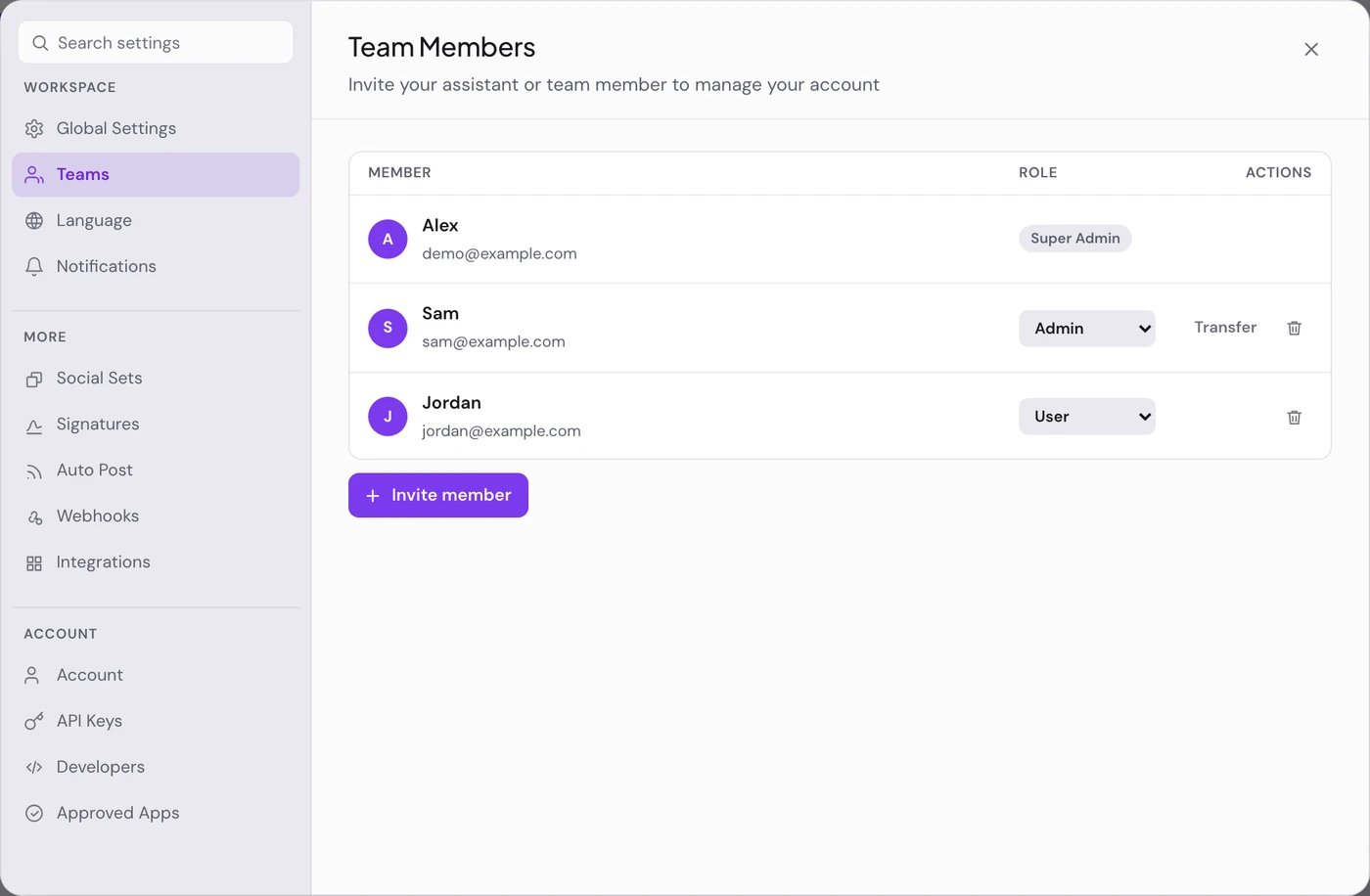
**Where:** **Settings > Teams**, in the Workspace group. Only Admins and Super Admins see it.
Team members work in the same workspace as you: the same channels, calendar, media and analytics. Team members come with the Growth, Pro and Ultimate plans; on Creator only the owner uses the workspace. See [Plans](/cloud/plans).
 ## Invite a member
In **Settings > Teams**, choose **Invite member**. The **Add Member** pane opens.
Under **Role**, choose **User** or **Admin**. The next section explains the difference.
Leave **Send invitation via email?** checked, enter the **Email** and choose **Send Invitation Link**. To share the link yourself, clear it and choose **Copy Link**.
The email arrives from PostQueen with your name and the workspace name in the subject. The link expires after 2 days. The person signs in, or creates an account, from the link and lands in your workspace. Send a fresh invite if a link has expired.
## Roles
| Role | What it can do |
| --------------- | ------------------------------------------------------------------------------------------------------------------------------ |
| **Super Admin** | The workspace owner. Everything an Admin can do, plus renaming the workspace and handing ownership to an Admin |
| **Admin** | Billing, inviting and removing members, revealing and rotating the API key, OAuth apps, and approving apps that ask to sign in |
| **User** | Everything else: channels, posts, the calendar, media and analytics |
On each member's row you can:
* Change the **Role** of anyone whose role is below yours, to **User** or **Admin**.
* Remove anyone whose role is below yours with the trash button. Their account stays; they only leave this workspace.
* **Leave** the workspace yourself from your own row, after "Are you sure you want to leave this workspace?". Anyone can also leave from the workspace switcher: see [Leave a workspace](#leave-a-workspace).
## Leave a workspace
Any member can leave a workspace, whatever their role, as long as they belong to another workspace too.
At the bottom of the left rail, choose the workspace's name. **Leave workspace** is the last row of the list. It shows when you belong to more than one workspace.
Choose **Leave workspace**, then **Leave** after "Are you sure you want to leave this workspace?". It leaves the workspace you are in now.
PostQueen then moves you to another workspace you belong to. Your account stays, and the posts and channels of the workspace you left stay with that workspace.
* You cannot leave your only workspace. Your account needs one to sign in to.
* The last Super Admin cannot leave. [Hand the workspace over](#hand-the-workspace-to-someone-else) first.
## Hand the workspace to someone else
The new owner must already be an Admin. Change their **Role** to **Admin** if needed.
As the Super Admin, choose **Transfer** on their row, then **Transfer** again to confirm. They become Super Admin and you become an Admin.
## Share a published post with a client
On the calendar or in **Posts**, open **Preview Post** on a published post. The preview opens in a new tab.
Choose **Share with a client**. The link is copied, ready to paste anywhere.
Anyone with the link can read the post and its media without an account, so share it with care. Signed-in members of your workspace can leave **Comments** on that page.
## Good to know
* The preview link shows a post only once it is published. For a draft or a scheduled post the page reads "Post not found".
* PostQueen has no approval step. A scheduled post goes out at its time. To hold a post for review, save it as a draft and schedule it once it is approved. See [Create a post](/using/create-a-post).
* If the workspace moves to a plan without team members, every member except the Super Admin is switched off. Moving back to Growth or higher switches them on again, with the same roles.
* When the workspace has no active plan, Users see "A subscription is needed" and are asked to contact an admin. Only Admins and Super Admins can choose a plan.
## If something goes wrong
| Message | What to do |
| -------------------------------------------------------------------------------------------------------- | ------------------------------------------------------------------------------------------------------------------------------- |
| “A member with this email is already in the workspace” | They are already in. Check the member list. |
| “Your subscription does not include team members. Please upgrade your subscription to invite your team.” | Choose **Upgrade plan** and pick Growth or higher. |
| “Could not send the invitation, please try again” | Try again, or clear **Send invitation via email?** and share the link with **Copy Link** |
| “You cannot leave your only workspace” | Every account keeps at least one workspace. To leave PostQueen altogether, choose **Delete Account** in **Settings > Account**. |
| “The last Super Admin cannot leave the workspace” | Make another member an Admin and [hand the workspace over](#hand-the-workspace-to-someone-else), then leave. |
## Next steps
Which plans include team members.
Group channels by client and filter the calendar by them.
The API key only admins can reveal, and the apps you approved.
Every Settings tab, and who sees it.
## Invite a member
In **Settings > Teams**, choose **Invite member**. The **Add Member** pane opens.
Under **Role**, choose **User** or **Admin**. The next section explains the difference.
Leave **Send invitation via email?** checked, enter the **Email** and choose **Send Invitation Link**. To share the link yourself, clear it and choose **Copy Link**.
The email arrives from PostQueen with your name and the workspace name in the subject. The link expires after 2 days. The person signs in, or creates an account, from the link and lands in your workspace. Send a fresh invite if a link has expired.
## Roles
| Role | What it can do |
| --------------- | ------------------------------------------------------------------------------------------------------------------------------ |
| **Super Admin** | The workspace owner. Everything an Admin can do, plus renaming the workspace and handing ownership to an Admin |
| **Admin** | Billing, inviting and removing members, revealing and rotating the API key, OAuth apps, and approving apps that ask to sign in |
| **User** | Everything else: channels, posts, the calendar, media and analytics |
On each member's row you can:
* Change the **Role** of anyone whose role is below yours, to **User** or **Admin**.
* Remove anyone whose role is below yours with the trash button. Their account stays; they only leave this workspace.
* **Leave** the workspace yourself from your own row, after "Are you sure you want to leave this workspace?". Anyone can also leave from the workspace switcher: see [Leave a workspace](#leave-a-workspace).
## Leave a workspace
Any member can leave a workspace, whatever their role, as long as they belong to another workspace too.
At the bottom of the left rail, choose the workspace's name. **Leave workspace** is the last row of the list. It shows when you belong to more than one workspace.
Choose **Leave workspace**, then **Leave** after "Are you sure you want to leave this workspace?". It leaves the workspace you are in now.
PostQueen then moves you to another workspace you belong to. Your account stays, and the posts and channels of the workspace you left stay with that workspace.
* You cannot leave your only workspace. Your account needs one to sign in to.
* The last Super Admin cannot leave. [Hand the workspace over](#hand-the-workspace-to-someone-else) first.
## Hand the workspace to someone else
The new owner must already be an Admin. Change their **Role** to **Admin** if needed.
As the Super Admin, choose **Transfer** on their row, then **Transfer** again to confirm. They become Super Admin and you become an Admin.
## Share a published post with a client
On the calendar or in **Posts**, open **Preview Post** on a published post. The preview opens in a new tab.
Choose **Share with a client**. The link is copied, ready to paste anywhere.
Anyone with the link can read the post and its media without an account, so share it with care. Signed-in members of your workspace can leave **Comments** on that page.
## Good to know
* The preview link shows a post only once it is published. For a draft or a scheduled post the page reads "Post not found".
* PostQueen has no approval step. A scheduled post goes out at its time. To hold a post for review, save it as a draft and schedule it once it is approved. See [Create a post](/using/create-a-post).
* If the workspace moves to a plan without team members, every member except the Super Admin is switched off. Moving back to Growth or higher switches them on again, with the same roles.
* When the workspace has no active plan, Users see "A subscription is needed" and are asked to contact an admin. Only Admins and Super Admins can choose a plan.
## If something goes wrong
| Message | What to do |
| -------------------------------------------------------------------------------------------------------- | ------------------------------------------------------------------------------------------------------------------------------- |
| “A member with this email is already in the workspace” | They are already in. Check the member list. |
| “Your subscription does not include team members. Please upgrade your subscription to invite your team.” | Choose **Upgrade plan** and pick Growth or higher. |
| “Could not send the invitation, please try again” | Try again, or clear **Send invitation via email?** and share the link with **Copy Link** |
| “You cannot leave your only workspace” | Every account keeps at least one workspace. To leave PostQueen altogether, choose **Delete Account** in **Settings > Account**. |
| “The last Super Admin cannot leave the workspace” | Make another member an Admin and [hand the workspace over](#hand-the-workspace-to-someone-else), then leave. |
## Next steps
Which plans include team members.
Group channels by client and filter the calendar by them.
The API key only admins can reveal, and the apps you approved.
Every Settings tab, and who sees it.