> ## Documentation Index
> Fetch the complete documentation index at: https://docs.postqueen.ai/llms.txt
> Use this file to discover all available pages before exploring further.
> ## Agent Instructions
> PostQueen's hosted API is https://api.postqueen.ai. The public API base is https://api.postqueen.ai/public/v1 and takes the raw API key in the Authorization header, with no Bearer prefix.
> The MCP server for posting is https://api.postqueen.ai/mcp/YOUR_API_KEY (or /mcp with Authorization: Bearer YOUR_API_KEY). docs.postqueen.ai/mcp only searches these docs and cannot post.
> The API key is under Connections > API Keys in the app, and only workspace admins can see it.
# Sets, signatures and tags
> Save groups of channels as a set, sign every post the same way, and color the calendar with tags.
**Where:** **Settings > Social Sets** and **Settings > Signatures**, in the More group. The **More** group in the left rail links there too. Tags are at the bottom of the composer.
Three shortcuts for posts you write often. A social set saves a group of channels with their text and settings. A signature is a sign-off you add to posts. A tag colors a post on the calendar.
 ## Save a social set
Open **Social Sets** and choose **Add a social set**. The composer opens. If you have no channels yet, PostQueen sends you to connect one first.
Pick the channels, and add any text, media or channel settings you want every post from this set to start with. Channel tabs stay locked while you build a set ("You can't edit networks when creating a set").
Choose **Save Set**, give it a **Set Name**, then **Save**.
The list shows each set with **Edit** and **Delete**. From then on, **Create Post** and an empty calendar slot open **Select a Set** first. Pick a set to start from it, or choose **Continue without set**.
## Add a signature
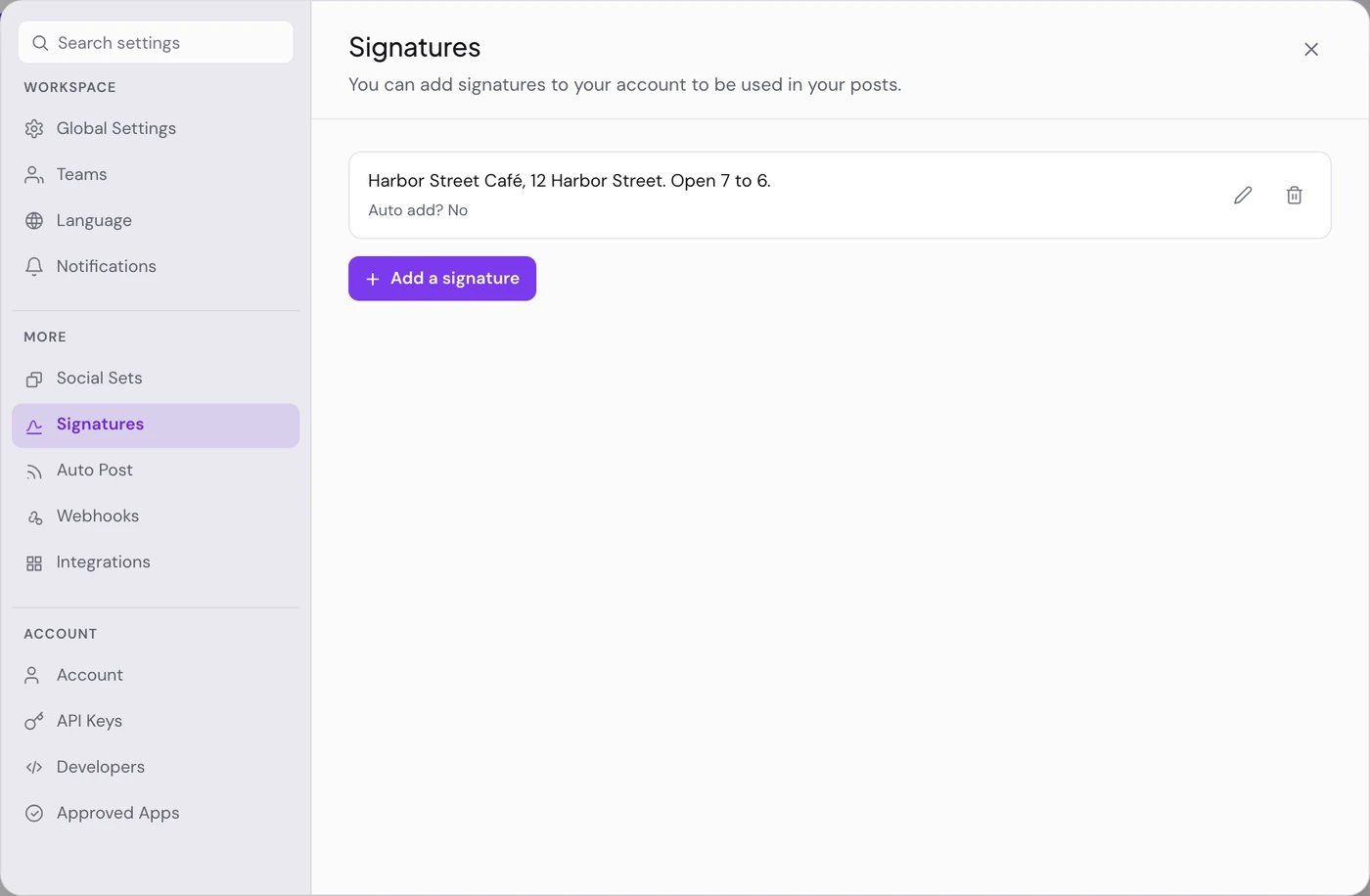
Open **Signatures**, choose **Add a signature**, and write the sign-off.
Check **Auto add signature?** to add it to every new post you start, from **Create Post** at the top or from an empty calendar slot. Only one signature in the workspace can have this on; checking it on one clears it on the others.
Choose **Save**. The list shows each signature with "Auto add?" **Yes** or **No**, plus **Edit** and **Delete**.
To add a signature to any post, use the signature button in the editor toolbar and choose **Use Signature** next to the one you want. It goes in at the end of the text, after a blank line.
## Tag a post
At the bottom of the composer, open the tag control. Empty, it reads **Add New Tag**.
Select existing tags, or choose **Add New Tag** and give the new one a **Name** and a **Tag Color**, then **Save**.
On the calendar, the post's stripe takes the color of its first tag.
## Good to know
* Sets, signatures and tags belong to the workspace, so everyone in it shares them.
* A tag is a calendar label, not a hashtag. It is never published.
* The tag list has no rename. To delete a tag, open the list and choose the cross next to a tag that is not selected; PostQueen asks first, by name. Deleting it removes it for the whole workspace.
* A set's content is where each post starts. You can still change anything in the composer before you save.
## If something goes wrong
| Message | What to do |
| ---------------------------------------------------------------- | ---------------------------------------------------------------------------------------------------------------------------------- |
| **Add a social set** sends you to connect a channel | A set is a saved selection of channels, so it needs at least one. [Connect a channel](/using/connect-a-channel), then add the set. |
| “Could not delete this set” or “Could not delete this signature” | Reload the page and try again. |
## Next steps
Start from a set, add a signature, and schedule it.
See your tags color the week.
Group channels by client and filter the calendar by customer.
Everything else under Settings.
## Save a social set
Open **Social Sets** and choose **Add a social set**. The composer opens. If you have no channels yet, PostQueen sends you to connect one first.
Pick the channels, and add any text, media or channel settings you want every post from this set to start with. Channel tabs stay locked while you build a set ("You can't edit networks when creating a set").
Choose **Save Set**, give it a **Set Name**, then **Save**.
The list shows each set with **Edit** and **Delete**. From then on, **Create Post** and an empty calendar slot open **Select a Set** first. Pick a set to start from it, or choose **Continue without set**.
## Add a signature
Open **Signatures**, choose **Add a signature**, and write the sign-off.
Check **Auto add signature?** to add it to every new post you start, from **Create Post** at the top or from an empty calendar slot. Only one signature in the workspace can have this on; checking it on one clears it on the others.
Choose **Save**. The list shows each signature with "Auto add?" **Yes** or **No**, plus **Edit** and **Delete**.
To add a signature to any post, use the signature button in the editor toolbar and choose **Use Signature** next to the one you want. It goes in at the end of the text, after a blank line.
## Tag a post
At the bottom of the composer, open the tag control. Empty, it reads **Add New Tag**.
Select existing tags, or choose **Add New Tag** and give the new one a **Name** and a **Tag Color**, then **Save**.
On the calendar, the post's stripe takes the color of its first tag.
## Good to know
* Sets, signatures and tags belong to the workspace, so everyone in it shares them.
* A tag is a calendar label, not a hashtag. It is never published.
* The tag list has no rename. To delete a tag, open the list and choose the cross next to a tag that is not selected; PostQueen asks first, by name. Deleting it removes it for the whole workspace.
* A set's content is where each post starts. You can still change anything in the composer before you save.
## If something goes wrong
| Message | What to do |
| ---------------------------------------------------------------- | ---------------------------------------------------------------------------------------------------------------------------------- |
| **Add a social set** sends you to connect a channel | A set is a saved selection of channels, so it needs at least one. [Connect a channel](/using/connect-a-channel), then add the set. |
| “Could not delete this set” or “Could not delete this signature” | Reload the page and try again. |
## Next steps
Start from a set, add a signature, and schedule it.
See your tags color the week.
Group channels by client and filter the calendar by customer.
Everything else under Settings.