> ## Documentation Index
> Fetch the complete documentation index at: https://docs.postqueen.ai/llms.txt
> Use this file to discover all available pages before exploring further.
> ## Agent Instructions
> PostQueen's hosted API is https://api.postqueen.ai. The public API base is https://api.postqueen.ai/public/v1 and takes the raw API key in the Authorization header, with no Bearer prefix.
> The MCP server for posting is https://api.postqueen.ai/mcp/YOUR_API_KEY (or /mcp with Authorization: Bearer YOUR_API_KEY). docs.postqueen.ai/mcp only searches these docs and cannot post.
> The API key is under Connections > API Keys in the app, and only workspace admins can see it.
# RSS Auto Post
> Check an RSS or Atom feed every hour and turn its newest item into a draft or a scheduled post on your channels.
**Where:** **Settings > Auto Post**, in the More group. The **More** group in the left rail links there too.
Auto Post checks a feed every hour. When the feed has a new item, PostQueen writes a post with the item's link and puts it on your calendar, as a draft for you to review or as a scheduled post. Every paid plan includes it.
 ## Add a feed
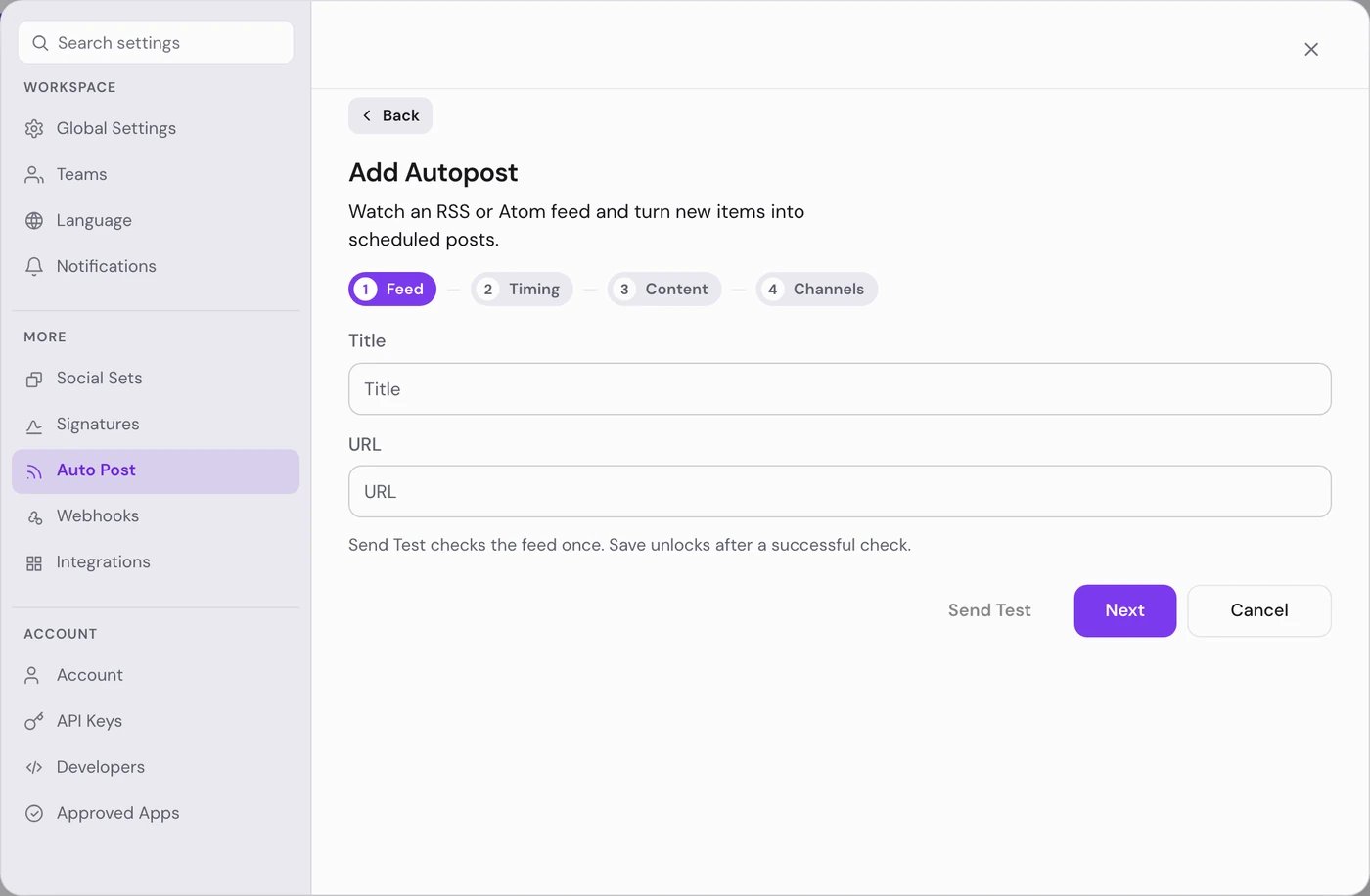
Choose **Add an autopost**. The form has four steps: **Feed**, **Timing**, **Content** and **Channels**. You need a connected channel first.
Enter a **Title** for your own use and the feed's **URL**, then choose **Send Test**. "RSS valid!" means PostQueen can read the feed. **Save** stays locked until the test passes.
Choose **Next** and answer each question, as in the table below.
Choose **All channels**, or **Specific channels** and select the ones you want.
Choose **Save**. "Autopost added successfully" confirms it. The first check runs right away.
| Step | Question | What the answers do |
| ------- | ----------------------------------------- | ---------------------------------------------------------------------------------------------------------------------------------------------------------------------------------------- |
| Timing | **Should we sync the current last post?** | **Yes** posts the item at the top of the feed on the first check. **No** marks it as seen, so only items published after it are posted. |
| Timing | **When should we post it?** | **Post on the next available slot** puts each post at the next free posting time. **Post Immediately** publishes it as soon as the item is found. Drafts always take the next free time. |
| Timing | **What should we do with new items?** | **Create a draft for review** (the default) or **Publish automatically**. See below. |
| Content | **Autogenerate content** | **Yes**: PostQueen writes a short post of about 100 characters from the item. **No**: every item uses your text from **Post content**. |
| Content | **Generate Picture?** | **Yes**: PostQueen generates an image for each item. |
## What happens to each new item
* Each hour PostQueen takes the newest item in the feed. If it took that item last time, nothing happens. When several items appear within one hour, only the newest is posted.
* The post is the text, a blank line, then the item's link.
* It goes on your calendar at the next free [posting time](/using/posting-times).
* With **Create a draft for review**, every chosen channel gets a draft. Nothing goes out until you open the draft and schedule it.
* With **Publish automatically**, the post is scheduled on each channel where it passes that network's checks. A channel that needs settings of its own, such as a title, gets a draft instead, and a notification names it. Channels that are disabled or need reconnecting are skipped.
For **Publish automatically**, pick channels that need nothing but text and a link, such as Bluesky or Nostr. A network that asks for a title or other settings on every post always falls back to a draft.
## Check that a feed can post
A feed's toggle and **Test connection** only tell you about the feed. A badge next to the feed's title tells you about its channels. Which channels count against the feed depends on what it does with new items:
* With **Publish automatically**, a channel counts when it is disabled, needs reconnecting, was never finished connecting, or was deleted, because the feed skips it.
* With **Create a draft for review**, only a deleted channel counts. A channel that is disabled or needs reconnecting still gets its drafts, so the feed is still running for it.
| Badge | What it means | What to do |
| ----------------------------- | ------------------------------------------------------------------------------------------------------------------------------------------------------------ | ----------------------------------------------------------------------------------- |
| **Not running** | None of the feed's chosen channels can take its posts. On a **Publish automatically** feed set to **All channels**, no channel in the workspace can publish. | Reconnect or enable the channels on **Channels**, or edit the feed and pick others. |
| **2/3 channels**, for example | Only that many of the feed's chosen channels can take its posts. | Fix the other channels, or edit the feed and remove them. |
With no badge, every chosen channel can take the feed's posts. A **Create a draft for review** feed set to **All channels** never shows a badge. Hover a badge for a one-line reminder.
What happens to new items meanwhile depends on the feed:
* With **Publish automatically**, the channels that cannot post are skipped. When none is left, the item is skipped for good and the bell shows "Autopost has no channel to post to".
* With **Create a draft for review**, channels that are disabled or need reconnecting still get their drafts, which wait for you to fix the channel.
See [Connect a channel](/using/connect-a-channel) to reconnect or enable a channel.
## Good to know
* Each saved feed has a toggle that pauses the hourly check and keeps the setup.
* **Test connection** on a saved feed reads it again and changes nothing.
## If something goes wrong
| Message | What to do |
| ------------------------------------------------------------------------------------------------------------------- | ------------------------------------------------------------------------------------------------------------------------------------------------------- |
| “Could not use this RSS feed” | The address is not a feed PostQueen can read, or the newest item has no link. Open the address in a browser and check it. |
| “URL must be a public HTTPS URL and cannot point to internal network addresses” | Use the feed's public `https://` address. |
| “Run Send Test on the Feed step before saving.” | Go back to **Feed** and choose **Send Test**. |
| “Pick at least one channel.” | Select a channel, or choose **All channels**. |
| “Autopost saved drafts instead of publishing” (notification) | The channels it names could not publish without their own settings. Open the drafts on the calendar and finish them. |
| “Autopost has no channel to post to” (notification), or **Not running** on the feed | None of the feed's channels can be used. Reconnect them, or edit the feed and pick other channels. The item that raised the notice is not posted later. |
| “Your subscription does not include Auto Post. Please upgrade your subscription to post from a feed automatically.” | Auto Post needs a paid plan. See [Plans](/cloud/plans). |
## Next steps
Set the time slots that feed items land on.
Review the drafts Auto Post creates.
The other direction: tell your tools when a post goes live.
Build your own feed workflow when you need more control.
## Add a feed
Choose **Add an autopost**. The form has four steps: **Feed**, **Timing**, **Content** and **Channels**. You need a connected channel first.
Enter a **Title** for your own use and the feed's **URL**, then choose **Send Test**. "RSS valid!" means PostQueen can read the feed. **Save** stays locked until the test passes.
Choose **Next** and answer each question, as in the table below.
Choose **All channels**, or **Specific channels** and select the ones you want.
Choose **Save**. "Autopost added successfully" confirms it. The first check runs right away.
| Step | Question | What the answers do |
| ------- | ----------------------------------------- | ---------------------------------------------------------------------------------------------------------------------------------------------------------------------------------------- |
| Timing | **Should we sync the current last post?** | **Yes** posts the item at the top of the feed on the first check. **No** marks it as seen, so only items published after it are posted. |
| Timing | **When should we post it?** | **Post on the next available slot** puts each post at the next free posting time. **Post Immediately** publishes it as soon as the item is found. Drafts always take the next free time. |
| Timing | **What should we do with new items?** | **Create a draft for review** (the default) or **Publish automatically**. See below. |
| Content | **Autogenerate content** | **Yes**: PostQueen writes a short post of about 100 characters from the item. **No**: every item uses your text from **Post content**. |
| Content | **Generate Picture?** | **Yes**: PostQueen generates an image for each item. |
## What happens to each new item
* Each hour PostQueen takes the newest item in the feed. If it took that item last time, nothing happens. When several items appear within one hour, only the newest is posted.
* The post is the text, a blank line, then the item's link.
* It goes on your calendar at the next free [posting time](/using/posting-times).
* With **Create a draft for review**, every chosen channel gets a draft. Nothing goes out until you open the draft and schedule it.
* With **Publish automatically**, the post is scheduled on each channel where it passes that network's checks. A channel that needs settings of its own, such as a title, gets a draft instead, and a notification names it. Channels that are disabled or need reconnecting are skipped.
For **Publish automatically**, pick channels that need nothing but text and a link, such as Bluesky or Nostr. A network that asks for a title or other settings on every post always falls back to a draft.
## Check that a feed can post
A feed's toggle and **Test connection** only tell you about the feed. A badge next to the feed's title tells you about its channels. Which channels count against the feed depends on what it does with new items:
* With **Publish automatically**, a channel counts when it is disabled, needs reconnecting, was never finished connecting, or was deleted, because the feed skips it.
* With **Create a draft for review**, only a deleted channel counts. A channel that is disabled or needs reconnecting still gets its drafts, so the feed is still running for it.
| Badge | What it means | What to do |
| ----------------------------- | ------------------------------------------------------------------------------------------------------------------------------------------------------------ | ----------------------------------------------------------------------------------- |
| **Not running** | None of the feed's chosen channels can take its posts. On a **Publish automatically** feed set to **All channels**, no channel in the workspace can publish. | Reconnect or enable the channels on **Channels**, or edit the feed and pick others. |
| **2/3 channels**, for example | Only that many of the feed's chosen channels can take its posts. | Fix the other channels, or edit the feed and remove them. |
With no badge, every chosen channel can take the feed's posts. A **Create a draft for review** feed set to **All channels** never shows a badge. Hover a badge for a one-line reminder.
What happens to new items meanwhile depends on the feed:
* With **Publish automatically**, the channels that cannot post are skipped. When none is left, the item is skipped for good and the bell shows "Autopost has no channel to post to".
* With **Create a draft for review**, channels that are disabled or need reconnecting still get their drafts, which wait for you to fix the channel.
See [Connect a channel](/using/connect-a-channel) to reconnect or enable a channel.
## Good to know
* Each saved feed has a toggle that pauses the hourly check and keeps the setup.
* **Test connection** on a saved feed reads it again and changes nothing.
## If something goes wrong
| Message | What to do |
| ------------------------------------------------------------------------------------------------------------------- | ------------------------------------------------------------------------------------------------------------------------------------------------------- |
| “Could not use this RSS feed” | The address is not a feed PostQueen can read, or the newest item has no link. Open the address in a browser and check it. |
| “URL must be a public HTTPS URL and cannot point to internal network addresses” | Use the feed's public `https://` address. |
| “Run Send Test on the Feed step before saving.” | Go back to **Feed** and choose **Send Test**. |
| “Pick at least one channel.” | Select a channel, or choose **All channels**. |
| “Autopost saved drafts instead of publishing” (notification) | The channels it names could not publish without their own settings. Open the drafts on the calendar and finish them. |
| “Autopost has no channel to post to” (notification), or **Not running** on the feed | None of the feed's channels can be used. Reconnect them, or edit the feed and pick other channels. The item that raised the notice is not posted later. |
| “Your subscription does not include Auto Post. Please upgrade your subscription to post from a feed automatically.” | Auto Post needs a paid plan. See [Plans](/cloud/plans). |
## Next steps
Set the time slots that feed items land on.
Review the drafts Auto Post creates.
The other direction: tell your tools when a post goes live.
Build your own feed workflow when you need more control.