> ## Documentation Index
> Fetch the complete documentation index at: https://docs.postqueen.ai/llms.txt
> Use this file to discover all available pages before exploring further.
> ## Agent Instructions
> PostQueen's hosted API is https://api.postqueen.ai. The public API base is https://api.postqueen.ai/public/v1 and takes the raw API key in the Authorization header, with no Bearer prefix.
> The MCP server for posting is https://api.postqueen.ai/mcp/YOUR_API_KEY (or /mcp with Authorization: Bearer YOUR_API_KEY). docs.postqueen.ai/mcp only searches these docs and cannot post.
> The API key is under Connections > API Keys in the app, and only workspace admins can see it.
# Create a post
> Write a post for one or many channels, add media and network settings, then schedule it, save a draft or post now.
**Where:** **Create Post** at the top of every page, or an empty slot on the [calendar](/using/calendar).
The composer writes one post for several channels at once. Each channel can keep the shared text or get its own version.
 ## Write and schedule a post
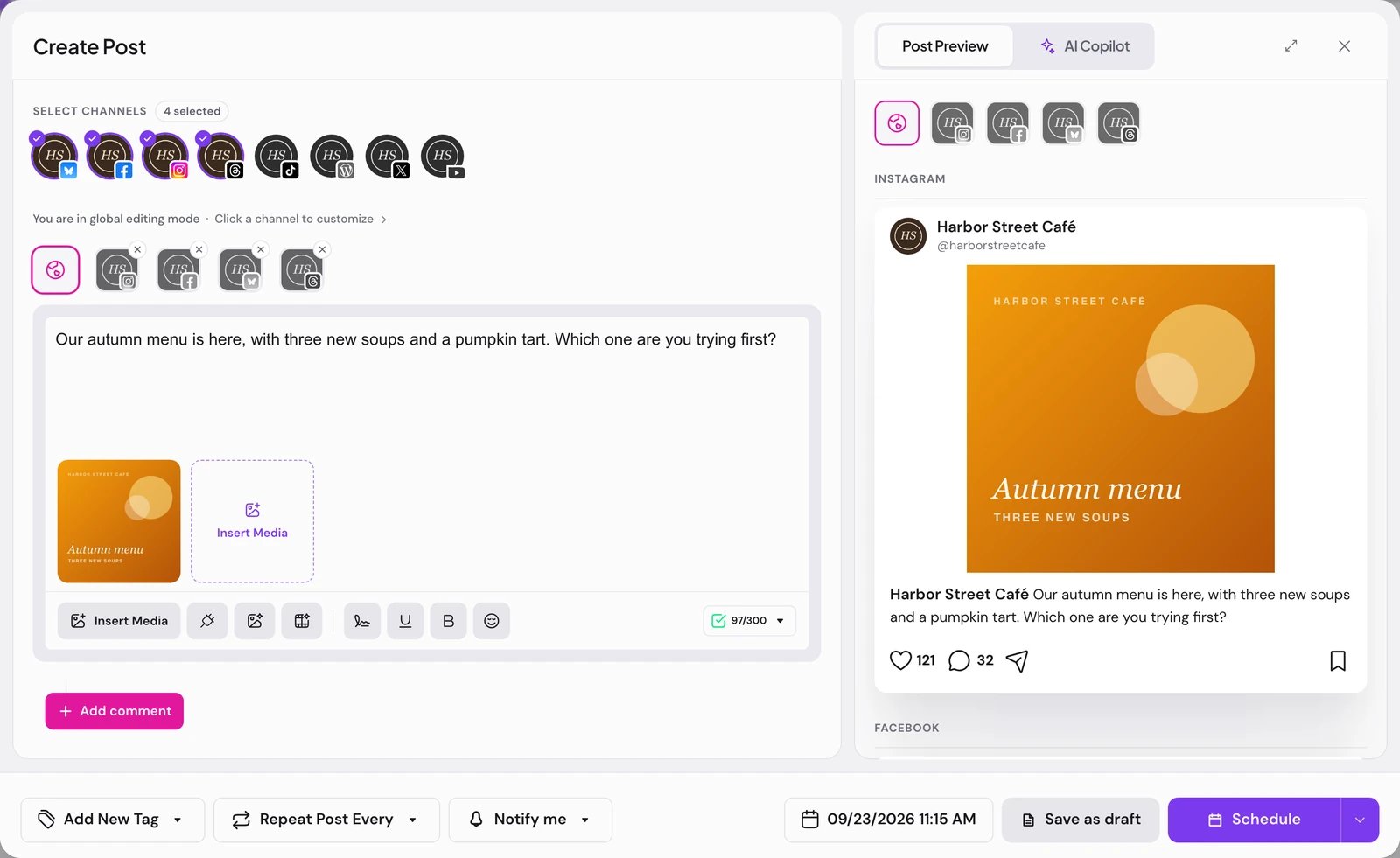
Choose **Create Post**. The arrow next to it offers **Blank post** and **AI post**; **AI post** opens **Generate Posts**, described on [AI Copilot](/using/ai-copilot). If your workspace has saved sets, **Select a Set** opens first: pick one, or choose **Continue without set**.
Click the channel avatars under **Select Channels**. Until one is picked, the editor reads "Select a channel to create a post." and the main button reads **Select Channels** and stays disabled. Once your channels are in more than one [customer](/using/customers) group, **Select Customer** picks all of one customer's channels at once.
You start in global mode: the text goes to every picked channel. Add pictures or video with **Insert Media**, by dropping files on the editor, or by pasting them. To attach comments or a thread, see [Comments and threads](/using/comments-and-threads).
The **Settings** section under the editor holds one card per picked channel that has options, such as a title or a post type. Open each card and fill in what the network requires.
The date chip starts on the first free quarter hour, one to four hours from now. Change it if you like, then choose **Schedule**. The toast confirms the time, and the post goes out at that minute.
## Give one channel its own version
Click a channel's avatar in the row above the editor, then **Edit content**. That channel takes a copy of the shared text, and from then on your edits there reach only that channel. A purple dot on its avatar ("No longer in global mode") and the line **Editing a Specific Network** mark it. **Back to global** drops the channel's own copy after you confirm.
On a channel's own tab you can also type `@` and two or more characters to look up accounts on networks that support mentions.
## Format the text
Select text, then use the buttons under the editor:
* **Bold Text** (Ctrl+B, or ⌘B on a Mac) and **Underline** (Ctrl+U, or ⌘U). Text is bold or underlined, not both: turning one on turns the other off.
* **Link**, **Bullets** and **Title** (headings 1 to 3) appear only on a channel's own tab, for WordPress, Listmonk, DEV, Hashnode, Discord, Whop and X.
Each network receives the formatting it can show:
| Network | What arrives |
| ---------------------------- | ------------------------------------------------------------------------------------------------------------------------------------------------------------------ |
| WordPress, Listmonk | HTML: headings, bullet lists, bold, underline and links stay formatted. |
| DEV, Hashnode, Discord, Whop | Markdown: `#` headings, `**bold**`, `__underline__`, `-` bullet lists and `[text](link)` links. |
| Telegram | Bold and underline stay formatted. Other formatting is removed and its text kept. |
| X | Articles keep their formatting, as described on [X](/channels/x-twitter). Posts and threads arrive as plain text, like the row below. |
| Every other network | Plain text. Bold and underline are sent as Unicode bold and underlined characters, bullet lists become lines that start with `-`, and links show as their address. |
Only the letters A to Z and the digits 0 to 9 have a Unicode bold or underlined form. Accented letters, other alphabets and symbols stay as you typed them.
## Put media in order
Drag a thumbnail under the editor to move it. The files are published in this order: it is the slide order of an Instagram carousel, and the first image is the cover of a TikTok photo post.
## The other controls at the bottom
| Control | What it does |
| ------------------------------------------------- | ----------------------------------------------------------------------------------------------------------------------------------------------------- |
| **Save as draft** | The post is stored at its date and nothing publishes it. A draft only needs text or media; network settings and length are checked when you schedule. |
| The arrow next to **Schedule**, then **Post now** | The post is published right away. |
| **Repeat Post Every** | The post is published again and again at the interval you pick. See [Repeat a post](#repeat-a-post). |
| **Notify me** or **Quiet** | **Quiet** skips the success notice for this post. You are still told if it fails. |
| The tag control | Colors the post on the calendar. See [tags](/using/sets-signatures-and-tags). |
## Repeat a post
Choose **Repeat Post Every**, then how often: **Every Day**, **Every Two Days**, **Every Three Days**, **Every Four Days**, **Every Five Days**, **Every Six Days**, **Every Week**, **Every Two Weeks** or **Every Month**. The control then shows your choice. Schedule the post as usual.
* After each publish, PostQueen waits the interval and publishes the same post again on each of its channels. It never stops by itself. The interval counts from the last publish, and **Every Month** is every 30 days.
* Every repeat is a normal publish: it sends notices, calls your [webhooks](/using/webhooks) and shows on the [calendar](/using/calendar).
* Before the first publish, stop the repeat by opening the post, choosing **Clear** at the bottom of the same menu, then **Update**.
* Once the post has gone out, the repeat menu is gone. To stop the repeat, open the post and choose **Stop repeating**, next to **Delete Post**. "Stop repeating this post?" asks you to confirm: "It will not be posted again. Everything it already published stays published." Choose **Stop repeating**, and "This post no longer repeats" confirms it. The calendar then shows the post on its first date only.
* Each channel's copy repeats on its own, so stop it on each channel it repeats on. If it cannot be stopped, the message says why, or reads "Could not stop this post from repeating, please try again".
## Good to know
* The right column opens on **AI Copilot**, which is locked during the [free trial](/cloud/trial), and switches to **Post Preview** once the post has text or media. See [AI Copilot](/using/ai-copilot).
* The badge under the editor counts characters against each channel's limit, and its details name any channel under **Links will be removed from** or **Comments cannot be published on**.
* PostQueen does not shorten links today. Links are published as you wrote them, and Settings has no **Shortlink Settings** card.
* An existing post opens as **Edit Post**. A scheduled post saves with **Update**, a draft with **Schedule**, and a published one shows **Duplicate Post** instead. Updating a post whose time has passed asks whether to **Just update the post details** or **Republish the post**.
* On X, the settings card has **Add Re-posters**: pick a **Delay** and your other X channels under **Accounts that will engage:** and they repost the post. X is **In review**: X can be connected once the free trial ends, or right away if you end the trial early.
## If something goes wrong
| Message | What to do |
| --------------------------------------------------------------------------------------------------------------------------------------------------------- | ------------------------------------------------------------------------------------------------------------ |
| “Your post should have at least one character or one image.” | Add text or media for the channel named before the message. |
| “Please fix your settings” (or the setting's own message) | The composer opens that channel's settings. Fill in the required field. |
| “post is too long, please fix it” | Shorten the text on that channel's own tab. |
| “Upload size limit exceeded. Maximum 1 GB per upload session.” | Upload fewer or smaller files at a time. |
| “Only a published post can be stopped from repeating. Edit the post to change its repeat.” | The post has not gone out yet. Open it, choose **Clear** in the **Repeat Post Every** menu, then **Update**. |
| “None of your channels can be posted to right now. They are disconnected, disabled, or still finishing setup. Check Channels, or your plan, to continue.” | Reconnect or enable the channel: see [Connect a channel](/using/connect-a-channel). |
## Next steps
Add a first comment or continue a thread, with a delay between parts.
Find the post, move it to another time, preview or share it.
Upload pictures and video once and reuse them in any post.
What each network can post, and which ones you can connect today.
## Write and schedule a post
Choose **Create Post**. The arrow next to it offers **Blank post** and **AI post**; **AI post** opens **Generate Posts**, described on [AI Copilot](/using/ai-copilot). If your workspace has saved sets, **Select a Set** opens first: pick one, or choose **Continue without set**.
Click the channel avatars under **Select Channels**. Until one is picked, the editor reads "Select a channel to create a post." and the main button reads **Select Channels** and stays disabled. Once your channels are in more than one [customer](/using/customers) group, **Select Customer** picks all of one customer's channels at once.
You start in global mode: the text goes to every picked channel. Add pictures or video with **Insert Media**, by dropping files on the editor, or by pasting them. To attach comments or a thread, see [Comments and threads](/using/comments-and-threads).
The **Settings** section under the editor holds one card per picked channel that has options, such as a title or a post type. Open each card and fill in what the network requires.
The date chip starts on the first free quarter hour, one to four hours from now. Change it if you like, then choose **Schedule**. The toast confirms the time, and the post goes out at that minute.
## Give one channel its own version
Click a channel's avatar in the row above the editor, then **Edit content**. That channel takes a copy of the shared text, and from then on your edits there reach only that channel. A purple dot on its avatar ("No longer in global mode") and the line **Editing a Specific Network** mark it. **Back to global** drops the channel's own copy after you confirm.
On a channel's own tab you can also type `@` and two or more characters to look up accounts on networks that support mentions.
## Format the text
Select text, then use the buttons under the editor:
* **Bold Text** (Ctrl+B, or ⌘B on a Mac) and **Underline** (Ctrl+U, or ⌘U). Text is bold or underlined, not both: turning one on turns the other off.
* **Link**, **Bullets** and **Title** (headings 1 to 3) appear only on a channel's own tab, for WordPress, Listmonk, DEV, Hashnode, Discord, Whop and X.
Each network receives the formatting it can show:
| Network | What arrives |
| ---------------------------- | ------------------------------------------------------------------------------------------------------------------------------------------------------------------ |
| WordPress, Listmonk | HTML: headings, bullet lists, bold, underline and links stay formatted. |
| DEV, Hashnode, Discord, Whop | Markdown: `#` headings, `**bold**`, `__underline__`, `-` bullet lists and `[text](link)` links. |
| Telegram | Bold and underline stay formatted. Other formatting is removed and its text kept. |
| X | Articles keep their formatting, as described on [X](/channels/x-twitter). Posts and threads arrive as plain text, like the row below. |
| Every other network | Plain text. Bold and underline are sent as Unicode bold and underlined characters, bullet lists become lines that start with `-`, and links show as their address. |
Only the letters A to Z and the digits 0 to 9 have a Unicode bold or underlined form. Accented letters, other alphabets and symbols stay as you typed them.
## Put media in order
Drag a thumbnail under the editor to move it. The files are published in this order: it is the slide order of an Instagram carousel, and the first image is the cover of a TikTok photo post.
## The other controls at the bottom
| Control | What it does |
| ------------------------------------------------- | ----------------------------------------------------------------------------------------------------------------------------------------------------- |
| **Save as draft** | The post is stored at its date and nothing publishes it. A draft only needs text or media; network settings and length are checked when you schedule. |
| The arrow next to **Schedule**, then **Post now** | The post is published right away. |
| **Repeat Post Every** | The post is published again and again at the interval you pick. See [Repeat a post](#repeat-a-post). |
| **Notify me** or **Quiet** | **Quiet** skips the success notice for this post. You are still told if it fails. |
| The tag control | Colors the post on the calendar. See [tags](/using/sets-signatures-and-tags). |
## Repeat a post
Choose **Repeat Post Every**, then how often: **Every Day**, **Every Two Days**, **Every Three Days**, **Every Four Days**, **Every Five Days**, **Every Six Days**, **Every Week**, **Every Two Weeks** or **Every Month**. The control then shows your choice. Schedule the post as usual.
* After each publish, PostQueen waits the interval and publishes the same post again on each of its channels. It never stops by itself. The interval counts from the last publish, and **Every Month** is every 30 days.
* Every repeat is a normal publish: it sends notices, calls your [webhooks](/using/webhooks) and shows on the [calendar](/using/calendar).
* Before the first publish, stop the repeat by opening the post, choosing **Clear** at the bottom of the same menu, then **Update**.
* Once the post has gone out, the repeat menu is gone. To stop the repeat, open the post and choose **Stop repeating**, next to **Delete Post**. "Stop repeating this post?" asks you to confirm: "It will not be posted again. Everything it already published stays published." Choose **Stop repeating**, and "This post no longer repeats" confirms it. The calendar then shows the post on its first date only.
* Each channel's copy repeats on its own, so stop it on each channel it repeats on. If it cannot be stopped, the message says why, or reads "Could not stop this post from repeating, please try again".
## Good to know
* The right column opens on **AI Copilot**, which is locked during the [free trial](/cloud/trial), and switches to **Post Preview** once the post has text or media. See [AI Copilot](/using/ai-copilot).
* The badge under the editor counts characters against each channel's limit, and its details name any channel under **Links will be removed from** or **Comments cannot be published on**.
* PostQueen does not shorten links today. Links are published as you wrote them, and Settings has no **Shortlink Settings** card.
* An existing post opens as **Edit Post**. A scheduled post saves with **Update**, a draft with **Schedule**, and a published one shows **Duplicate Post** instead. Updating a post whose time has passed asks whether to **Just update the post details** or **Republish the post**.
* On X, the settings card has **Add Re-posters**: pick a **Delay** and your other X channels under **Accounts that will engage:** and they repost the post. X is **In review**: X can be connected once the free trial ends, or right away if you end the trial early.
## If something goes wrong
| Message | What to do |
| --------------------------------------------------------------------------------------------------------------------------------------------------------- | ------------------------------------------------------------------------------------------------------------ |
| “Your post should have at least one character or one image.” | Add text or media for the channel named before the message. |
| “Please fix your settings” (or the setting's own message) | The composer opens that channel's settings. Fill in the required field. |
| “post is too long, please fix it” | Shorten the text on that channel's own tab. |
| “Upload size limit exceeded. Maximum 1 GB per upload session.” | Upload fewer or smaller files at a time. |
| “Only a published post can be stopped from repeating. Edit the post to change its repeat.” | The post has not gone out yet. Open it, choose **Clear** in the **Repeat Post Every** menu, then **Update**. |
| “None of your channels can be posted to right now. They are disconnected, disabled, or still finishing setup. Check Channels, or your plan, to continue.” | Reconnect or enable the channel: see [Connect a channel](/using/connect-a-channel). |
## Next steps
Add a first comment or continue a thread, with a delay between parts.
Find the post, move it to another time, preview or share it.
Upload pictures and video once and reuse them in any post.
What each network can post, and which ones you can connect today.