> ## Documentation Index
> Fetch the complete documentation index at: https://docs.postqueen.ai/llms.txt
> Use this file to discover all available pages before exploring further.
> ## Agent Instructions
> PostQueen's hosted API is https://api.postqueen.ai. The public API base is https://api.postqueen.ai/public/v1 and takes the raw API key in the Authorization header, with no Bearer prefix.
> The MCP server for posting is https://api.postqueen.ai/mcp/YOUR_API_KEY (or /mcp with Authorization: Bearer YOUR_API_KEY). docs.postqueen.ai/mcp only searches these docs and cannot post.
> The API key is under Connections > API Keys in the app, and only workspace admins can see it.
# Connections
> Connect an AI agent, the CLI or your own code to PostQueen: the agent cards with your MCP address, the API key, OAuth apps and the apps you approved.
**Where:** **Connect PostQueen** at the top of the left rail. It opens **Connections**.
Connections is where anything outside the app plugs into your workspace: AI agents over MCP, the `postqueen` CLI, the public API and automation tools. All of them use the workspace API key, and the cards show the address or header with your key already filled in.
 ## Connect an agent
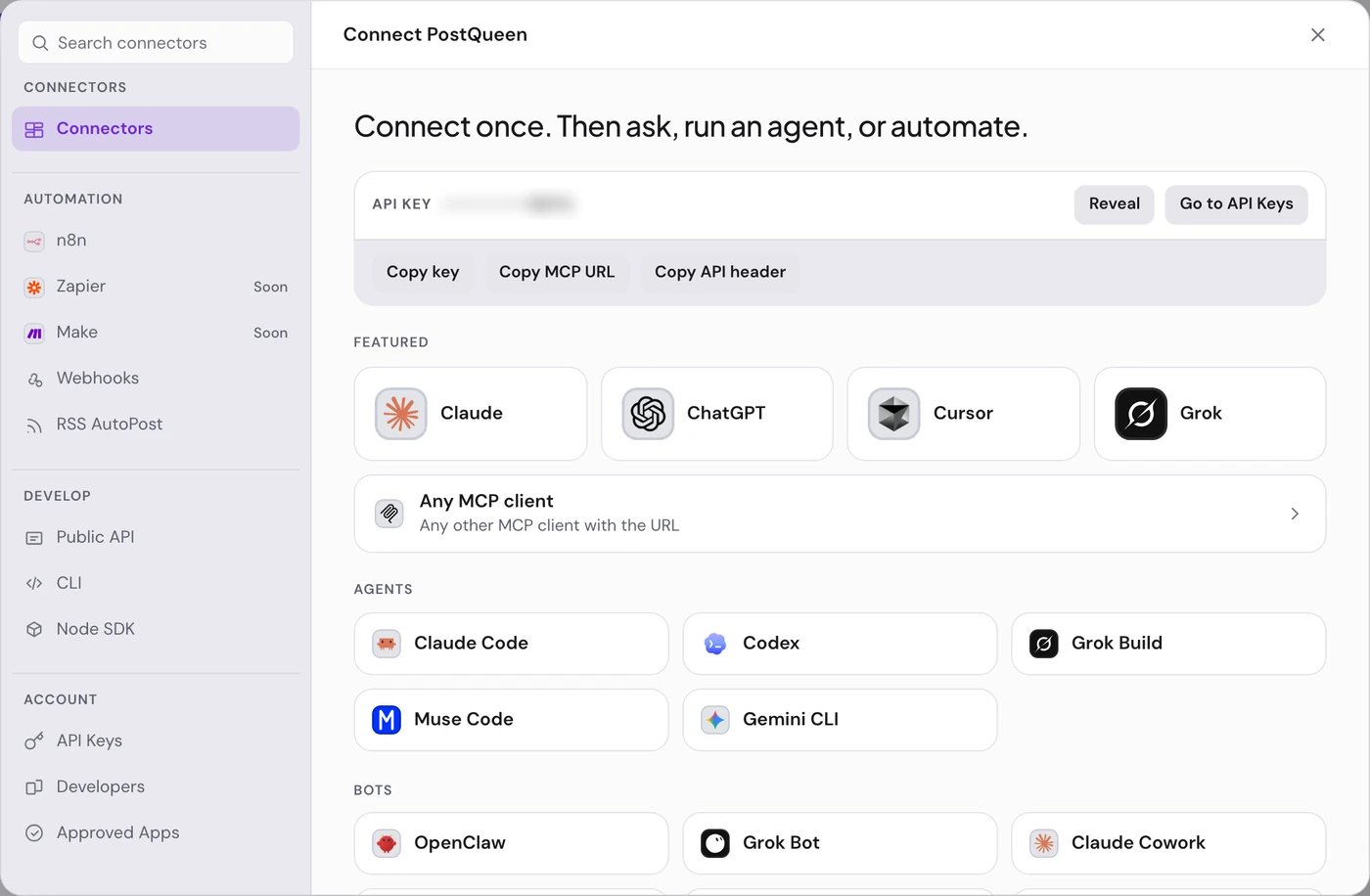
Under **Connectors**, pick a card from **Featured** or from a category, or type its name in **Search connectors**.
The card opens on **How to connect**: the agent's own steps, with the commands to copy.
The **API key** tab shows your key and, for an agent, the **MCP URL** with the key in it. Paste what the steps ask for into the agent.
When the card has **Examples**, try one of its prompts in the agent.
Only a workspace Admin or Super Admin sees the key. Other members see it masked, and pressing **Reveal** explains that "The API key is managed by admins". Ask an admin to connect the agent, or to share the address with you.
The agent pages in these docs say which setups PostQueen has tested: start at [AI agents](/agents/overview).
## What Connections holds
| Section | What is in it |
| -------------- | ----------------------------------------------------------------------------------------------------------------------------------------------------------- |
| **Connectors** | **Featured** cards for Claude, ChatGPT, Cursor and Grok, **Any MCP client**, then the **Agents**, **Bots**, **Chat**, **Editors** and **Automation** groups |
| **Automation** | n8n; Zapier and Make, marked **Soon**; **Webhooks** and **RSS AutoPost**, which open their tab in Settings |
| **Develop** | **Public API**, **CLI** and **Node SDK**, each with its setup steps |
| **Account** | **API Keys**, **Developers** and **Approved Apps** |
## Rotate the API key
In Connections, choose **API Keys** in the Account group.
Choose **Rotate key**, then **Rotate** to confirm. PostQueen makes a new key at once.
The old key stops working right away, so paste the new one, or the new MCP address, into every agent, script and n8n credential that used it.
A workspace has one key. Only an admin can reveal or rotate it.
## Your MCP address
| Address | How it signs in | Tools |
| -------------------------------------------- | ----------------------------------------------------- | --------------------------- |
| `https://api.postqueen.ai/mcp/YOUR_API_KEY` | The API key is part of the address | 21 |
| `https://api.postqueen.ai/mcp` | Header `Authorization: Bearer YOUR_API_KEY` | 21 |
| `https://api.postqueen.ai/mcp-oauth-dynamic` | Sign in with PostQueen, approved by a workspace admin | 20, all but `ask_postqueen` |
PostQueen has tested the key address (with Claude and ChatGPT) and the Bearer header (with Grok Bot). The sign-in address has not been tested end to end yet. Clients that still use the older SSE transport can connect to `https://api.postqueen.ai/sse/YOUR_API_KEY`.
`docs.postqueen.ai/mcp` is a different server: it searches these docs and cannot post. Use an address from the table above.
## Developers and Approved Apps
* **Developers** is for building your own product on PostQueen. An admin chooses **Create OAuth App** and fills in **App Name**, **Description**, **Profile Picture** and **Redirect URL**. The **Client Secret** is shown only when the app is created or the secret is rotated, so copy it then. A workspace has one OAuth app. See [OAuth apps](/public-api/oauth).
* **Approved Apps** lists the apps you approved, with the date. Only an Admin or Super Admin can approve an app, and an approved app can act for the whole workspace. Choose **Revoke** to cut an app off.
## If something goes wrong
| Message | What to do |
| ---------------------------------- | ------------------------------------------------------------------- |
| “The API key is managed by admins” | Only an Admin or Super Admin can reveal or rotate the key. Ask one. |
| “OAuth apps are managed by admins” | Only an Admin or Super Admin can create or change the OAuth app. |
## Next steps
Every agent PostQueen works with, and what each one can do.
The addresses, the tools and what an agent cannot do.
Install `postqueen` and run a first command.
Call PostQueen from your own code.
## Connect an agent
Under **Connectors**, pick a card from **Featured** or from a category, or type its name in **Search connectors**.
The card opens on **How to connect**: the agent's own steps, with the commands to copy.
The **API key** tab shows your key and, for an agent, the **MCP URL** with the key in it. Paste what the steps ask for into the agent.
When the card has **Examples**, try one of its prompts in the agent.
Only a workspace Admin or Super Admin sees the key. Other members see it masked, and pressing **Reveal** explains that "The API key is managed by admins". Ask an admin to connect the agent, or to share the address with you.
The agent pages in these docs say which setups PostQueen has tested: start at [AI agents](/agents/overview).
## What Connections holds
| Section | What is in it |
| -------------- | ----------------------------------------------------------------------------------------------------------------------------------------------------------- |
| **Connectors** | **Featured** cards for Claude, ChatGPT, Cursor and Grok, **Any MCP client**, then the **Agents**, **Bots**, **Chat**, **Editors** and **Automation** groups |
| **Automation** | n8n; Zapier and Make, marked **Soon**; **Webhooks** and **RSS AutoPost**, which open their tab in Settings |
| **Develop** | **Public API**, **CLI** and **Node SDK**, each with its setup steps |
| **Account** | **API Keys**, **Developers** and **Approved Apps** |
## Rotate the API key
In Connections, choose **API Keys** in the Account group.
Choose **Rotate key**, then **Rotate** to confirm. PostQueen makes a new key at once.
The old key stops working right away, so paste the new one, or the new MCP address, into every agent, script and n8n credential that used it.
A workspace has one key. Only an admin can reveal or rotate it.
## Your MCP address
| Address | How it signs in | Tools |
| -------------------------------------------- | ----------------------------------------------------- | --------------------------- |
| `https://api.postqueen.ai/mcp/YOUR_API_KEY` | The API key is part of the address | 21 |
| `https://api.postqueen.ai/mcp` | Header `Authorization: Bearer YOUR_API_KEY` | 21 |
| `https://api.postqueen.ai/mcp-oauth-dynamic` | Sign in with PostQueen, approved by a workspace admin | 20, all but `ask_postqueen` |
PostQueen has tested the key address (with Claude and ChatGPT) and the Bearer header (with Grok Bot). The sign-in address has not been tested end to end yet. Clients that still use the older SSE transport can connect to `https://api.postqueen.ai/sse/YOUR_API_KEY`.
`docs.postqueen.ai/mcp` is a different server: it searches these docs and cannot post. Use an address from the table above.
## Developers and Approved Apps
* **Developers** is for building your own product on PostQueen. An admin chooses **Create OAuth App** and fills in **App Name**, **Description**, **Profile Picture** and **Redirect URL**. The **Client Secret** is shown only when the app is created or the secret is rotated, so copy it then. A workspace has one OAuth app. See [OAuth apps](/public-api/oauth).
* **Approved Apps** lists the apps you approved, with the date. Only an Admin or Super Admin can approve an app, and an approved app can act for the whole workspace. Choose **Revoke** to cut an app off.
## If something goes wrong
| Message | What to do |
| ---------------------------------- | ------------------------------------------------------------------- |
| “The API key is managed by admins” | Only an Admin or Super Admin can reveal or rotate the key. Ask one. |
| “OAuth apps are managed by admins” | Only an Admin or Super Admin can create or change the OAuth app. |
## Next steps
Every agent PostQueen works with, and what each one can do.
The addresses, the tools and what an agent cannot do.
Install `postqueen` and run a first command.
Call PostQueen from your own code.