> ## Documentation Index
> Fetch the complete documentation index at: https://docs.postqueen.ai/llms.txt
> Use this file to discover all available pages before exploring further.
> ## Agent Instructions
> PostQueen's hosted API is https://api.postqueen.ai. The public API base is https://api.postqueen.ai/public/v1 and takes the raw API key in the Authorization header, with no Bearer prefix.
> The MCP server for posting is https://api.postqueen.ai/mcp/YOUR_API_KEY (or /mcp with Authorization: Bearer YOUR_API_KEY). docs.postqueen.ai/mcp only searches these docs and cannot post.
> The API key is under Connections > API Keys in the app, and only workspace admins can see it.
# The app at a glance
> Where everything is in PostQueen: the left rail, the header, Settings and the account menu, plus the words the app uses.
**Where:** the left rail and the header, on every screen of the app.
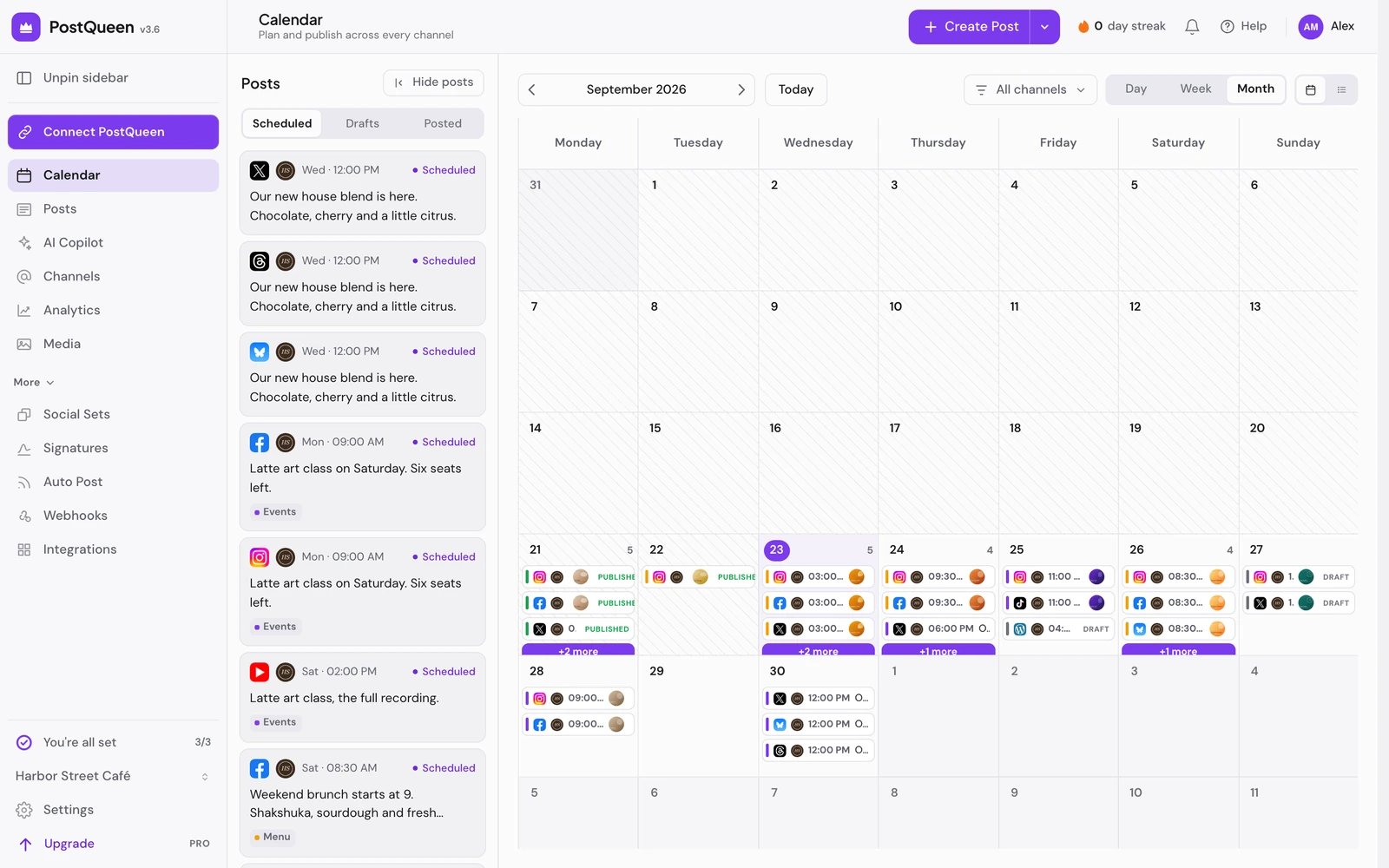
PostQueen has one layout: the left rail for moving around, a header with **Create Post** and your menus, and the page in the middle. This page maps each part and lists the words the app uses.
For a guided walk through the app, open **Help** in the header and choose **Take a tour**.
 ## The left rail
**Connect PostQueen** sits at the top of the rail. It opens [Connections](/using/connections): your AI agents, the MCP address, the CLI, the public API and the API key.
The first group has no heading:
| Item | What it opens |
| -------------- | -------------------------------------------------------------------------------------------------------------------------------------------------- |
| **Calendar** | Your posts on a week grid, with day and month views. See [The calendar](/using/calendar) |
| **Posts** | The same posts as a list |
| **AI Copilot** | A chat that drafts, schedules and edits posts. See [AI Copilot](/using/ai-copilot) |
| **Channels** | Your connected channels, **Add Channel**, and each channel's options, including **Automations**. See [Connect a channel](/using/connect-a-channel) |
| **Analytics** | Numbers from the networks that report them. See [Analytics](/using/analytics) |
| **Media** | Your media library. See [Media library](/using/media-library) |
The **More** group below it folds open and shut from its heading. Each item opens a tab of Settings: **Social Sets**, **Signatures**, **Auto Post**, **Webhooks** and **Integrations**.
The bottom of the rail holds:
* **Getting started**, a checklist with **Connect your channel**, **Create a post** and **Publish a post**. When all three are done, **Got it** puts it away.
* The workspace switcher. It shows the current workspace's name and lists every workspace you belong to. When you belong to more than one, **Leave workspace** at the end of the list leaves the current one: see [Leave a workspace](/using/team#leave-a-workspace).
* **Settings**.
* For workspace admins, a row to the Billing page. It reads **Upgrade**, **Billing & invoices** on the Ultimate plan, or **Founding member** for founding members.
**Unpin sidebar** at the top shrinks the rail to icons, and **Pin sidebar** brings the labels back. On a phone, the rail opens from the menu button in the header.
## The header
* **Create Post** opens a new post. The arrow next to it offers **Blank post** and **AI post**, which opens **Generate Posts**: it writes a post or a thread from your prompt and opens it in the composer for you to check. With no channel connected yet, **Create Post** opens **Add Channel** instead. If the workspace has Social Sets, you first choose one in **Select a Set**, or **Continue without set**.
* Your posting streak, and the bell for **Notifications**. See [Notifications and your posting streak](/using/notifications).
* **Help**: **Take a tour**, **Documentation**, **Contact support** and **Report a bug**.
* Your avatar opens the account menu: **Settings**, **Billing & invoices** for admins (**Lifetime deal** for founding members), **Affiliate** when it is offered, **Theme** for light or dark, and **Sign out**.
## Settings
Settings opens over the page you were on, with its tabs in three groups:
| Group | Tabs |
| --------- | ------------------------------------------------------------------------------ |
| Workspace | **Global Settings**, **Teams**, **Language**, **Notifications** |
| More | **Social Sets**, **Signatures**, **Auto Post**, **Webhooks**, **Integrations** |
| Account | **Account**, **API Keys**, **Developers**, **Approved Apps** |
**Search settings** at the top filters the list. What each tab holds, and who sees it: [Settings](/using/settings).
## Words the app uses
| In the app | What it means | In the API and MCP |
| ---------- | -------------------------------------------------------------------------------------------------------------------------------------- | ------------------ |
| Workspace | What a team shares: channels, posts, media, billing and the API key | organization |
| Channel | One connected account or page on a network | integration |
| Customer | A name that groups channels for one client or brand, so you can filter by it. See [Customers](/using/customers) | group |
| Post group | One channel's post together with its thread or comments. Deleting a post from the calendar deletes its whole group | group |
| Draft | A post with a date that does not publish until someone schedules it | draft |
| Social Set | A saved starting point for a post: channels, their settings and text. See [Sets, signatures and tags](/using/sets-signatures-and-tags) | set |
## Next steps
Add a network, reconnect one, or remove it.
Write once for several channels, then schedule it, save a draft or post now.
Find, move, preview and share your scheduled posts.
What each plan includes, and the message you see at each limit.
## The left rail
**Connect PostQueen** sits at the top of the rail. It opens [Connections](/using/connections): your AI agents, the MCP address, the CLI, the public API and the API key.
The first group has no heading:
| Item | What it opens |
| -------------- | -------------------------------------------------------------------------------------------------------------------------------------------------- |
| **Calendar** | Your posts on a week grid, with day and month views. See [The calendar](/using/calendar) |
| **Posts** | The same posts as a list |
| **AI Copilot** | A chat that drafts, schedules and edits posts. See [AI Copilot](/using/ai-copilot) |
| **Channels** | Your connected channels, **Add Channel**, and each channel's options, including **Automations**. See [Connect a channel](/using/connect-a-channel) |
| **Analytics** | Numbers from the networks that report them. See [Analytics](/using/analytics) |
| **Media** | Your media library. See [Media library](/using/media-library) |
The **More** group below it folds open and shut from its heading. Each item opens a tab of Settings: **Social Sets**, **Signatures**, **Auto Post**, **Webhooks** and **Integrations**.
The bottom of the rail holds:
* **Getting started**, a checklist with **Connect your channel**, **Create a post** and **Publish a post**. When all three are done, **Got it** puts it away.
* The workspace switcher. It shows the current workspace's name and lists every workspace you belong to. When you belong to more than one, **Leave workspace** at the end of the list leaves the current one: see [Leave a workspace](/using/team#leave-a-workspace).
* **Settings**.
* For workspace admins, a row to the Billing page. It reads **Upgrade**, **Billing & invoices** on the Ultimate plan, or **Founding member** for founding members.
**Unpin sidebar** at the top shrinks the rail to icons, and **Pin sidebar** brings the labels back. On a phone, the rail opens from the menu button in the header.
## The header
* **Create Post** opens a new post. The arrow next to it offers **Blank post** and **AI post**, which opens **Generate Posts**: it writes a post or a thread from your prompt and opens it in the composer for you to check. With no channel connected yet, **Create Post** opens **Add Channel** instead. If the workspace has Social Sets, you first choose one in **Select a Set**, or **Continue without set**.
* Your posting streak, and the bell for **Notifications**. See [Notifications and your posting streak](/using/notifications).
* **Help**: **Take a tour**, **Documentation**, **Contact support** and **Report a bug**.
* Your avatar opens the account menu: **Settings**, **Billing & invoices** for admins (**Lifetime deal** for founding members), **Affiliate** when it is offered, **Theme** for light or dark, and **Sign out**.
## Settings
Settings opens over the page you were on, with its tabs in three groups:
| Group | Tabs |
| --------- | ------------------------------------------------------------------------------ |
| Workspace | **Global Settings**, **Teams**, **Language**, **Notifications** |
| More | **Social Sets**, **Signatures**, **Auto Post**, **Webhooks**, **Integrations** |
| Account | **Account**, **API Keys**, **Developers**, **Approved Apps** |
**Search settings** at the top filters the list. What each tab holds, and who sees it: [Settings](/using/settings).
## Words the app uses
| In the app | What it means | In the API and MCP |
| ---------- | -------------------------------------------------------------------------------------------------------------------------------------- | ------------------ |
| Workspace | What a team shares: channels, posts, media, billing and the API key | organization |
| Channel | One connected account or page on a network | integration |
| Customer | A name that groups channels for one client or brand, so you can filter by it. See [Customers](/using/customers) | group |
| Post group | One channel's post together with its thread or comments. Deleting a post from the calendar deletes its whole group | group |
| Draft | A post with a date that does not publish until someone schedules it | draft |
| Social Set | A saved starting point for a post: channels, their settings and text. See [Sets, signatures and tags](/using/sets-signatures-and-tags) | set |
## Next steps
Add a network, reconnect one, or remove it.
Write once for several channels, then schedule it, save a draft or post now.
Find, move, preview and share your scheduled posts.
What each plan includes, and the message you see at each limit.