> ## Documentation Index
> Fetch the complete documentation index at: https://docs.postqueen.ai/llms.txt
> Use this file to discover all available pages before exploring further.
> ## Agent Instructions
> PostQueen's hosted API is https://api.postqueen.ai. The public API base is https://api.postqueen.ai/public/v1 and takes the raw API key in the Authorization header, with no Bearer prefix.
> The MCP server for posting is https://api.postqueen.ai/mcp/YOUR_API_KEY (or /mcp with Authorization: Bearer YOUR_API_KEY). docs.postqueen.ai/mcp only searches these docs and cannot post.
> The API key is under Connections > API Keys in the app, and only workspace admins can see it.
# n8n
> Install the n8n-nodes-postqueen community node, add your API key, and schedule posts from an n8n workflow.
[`n8n-nodes-postqueen`](https://www.npmjs.com/package/n8n-nodes-postqueen) is a community node for n8n. It creates, lists and deletes posts, uploads files, makes AI videos and lists your channels, through the PostQueen API with your API key. Everything it creates lands on the same calendar as the posts you write in the app.
This page describes version 1.0.3 of the node.
## Before you start
* **An n8n instance you run, where you are the Owner or an Admin.** n8n installs community nodes from npm only there. n8n Cloud installs only the community nodes n8n has verified, and this one is not verified yet. On n8n Cloud, call the API with the HTTP Request node instead, as shown in [Calls the node does not make](#calls-the-node-does-not-make).
* **A PostQueen workspace on a trial or a paid plan**, with at least one connected channel.
* **The API key**, from the box below.
**Where the API key is:** in the app, open **Connections > API Keys**. Only a workspace Admin or Super Admin can reveal or rotate it; other members see it masked. A workspace has one key, and each agent card on **Connections** shows your MCP address with the key already filled in.
## Install the node and add your key
In n8n, go to **Settings** > **Community Nodes** and select **Install**. Enter `n8n-nodes-postqueen` in **Enter npm package name**, check **I understand the risks of installing unverified code from a public source**, and select **Install**.
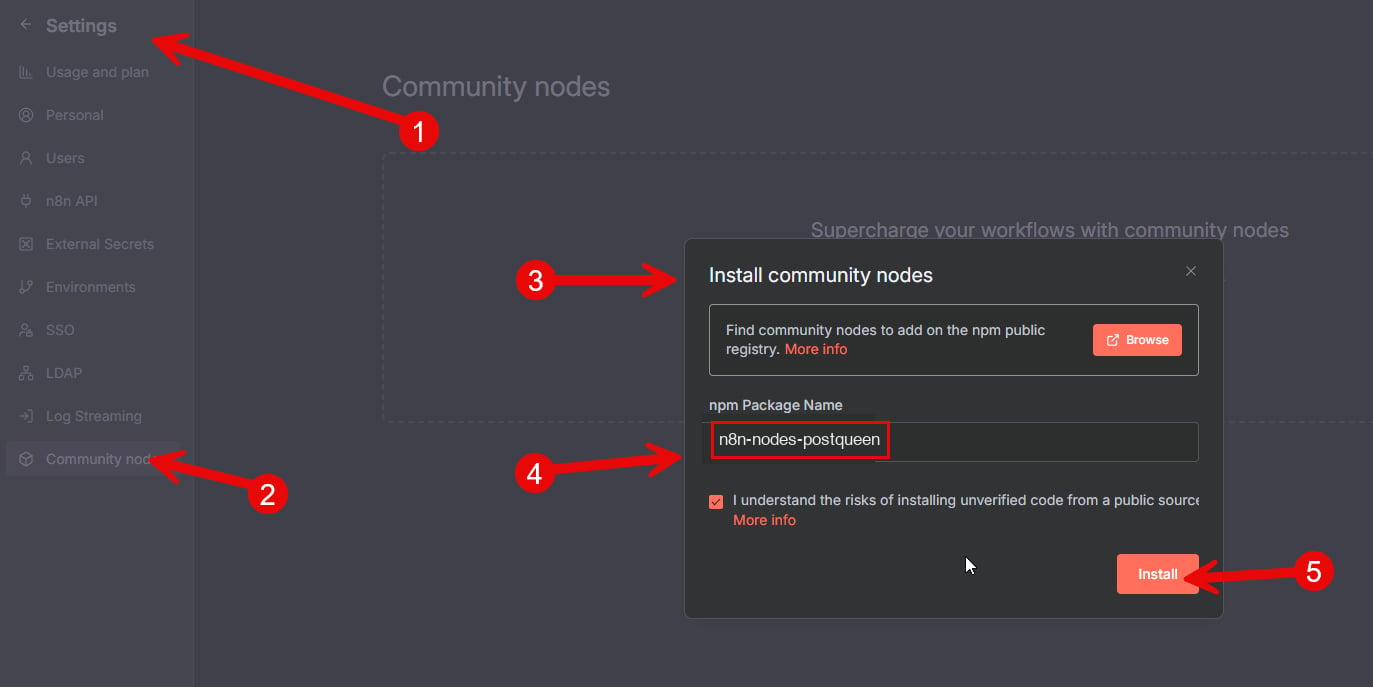 Add a **PostQueen** node to a workflow and create a new **PostQueen API** credential:
| Field | What to enter |
| ----------- | ------------------------------------------------------------------------------------------ |
| **API Key** | Your PostQueen API key, as it is. The node sends it in the `Authorization` header for you. |
| **Host** | Leave it at `https://api.postqueen.ai`. The node adds `/public/v1` itself. |
When you save, n8n tests the credential against the API's key check (`GET /public/v1/is-connected`).
Set the node's **Operation** to **Get Channels** and execute the node on its own.
Your connected channels come back, one item per channel, each with its `id`. That `id` is the **Channel ID** every post needs.
## Operations
| Operation | What it does | API call |
| ------------------ | ---------------------------------------------------------------------------- | ----------------------------------------------------- |
| **Create Post** | Saves a draft, schedules a post or publishes it now, on one or more channels | [`POST /posts`](/public-api/posts/create) |
| **Delete Post** | Deletes a post by its ID, with its whole thread | [`DELETE /posts/{id}`](/public-api/posts/delete) |
| **Generate Video** | Makes a video with AI and saves it to your media library | [`POST /generate-video`](/public-api/videos/generate) |
| **Get Channels** | Lists your connected channels, one item per channel | [`GET /integrations`](/public-api/integrations/list) |
| **Get Posts** | Lists posts between two dates, optionally for one customer | [`GET /posts`](/public-api/posts/list) |
| **Upload File** | Uploads an image or a video from a binary property | [`POST /upload`](/public-api/uploads/upload-file) |
| **Video Function** | Runs a video generator's helper, such as the list of voices | [`POST /video/function`](/public-api/videos/function) |
There is no PostQueen trigger node. A workflow starts from an n8n trigger, such as a Schedule Trigger, an RSS Feed Trigger or a webhook. To start a workflow when PostQueen publishes a post, point a [PostQueen webhook](/using/webhooks) at an n8n Webhook node.
### Create Post fields
| Field | What to enter |
| -------------- | ---------------------------------------------------------------------------------------------------------------------------------------------- |
| **Type** | **Draft**, **Schedule** or **Now**. It starts at **Now**, so a test run publishes: choose **Draft** while you build. |
| **Short Link** | On to replace links in the text with PostQueen short links. PostQueen has no link shortener set up today, so links stay as written either way. |
| **Date** | When the post goes out. Required for every type. A time with no offset is read as UTC. |
| **Tags** | Optional. Each tag needs a **Value** and a **Label**. Only tags that already exist in the workspace are attached, matched by **Label**. |
| **Posts** | One **Post** per channel. At least one is required, drafts included. |
Inside each **Post**:
| Field | What to enter |
| ----------------- | ------------------------------------------------------------------------------------------------------------------------------------------------------------------------------------------- |
| **Channel ID** | The `id` from **Get Channels**. |
| **Group** | Leave it empty. A group id that already exists replaces the posts that have it. |
| **Settings** | The network's settings, one **Setting** per key: **Key**, **Value Type** (String, Number, Boolean or JSON) and **Value**. Leave it empty for networks with none, such as Bluesky and Nostr. |
| **Content Items** | The post, then each entry of its thread. Each **Content Item** has **Content**, an optional **ID**, and **Images**. |
| **Images** | Each **Image** needs the **ID** and **Path** that **Upload File** returned. |
Leave a content item's **ID** empty to create a new post. The ID of an existing post changes that post instead.
A WordPress post, for example, needs two settings:
| Key | Value Type | Value |
| ------- | ---------- | ---------------------------------- |
| `title` | String | `A calendar that shows everything` |
| `type` | String | `posts` |
What each network needs is on [Posting settings by network](/public-api/providers/overview).
### Other fields
* **Get Posts:** **Start Date (UTC)**, **End Date (UTC)** and an optional **Customer** id.
* **Upload File:** **Binary Property**, the name of the binary field that holds the file. Most nodes that read files call it `data`. The node returns the stored file with its `id`, `path` and `status`. A video comes back `processing`: wait until it is `ready` before you post it (see [Get media status](/public-api/uploads/media-status)).
* **Generate Video:** **Video Type** is `image-text-slides` (the default, narrated slides) or `seedance` (Seedance 2.0, video with audio). **Output Format** is **Vertical** or **Horizontal**. Under **Custom Parameters**, add one **Parameter** per input the video type expects, with its **Key** and **Value**: `prompt` and `voice` for `image-text-slides`, with a voice ID from **Video Function**, and `prompt` and `images` for `seedance`. Seedance needs `images` even for a video from the prompt alone: set it to `[]`. A **Value** that is valid JSON, such as an array, is sent parsed, so `images` can be `[]` or up to three uploaded files as `[{"id": "...", "path": "https://..."}]`, with a lowercase `id`. The node waits while the video is made, which takes minutes, and returns the stored file: its `id` and `path` go into **Images** on Create Post. Each video uses one of your plan's AI video credits. The inputs are on [Generate a video](/public-api/videos/generate).
* **Video Function:** set **Function Name** to `loadVoices` and **Identifier** to `image-text-slides` to list the voices, each with the `id` that `voice` takes. **Additional Parameters** go to the function under `params`, parsed when a value is valid JSON. `loadVoices` takes none, so leave them empty.
* **Delete Post:** **Post ID**. When it works, the node outputs `{ "error": true }`: that is the API's answer to a successful delete. A post that does not exist stops the node with a 404.
## Build a workflow: new blog post to Bluesky
Add a **PostQueen** node to a workflow and create a new **PostQueen API** credential:
| Field | What to enter |
| ----------- | ------------------------------------------------------------------------------------------ |
| **API Key** | Your PostQueen API key, as it is. The node sends it in the `Authorization` header for you. |
| **Host** | Leave it at `https://api.postqueen.ai`. The node adds `/public/v1` itself. |
When you save, n8n tests the credential against the API's key check (`GET /public/v1/is-connected`).
Set the node's **Operation** to **Get Channels** and execute the node on its own.
Your connected channels come back, one item per channel, each with its `id`. That `id` is the **Channel ID** every post needs.
## Operations
| Operation | What it does | API call |
| ------------------ | ---------------------------------------------------------------------------- | ----------------------------------------------------- |
| **Create Post** | Saves a draft, schedules a post or publishes it now, on one or more channels | [`POST /posts`](/public-api/posts/create) |
| **Delete Post** | Deletes a post by its ID, with its whole thread | [`DELETE /posts/{id}`](/public-api/posts/delete) |
| **Generate Video** | Makes a video with AI and saves it to your media library | [`POST /generate-video`](/public-api/videos/generate) |
| **Get Channels** | Lists your connected channels, one item per channel | [`GET /integrations`](/public-api/integrations/list) |
| **Get Posts** | Lists posts between two dates, optionally for one customer | [`GET /posts`](/public-api/posts/list) |
| **Upload File** | Uploads an image or a video from a binary property | [`POST /upload`](/public-api/uploads/upload-file) |
| **Video Function** | Runs a video generator's helper, such as the list of voices | [`POST /video/function`](/public-api/videos/function) |
There is no PostQueen trigger node. A workflow starts from an n8n trigger, such as a Schedule Trigger, an RSS Feed Trigger or a webhook. To start a workflow when PostQueen publishes a post, point a [PostQueen webhook](/using/webhooks) at an n8n Webhook node.
### Create Post fields
| Field | What to enter |
| -------------- | ---------------------------------------------------------------------------------------------------------------------------------------------- |
| **Type** | **Draft**, **Schedule** or **Now**. It starts at **Now**, so a test run publishes: choose **Draft** while you build. |
| **Short Link** | On to replace links in the text with PostQueen short links. PostQueen has no link shortener set up today, so links stay as written either way. |
| **Date** | When the post goes out. Required for every type. A time with no offset is read as UTC. |
| **Tags** | Optional. Each tag needs a **Value** and a **Label**. Only tags that already exist in the workspace are attached, matched by **Label**. |
| **Posts** | One **Post** per channel. At least one is required, drafts included. |
Inside each **Post**:
| Field | What to enter |
| ----------------- | ------------------------------------------------------------------------------------------------------------------------------------------------------------------------------------------- |
| **Channel ID** | The `id` from **Get Channels**. |
| **Group** | Leave it empty. A group id that already exists replaces the posts that have it. |
| **Settings** | The network's settings, one **Setting** per key: **Key**, **Value Type** (String, Number, Boolean or JSON) and **Value**. Leave it empty for networks with none, such as Bluesky and Nostr. |
| **Content Items** | The post, then each entry of its thread. Each **Content Item** has **Content**, an optional **ID**, and **Images**. |
| **Images** | Each **Image** needs the **ID** and **Path** that **Upload File** returned. |
Leave a content item's **ID** empty to create a new post. The ID of an existing post changes that post instead.
A WordPress post, for example, needs two settings:
| Key | Value Type | Value |
| ------- | ---------- | ---------------------------------- |
| `title` | String | `A calendar that shows everything` |
| `type` | String | `posts` |
What each network needs is on [Posting settings by network](/public-api/providers/overview).
### Other fields
* **Get Posts:** **Start Date (UTC)**, **End Date (UTC)** and an optional **Customer** id.
* **Upload File:** **Binary Property**, the name of the binary field that holds the file. Most nodes that read files call it `data`. The node returns the stored file with its `id`, `path` and `status`. A video comes back `processing`: wait until it is `ready` before you post it (see [Get media status](/public-api/uploads/media-status)).
* **Generate Video:** **Video Type** is `image-text-slides` (the default, narrated slides) or `seedance` (Seedance 2.0, video with audio). **Output Format** is **Vertical** or **Horizontal**. Under **Custom Parameters**, add one **Parameter** per input the video type expects, with its **Key** and **Value**: `prompt` and `voice` for `image-text-slides`, with a voice ID from **Video Function**, and `prompt` and `images` for `seedance`. Seedance needs `images` even for a video from the prompt alone: set it to `[]`. A **Value** that is valid JSON, such as an array, is sent parsed, so `images` can be `[]` or up to three uploaded files as `[{"id": "...", "path": "https://..."}]`, with a lowercase `id`. The node waits while the video is made, which takes minutes, and returns the stored file: its `id` and `path` go into **Images** on Create Post. Each video uses one of your plan's AI video credits. The inputs are on [Generate a video](/public-api/videos/generate).
* **Video Function:** set **Function Name** to `loadVoices` and **Identifier** to `image-text-slides` to list the voices, each with the `id` that `voice` takes. **Additional Parameters** go to the function under `params`, parsed when a value is valid JSON. `loadVoices` takes none, so leave them empty.
* **Delete Post:** **Post ID**. When it works, the node outputs `{ "error": true }`: that is the API's answer to a successful delete. A post that does not exist stops the node with a 404.
## Build a workflow: new blog post to Bluesky
 Add an **RSS Feed Trigger**. Set **Feed URL** to your blog's feed and **Poll Times** to **Every Hour**.
Add a **PostQueen** node with **Operation** set to **Create Post** and **Type** set to **Draft** for now. Set **Date** to an expression, for an hour from the run:
```text theme={"system"}
{{ $now.plus({ hours: 1 }).toUTC().toISO() }}
```
Under **Posts**, add a **Post** with your Bluesky **Channel ID**. Add a **Content Item** and set **Content** to an expression:
```text theme={"system"}
{{ $json.title }} {{ $json.link }}
```
Bluesky takes 300 characters. To have a caption written for you, put an AI node between the trigger and PostQueen and use its output here.
Execute the workflow once and find the draft on your PostQueen calendar. When it looks right, set **Type** to **Schedule** and activate the workflow.
Each run of **Create Post** counts against the 30 requests to create posts a workspace can send in an hour, refused ones included, and each **Upload File** against 300 uploads an hour. Put several channels in one **Create Post** rather than one node per channel. The limits are on [Limits and errors](/public-api/limits-and-errors).
## Calls the node does not make
For any other endpoint, such as [Get media status](/public-api/uploads/media-status) or [analytics](/public-api/analytics/platform), use n8n's **HTTP Request** node:
1. Set **Authentication** to **Generic Credential Type** and **Generic Auth Type** to **Header Auth**.
2. Create a Header Auth credential with **Name** `Authorization` and **Value** your API key, as it is, with no `Bearer` prefix.
3. Set the URL to the endpoint under `https://api.postqueen.ai/public/v1`, for example:
```text theme={"system"}
https://api.postqueen.ai/public/v1/media/{{ $json.id }}/status
```
This also works on n8n Cloud, where the community node cannot be installed.
## If something goes wrong
Check that the key is pasted in full and that **Host** is `https://api.postqueen.ai`. A workspace with no plan answers `No subscription found`.
Restart n8n, then look again. Installing from npm needs the Owner or an Admin of the instance.
**Type** starts at **Now**. Choose **Draft** while you build the workflow.
The network needs settings on every post. Add them under **Settings** on the post. [Posting settings by network](/public-api/providers/overview) lists the required ones.
A post takes media whose **Path** ends in .png, .jpg, .jpeg, .gif, .webp or .mp4. Upload the file with **Upload File** and use the `path` it returns.
## Source
The node's source and issues.
Versions of the package.
## Next steps
From listing your channels to checking that the post went out.
The settings each network needs in a post, and which fields are required.
The hourly limits, and the status codes the API returns.
Call the API from JavaScript or TypeScript with @postqueen/node.
Add an **RSS Feed Trigger**. Set **Feed URL** to your blog's feed and **Poll Times** to **Every Hour**.
Add a **PostQueen** node with **Operation** set to **Create Post** and **Type** set to **Draft** for now. Set **Date** to an expression, for an hour from the run:
```text theme={"system"}
{{ $now.plus({ hours: 1 }).toUTC().toISO() }}
```
Under **Posts**, add a **Post** with your Bluesky **Channel ID**. Add a **Content Item** and set **Content** to an expression:
```text theme={"system"}
{{ $json.title }} {{ $json.link }}
```
Bluesky takes 300 characters. To have a caption written for you, put an AI node between the trigger and PostQueen and use its output here.
Execute the workflow once and find the draft on your PostQueen calendar. When it looks right, set **Type** to **Schedule** and activate the workflow.
Each run of **Create Post** counts against the 30 requests to create posts a workspace can send in an hour, refused ones included, and each **Upload File** against 300 uploads an hour. Put several channels in one **Create Post** rather than one node per channel. The limits are on [Limits and errors](/public-api/limits-and-errors).
## Calls the node does not make
For any other endpoint, such as [Get media status](/public-api/uploads/media-status) or [analytics](/public-api/analytics/platform), use n8n's **HTTP Request** node:
1. Set **Authentication** to **Generic Credential Type** and **Generic Auth Type** to **Header Auth**.
2. Create a Header Auth credential with **Name** `Authorization` and **Value** your API key, as it is, with no `Bearer` prefix.
3. Set the URL to the endpoint under `https://api.postqueen.ai/public/v1`, for example:
```text theme={"system"}
https://api.postqueen.ai/public/v1/media/{{ $json.id }}/status
```
This also works on n8n Cloud, where the community node cannot be installed.
## If something goes wrong
Check that the key is pasted in full and that **Host** is `https://api.postqueen.ai`. A workspace with no plan answers `No subscription found`.
Restart n8n, then look again. Installing from npm needs the Owner or an Admin of the instance.
**Type** starts at **Now**. Choose **Draft** while you build the workflow.
The network needs settings on every post. Add them under **Settings** on the post. [Posting settings by network](/public-api/providers/overview) lists the required ones.
A post takes media whose **Path** ends in .png, .jpg, .jpeg, .gif, .webp or .mp4. Upload the file with **Upload File** and use the `path` it returns.
## Source
The node's source and issues.
Versions of the package.
## Next steps
From listing your channels to checking that the post went out.
The settings each network needs in a post, and which fields are required.
The hourly limits, and the status codes the API returns.
Call the API from JavaScript or TypeScript with @postqueen/node.