> ## Documentation Index
> Fetch the complete documentation index at: https://docs.postqueen.ai/llms.txt
> Use this file to discover all available pages before exploring further.
# X (Twitter) setup
> Register the X (Twitter) application and give PostQueen its keys
On your own instance the X app is yours: create it in the X developer portal, then put its API key and secret in your environment.
X is a bit different.
They created an oAuth2 flow, but it works only with Twitter v2 API.
But in order to upload pictures to X, you need to use the old Twitter v1 API.
So you are going to use the normal oAuth1 flow for that (that supports Twitter v2 also 🤷🏻).
Head over the [Twitter developers page](https://developer.twitter.com/en/portal/dashboard) and create a new app.
Click to sign-up for a new free account
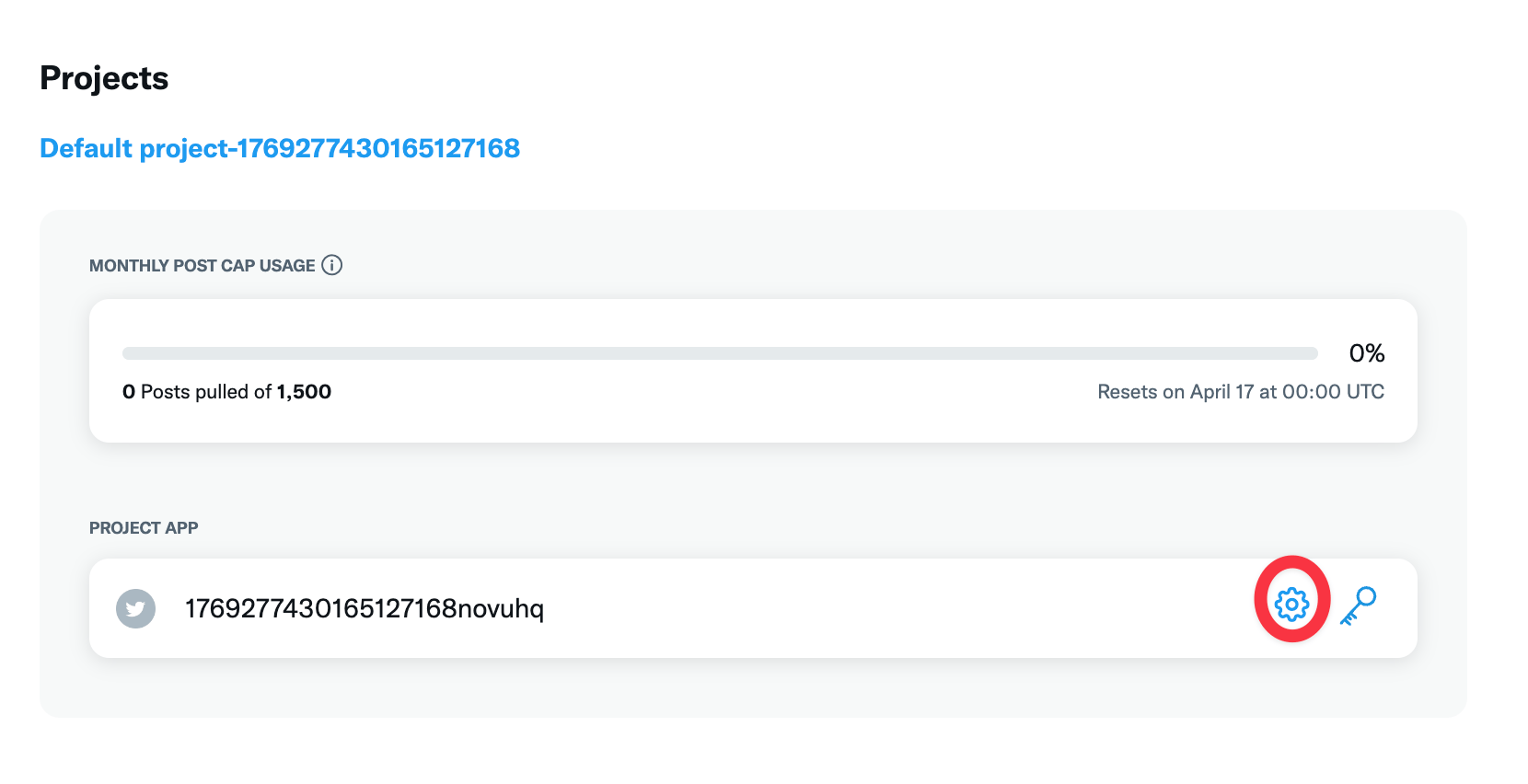
 Click to edit the application settings
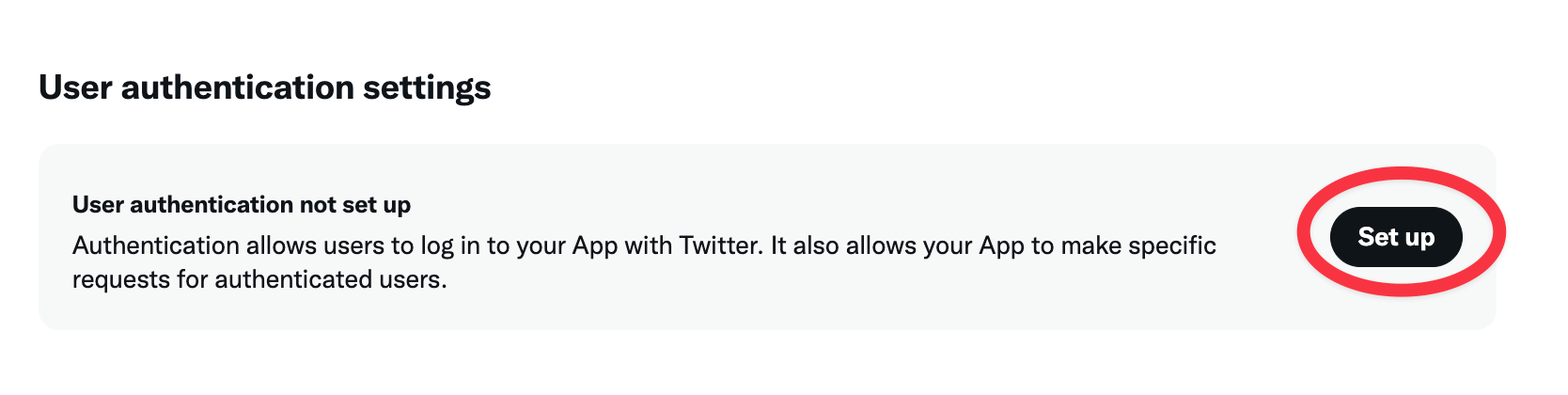
 Click to set up an authentication flow
 * In the App Permission set it to `Read and Write`
* In the Type of App set it to `Native App`
* In the App Info set the `Callback URI / Redirect URL`
You must select `Native App` for OAuth 1.0a to work correctly. Selecting `Web App, Automated App or Bot` will cause authentication to fail with error code 32.
**Your X OAuth2 Redirect URI:**
* Production: `https://postqueen.example.com/integrations/social/x`
* Local development: `http://localhost:4200/integrations/social/x`
* Docker: `http://localhost:4007/integrations/social/x`
* If X requires HTTPS for localhost: `https://redirectmeto.com/http://localhost:4200/integrations/social/x`
Save it and go to "Keys and Tokens" tab.
Click on "Regenerate" inside "Consumer Keys" and copy the `API Key` and `API Key Secret`.
Open .env file and add the following:
```env theme={"system"}
X_API_KEY=""
X_API_SECRET=""
```
## Optional environment variables
* `X_URL`: override the base used to build the X OAuth **callback**, which becomes `/integrations/social/x`. Defaults to `FRONTEND_URL`. It does not change which X API PostQueen talks to, and setting it to anything your registered callback does not match will break the connect.
* `DISABLE_X_ANALYTICS=true`: skip the analytics fetch on the X channel page. Useful if your X plan does not include analytics access and the failed call is noisy.
* `STRIP_LINKS_FROM_X_POSTS=true`: automatically remove URLs from post text before publishing. Some accounts see better reach with no links; this enforces it globally.
## Next steps
Limits, post types and settings
Every variable she reads
Invalid state, invalid\_grant and the rest
Every network, and what each one asks for
* In the App Permission set it to `Read and Write`
* In the Type of App set it to `Native App`
* In the App Info set the `Callback URI / Redirect URL`
You must select `Native App` for OAuth 1.0a to work correctly. Selecting `Web App, Automated App or Bot` will cause authentication to fail with error code 32.
**Your X OAuth2 Redirect URI:**
* Production: `https://postqueen.example.com/integrations/social/x`
* Local development: `http://localhost:4200/integrations/social/x`
* Docker: `http://localhost:4007/integrations/social/x`
* If X requires HTTPS for localhost: `https://redirectmeto.com/http://localhost:4200/integrations/social/x`
Save it and go to "Keys and Tokens" tab.
Click on "Regenerate" inside "Consumer Keys" and copy the `API Key` and `API Key Secret`.
Open .env file and add the following:
```env theme={"system"}
X_API_KEY=""
X_API_SECRET=""
```
## Optional environment variables
* `X_URL`: override the base used to build the X OAuth **callback**, which becomes `/integrations/social/x`. Defaults to `FRONTEND_URL`. It does not change which X API PostQueen talks to, and setting it to anything your registered callback does not match will break the connect.
* `DISABLE_X_ANALYTICS=true`: skip the analytics fetch on the X channel page. Useful if your X plan does not include analytics access and the failed call is noisy.
* `STRIP_LINKS_FROM_X_POSTS=true`: automatically remove URLs from post text before publishing. Some accounts see better reach with no links; this enforces it globally.
## Next steps
Limits, post types and settings
Every variable she reads
Invalid state, invalid\_grant and the rest
Every network, and what each one asks for