> ## Documentation Index
> Fetch the complete documentation index at: https://docs.postqueen.ai/llms.txt
> Use this file to discover all available pages before exploring further.
# Threads setup
> Register the Threads application and give PostQueen its keys
Threads runs on a Meta for Developers app that you create and PostQueen reads the keys of. On
PostQueen Cloud this is already done; these steps are for your own instance.
This integration requires that you have setup a Meta for Developers account already. You can start by going to the [Meta/Facebook Developer Portal](https://developers.facebook.com/apps).
This is a complex integration, and it may take some time to get it right. If you have any issues, please open an issue on [GitHub](https://github.com/GkhanKINAY/postqueen-app/issues) or email [support@postqueen.ai](mailto:support@postqueen.ai).
Threads requires the `THREADS_APP_ID` and `THREADS_APP_SECRET` environment variables on the **backend**. If either is missing or unset when the backend starts, Threads will not appear in the channel list at all. You will think the provider is broken when really the env vars never got loaded. After adding them, **restart PostQueen** and confirm Threads is offered in the Add Channel dialog before troubleshooting further.
Go to Meta for Developers and [create a new app](https://developers.facebook.com/apps/creation/). Give your app a name and email.
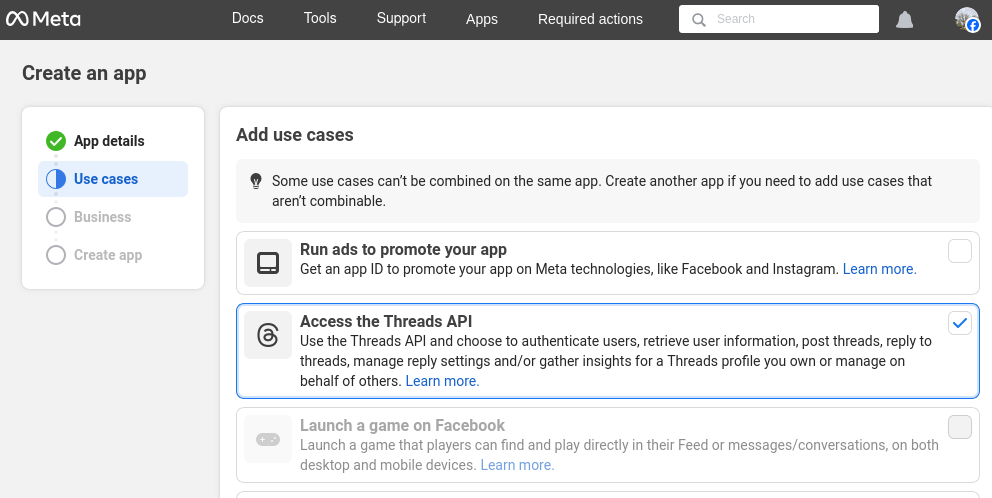
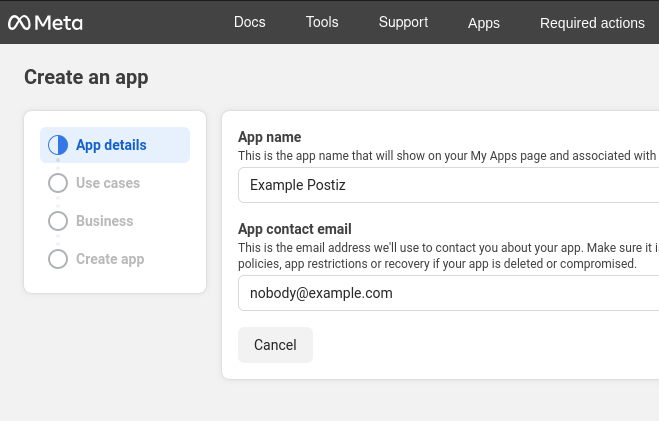 Select *Access the Threads API*.
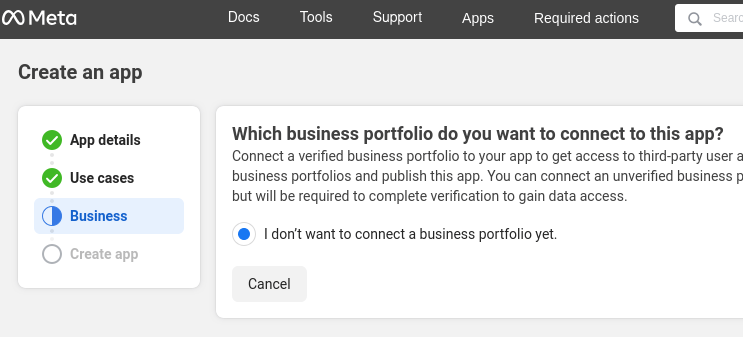 If you are unable to skip or move to the next step, and get a message saying "There are no business portfolios available to connect to this app", go to your [Meta Business Suite Settings](https://business.facebook.com/latest/settings/business_users) and make sure you have enabled Two-Factor Authentication (2FA) for your account.
You should not have any extra requirements to publish and maintain access.
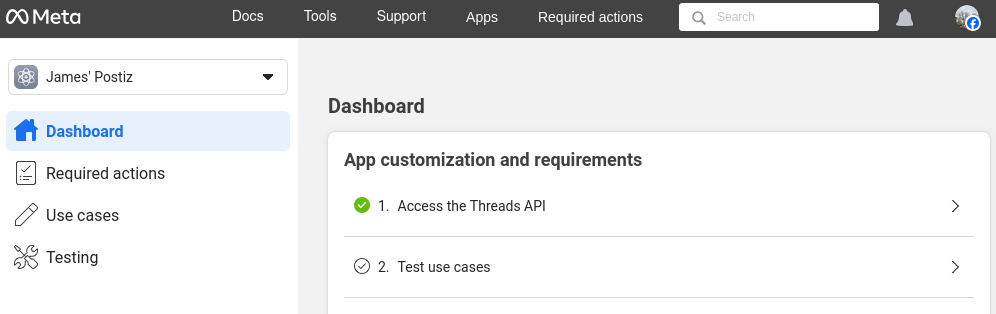
On the app dashboard, Select "Access the Threads API" to begin customizing the API access.
Add all four of these. `threads_basic` is selected for you; the other three are not:
* `threads_basic`
* `threads_content_publish`
* `threads_manage_replies`
* `threads_manage_insights`
If you are unable to skip or move to the next step, and get a message saying "There are no business portfolios available to connect to this app", go to your [Meta Business Suite Settings](https://business.facebook.com/latest/settings/business_users) and make sure you have enabled Two-Factor Authentication (2FA) for your account.
You should not have any extra requirements to publish and maintain access.
On the app dashboard, Select "Access the Threads API" to begin customizing the API access.
Add all four of these. `threads_basic` is selected for you; the other three are not:
* `threads_basic`
* `threads_content_publish`
* `threads_manage_replies`
* `threads_manage_insights`
 Threads is the one network where a missing scope does not stop the connect. The channel
appears, looks healthy, and then replies and analytics fail later with no obvious cause. Add
all four now rather than finding out which one you skipped a week from now.
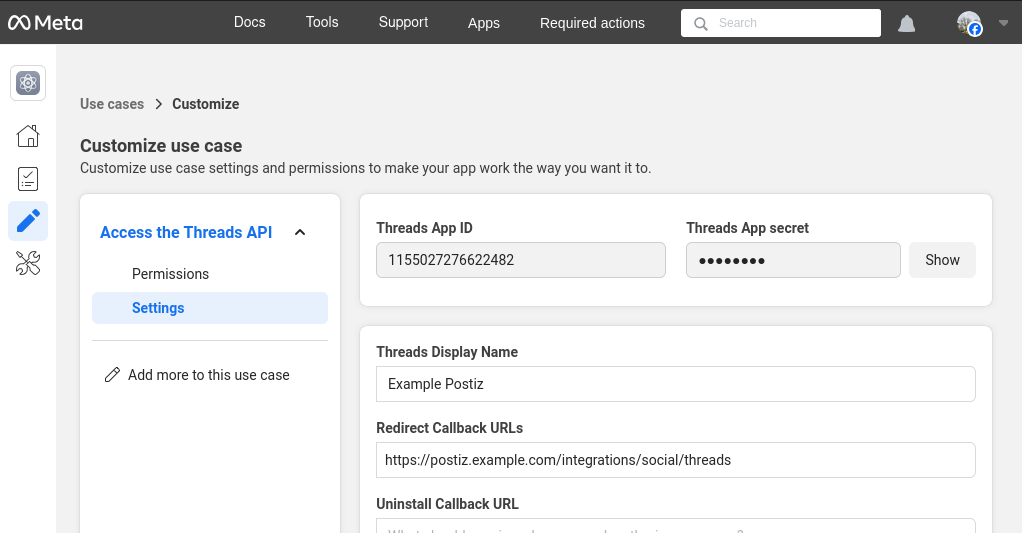
* Click the "Settings" tab. Copy your "Threads App ID", and set the postqueen environment variables `THREADS_APP_ID` to this value.
* Click the "Show" button next to the Threads App Secret, and set the postqueen environment variable `THREADS_APP_SECRET` to this value. Note that the next box is quite small, make sure you scroll across the copy the full value. It should be 32 characters long.
**Your Threads OAuth2 Redirect URI:**
* Production: `https://postqueen.example.com/integrations/social/threads`
* Local development: `https://redirectmeto.com/http://localhost:4200/integrations/social/threads`
* Docker: `https://redirectmeto.com/http://localhost:4007/integrations/social/threads`
Threads will not send a visitor back to a plain `http` address, so when your `FRONTEND_URL` is not `https` she wraps the callback through `redirectmeto.com` on its way home. That wrapped address is the literal string she sends to Threads, which makes it the one you register. Local development and Docker both fall into this case. Register the bare `localhost` URI instead and the login stops on Threads with a redirect mismatch.
You have to "click" the URL to make it active, otherwise the form will not save.
You can use the same value for the **Uninstall Callback URL** and **Delete Callback URL**, but note that PostQueen does not support either at this time. The form will not save unless you enter something.
Threads is the one network where a missing scope does not stop the connect. The channel
appears, looks healthy, and then replies and analytics fail later with no obvious cause. Add
all four now rather than finding out which one you skipped a week from now.
* Click the "Settings" tab. Copy your "Threads App ID", and set the postqueen environment variables `THREADS_APP_ID` to this value.
* Click the "Show" button next to the Threads App Secret, and set the postqueen environment variable `THREADS_APP_SECRET` to this value. Note that the next box is quite small, make sure you scroll across the copy the full value. It should be 32 characters long.
**Your Threads OAuth2 Redirect URI:**
* Production: `https://postqueen.example.com/integrations/social/threads`
* Local development: `https://redirectmeto.com/http://localhost:4200/integrations/social/threads`
* Docker: `https://redirectmeto.com/http://localhost:4007/integrations/social/threads`
Threads will not send a visitor back to a plain `http` address, so when your `FRONTEND_URL` is not `https` she wraps the callback through `redirectmeto.com` on its way home. That wrapped address is the literal string she sends to Threads, which makes it the one you register. Local development and Docker both fall into this case. Register the bare `localhost` URI instead and the login stops on Threads with a redirect mismatch.
You have to "click" the URL to make it active, otherwise the form will not save.
You can use the same value for the **Uninstall Callback URL** and **Delete Callback URL**, but note that PostQueen does not support either at this time. The form will not save unless you enter something.
 Go back to the 'Dashboard' view of the Facebook developers portal and click "Finish customization". Make sure you clicked through the setup wizard, and select "Yes I'm finished" to complete the setup. The API may not work until you have done this.
Stop PostQueen if it is running, and then start it again to pick up the new environment variables.
You should not try to add a Threads account to PostQueen at this time.
* In the sidebar go to "App roles" -> "roles".
* Select the "Testers" tab. Click "Add People".
* Under *Additional Roles for this App*, select *Threads Tester*.
* Enter usernames of the threads users you want to test the app. Probably your own username. Note that this is probably different from your Meta developers account which is tied to Facebook.
* On threads.com, open your [account settings](https://www.threads.net/settings/account);
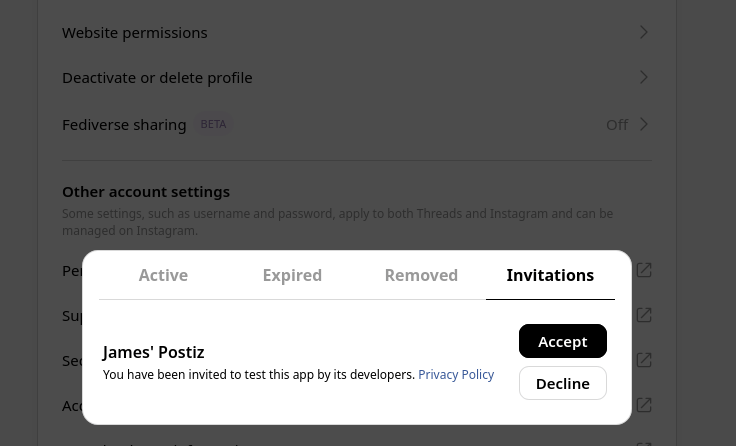
* Open [Website permissions](https://www.threads.com/settings/website_permissions), and switch to the "Invites" tab;
* If all has gone well, you should have a pending invite. Accept that invite.
Go back to the 'Dashboard' view of the Facebook developers portal and click "Finish customization". Make sure you clicked through the setup wizard, and select "Yes I'm finished" to complete the setup. The API may not work until you have done this.
Stop PostQueen if it is running, and then start it again to pick up the new environment variables.
You should not try to add a Threads account to PostQueen at this time.
* In the sidebar go to "App roles" -> "roles".
* Select the "Testers" tab. Click "Add People".
* Under *Additional Roles for this App*, select *Threads Tester*.
* Enter usernames of the threads users you want to test the app. Probably your own username. Note that this is probably different from your Meta developers account which is tied to Facebook.
* On threads.com, open your [account settings](https://www.threads.net/settings/account);
* Open [Website permissions](https://www.threads.com/settings/website_permissions), and switch to the "Invites" tab;
* If all has gone well, you should have a pending invite. Accept that invite.
 * Go back to the Meta developers portal, and in the sidebar, click *Testing*, and then open the *Open Graph API Explorer*.
* In the header, dropdown the API selector and change it to threads.net v1.
* Go back to the Meta developers portal, and in the sidebar, click *Testing*, and then open the *Open Graph API Explorer*.
* In the header, dropdown the API selector and change it to threads.net v1.
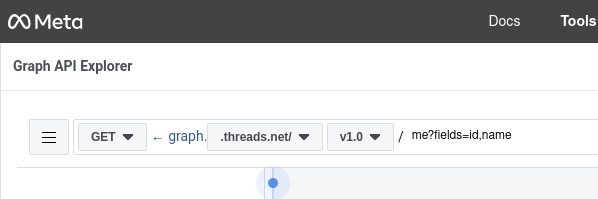 * In the right sidebar, under *Access Token*, click *Generate Threads Access Token*. This will open a new window where you can select the Threads account you want to test with - it should be an account that accepted the earlier invite. If everything has worked successfully you should be provided with a very long alphanumeric access token - you do not need to do anything with this, but it proves things are working correctly.
At this stage things should be working correctly, try a test post from PostQueen to confirm.
This is a complex integration, and it may take some time to get it right. If you have any issues, please open an issue on [GitHub](https://github.com/GkhanKINAY/postqueen-app/issues) or email [support@postqueen.ai](mailto:support@postqueen.ai).
The channel is in the left sidebar with its avatar and name. That is the whole confirmation: if it
is in the list, she can post to it.
## Next steps
Limits, post types and settings
Every variable she reads
Invalid state, invalid\_grant and the rest
Every network, and what each one asks for
* In the right sidebar, under *Access Token*, click *Generate Threads Access Token*. This will open a new window where you can select the Threads account you want to test with - it should be an account that accepted the earlier invite. If everything has worked successfully you should be provided with a very long alphanumeric access token - you do not need to do anything with this, but it proves things are working correctly.
At this stage things should be working correctly, try a test post from PostQueen to confirm.
This is a complex integration, and it may take some time to get it right. If you have any issues, please open an issue on [GitHub](https://github.com/GkhanKINAY/postqueen-app/issues) or email [support@postqueen.ai](mailto:support@postqueen.ai).
The channel is in the left sidebar with its avatar and name. That is the whole confirmation: if it
is in the list, she can post to it.
## Next steps
Limits, post types and settings
Every variable she reads
Invalid state, invalid\_grant and the rest
Every network, and what each one asks for