> ## Documentation Index
> Fetch the complete documentation index at: https://docs.postqueen.ai/llms.txt
> Use this file to discover all available pages before exploring further.
# Telegram setup
> Register the Telegram application and give PostQueen its keys
On your own instance you create the bot yourself and put its token in your environment.
1. Open Telegram and message [@BotFather](https://t.me/botfather).
2. Click Start
3. Click Menu
* Click "Create a new bot"
* Enter a name for your bot (e.g., `MyPostQueenBot`).
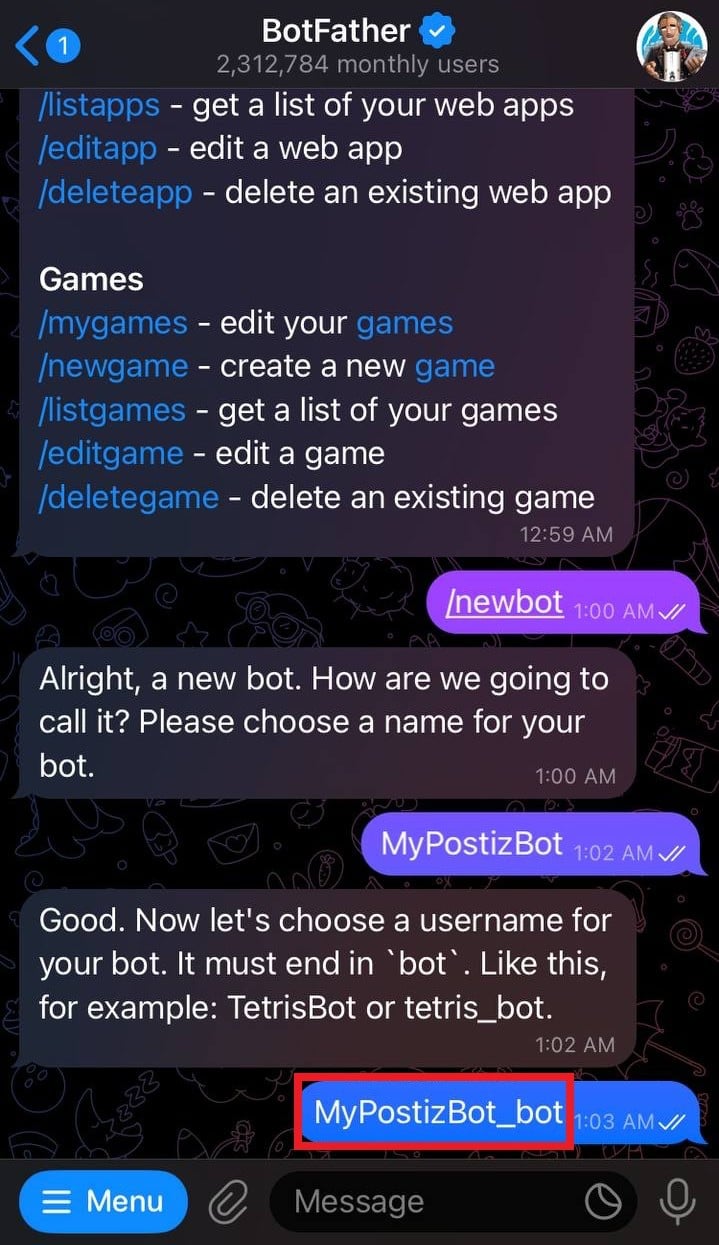
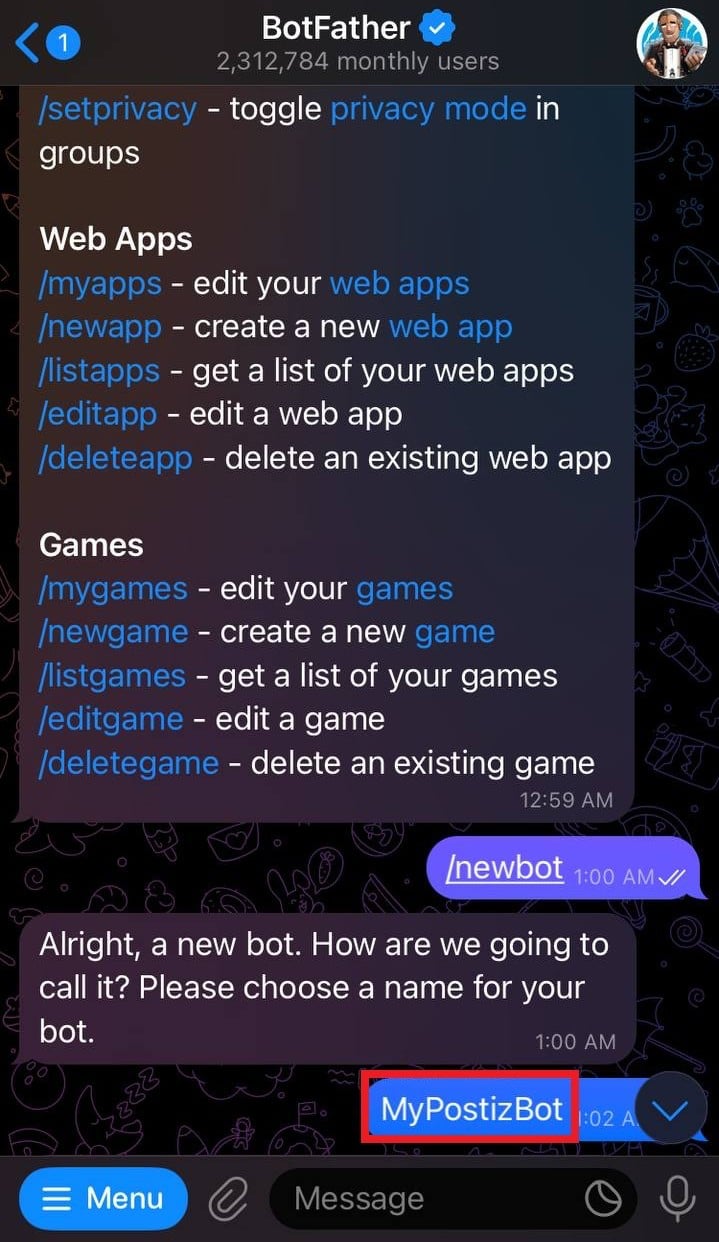 * Choose a unique username ending with "bot" (e.g., `MyPostQueenBot_bot`).
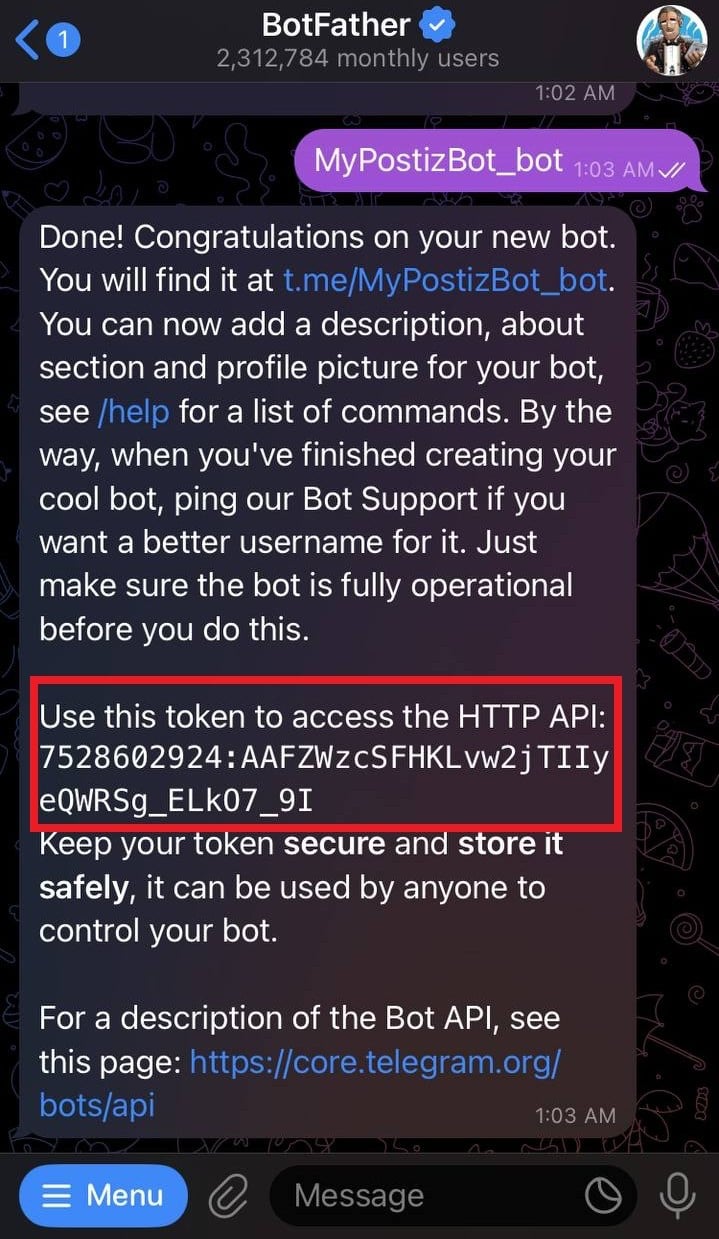
 Once your bot is created, **BotFather** will give you an **API Token**. Keep it safe. You will need it later.
 1. Click on "Menu"
2. Click on "Edit your bots"
3. Select your bot
4. Click on "Bot Settings"
1. Click on "Menu"
2. Click on "Edit your bots"
3. Select your bot
4. Click on "Bot Settings"
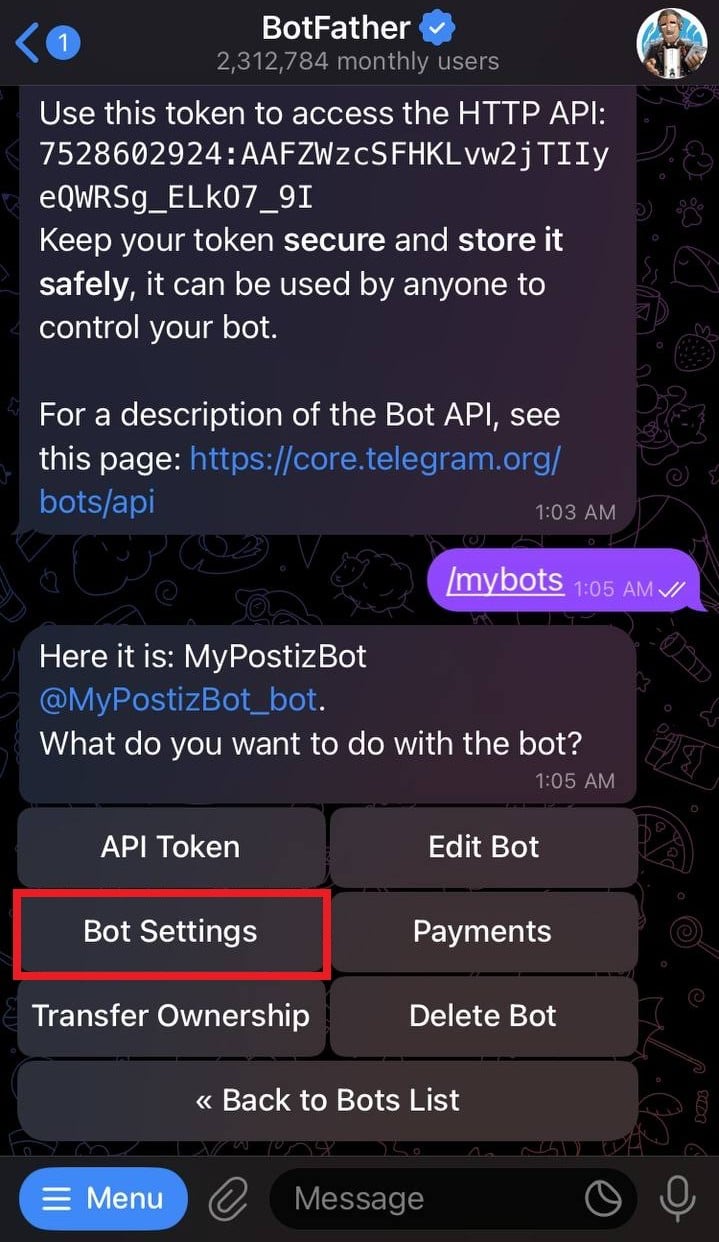 5. Click on "Group Privacy"
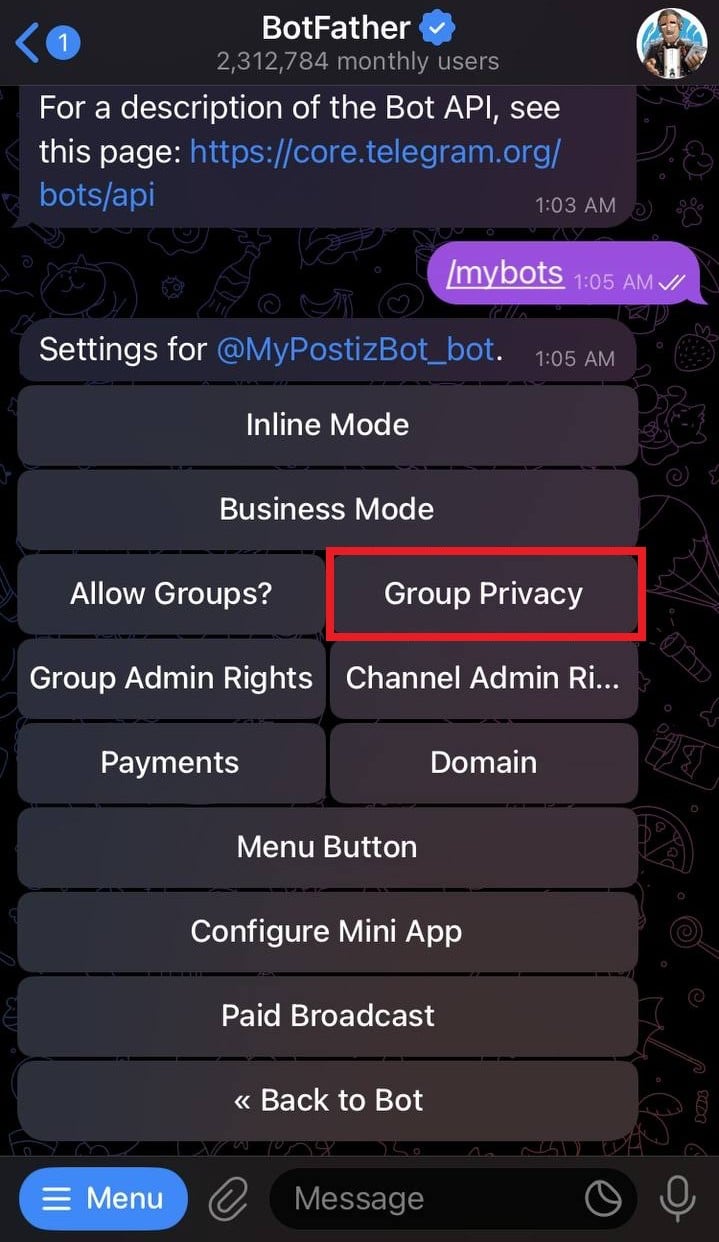 6. If "Privacy mode" is enabled, turn it off (it is enabled by default)
1. Navigate to your group/channel
2. Add your bot to your group/channel
3. The bot requires these permissions to work with PostQueen:
* access to messages, so the bot can read messages sent in the group/channel
* Send Text Messages, so the bot can send messages
* Send Media, so the bot can send media
While not strictly required, making your bot an `admin` is **recommended**. It will give the bot all the permissions needed and make the setup easier and faster.
In your `.env` file, add the **Telegram Bot Name** (Without the @) and the **Telegram Bot API Token** that you received from **BotFather** in Step 1:
```env theme={"system"}
TELEGRAM_BOT_NAME="MyPostQueenBot_bot"
TELEGRAM_TOKEN="MyPostQueenBot token"
```
You should be able to connect your group/channel to PostQueen now!
PostQueen talks to Telegram using long-polling (`getUpdates`). Telegram allows only **one** connected process per bot token at a time. If you run PostQueen against the same `TELEGRAM_TOKEN` from two places (e.g. self-hosted plus cloud, or two self-hosted instances), each instance will continuously kick the other off and you will see `409 Conflict: terminated by other getUpdates` errors in the logs.
Use one bot token per PostQueen deployment. If you need Telegram on multiple environments, create a separate bot for each.
## Next steps
Limits, post types and settings
Every variable she reads
Invalid state, invalid\_grant and the rest
Every network, and what each one asks for
6. If "Privacy mode" is enabled, turn it off (it is enabled by default)
1. Navigate to your group/channel
2. Add your bot to your group/channel
3. The bot requires these permissions to work with PostQueen:
* access to messages, so the bot can read messages sent in the group/channel
* Send Text Messages, so the bot can send messages
* Send Media, so the bot can send media
While not strictly required, making your bot an `admin` is **recommended**. It will give the bot all the permissions needed and make the setup easier and faster.
In your `.env` file, add the **Telegram Bot Name** (Without the @) and the **Telegram Bot API Token** that you received from **BotFather** in Step 1:
```env theme={"system"}
TELEGRAM_BOT_NAME="MyPostQueenBot_bot"
TELEGRAM_TOKEN="MyPostQueenBot token"
```
You should be able to connect your group/channel to PostQueen now!
PostQueen talks to Telegram using long-polling (`getUpdates`). Telegram allows only **one** connected process per bot token at a time. If you run PostQueen against the same `TELEGRAM_TOKEN` from two places (e.g. self-hosted plus cloud, or two self-hosted instances), each instance will continuously kick the other off and you will see `409 Conflict: terminated by other getUpdates` errors in the logs.
Use one bot token per PostQueen deployment. If you need Telegram on multiple environments, create a separate bot for each.
## Next steps
Limits, post types and settings
Every variable she reads
Invalid state, invalid\_grant and the rest
Every network, and what each one asks for