> ## Documentation Index
> Fetch the complete documentation index at: https://docs.postqueen.ai/llms.txt
> Use this file to discover all available pages before exploring further.
# Pinterest setup
> Register the Pinterest application and give PostQueen its keys
 On your own instance the Pinterest app is yours: create it in the Pinterest developer dashboard, wait for approval, then put its app id and secret in your environment.
Head to [Pinterest Developer Dashboard](https://developers.pinterest.com/apps/) and create your App. Fill out all required Information and wait on the App to get approved.
Request these five scopes. The connect is refused if any one of them is missing:
```
boards:read
boards:write
pins:read
pins:write
user_accounts:read
```
Pinterest reviews apps before granting full access, and a new app starts with trial access
that covers fewer scopes than it eventually will. If the connect refuses a scope you clearly
requested, check whether the app is still in trial rather than assuming a typo.
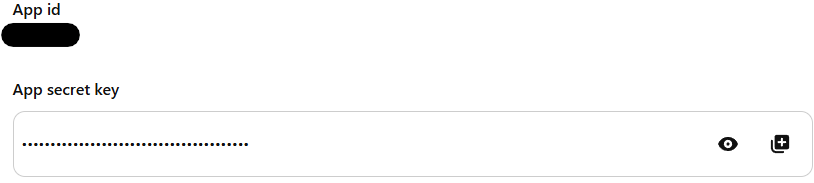
Copy the App ID at "App id" and the Secret Key at "App secret key"
On your own instance the Pinterest app is yours: create it in the Pinterest developer dashboard, wait for approval, then put its app id and secret in your environment.
Head to [Pinterest Developer Dashboard](https://developers.pinterest.com/apps/) and create your App. Fill out all required Information and wait on the App to get approved.
Request these five scopes. The connect is refused if any one of them is missing:
```
boards:read
boards:write
pins:read
pins:write
user_accounts:read
```
Pinterest reviews apps before granting full access, and a new app starts with trial access
that covers fewer scopes than it eventually will. If the connect refuses a scope you clearly
requested, check whether the app is still in trial rather than assuming a typo.
Copy the App ID at "App id" and the Secret Key at "App secret key"
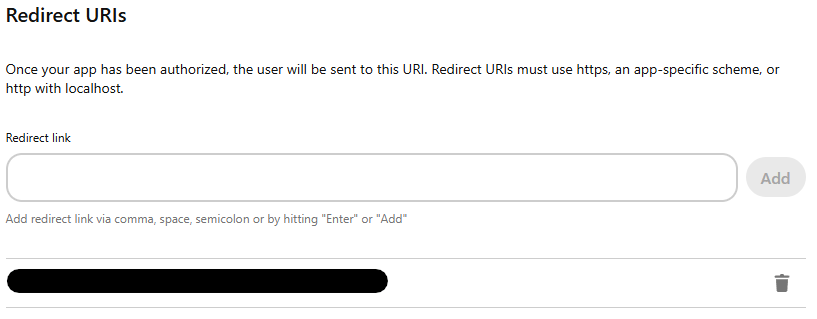
 **Your Pinterest OAuth2 Redirect URI:**
* Production: `https://postqueen.example.com/integrations/social/pinterest`
* Local development: `http://localhost:4200/integrations/social/pinterest`
* Docker: `http://localhost:4007/integrations/social/pinterest`
**Your Pinterest OAuth2 Redirect URI:**
* Production: `https://postqueen.example.com/integrations/social/pinterest`
* Local development: `http://localhost:4200/integrations/social/pinterest`
* Docker: `http://localhost:4007/integrations/social/pinterest`
 ```env theme={"system"}
PINTEREST_CLIENT_ID=""
PINTEREST_CLIENT_SECRET=""
```
You should now be able to add the Pinterest Provider to your User / Team Account.
## Next steps
Limits, post types and settings
Every variable she reads
Invalid state, invalid\_grant and the rest
Every network, and what each one asks for
```env theme={"system"}
PINTEREST_CLIENT_ID=""
PINTEREST_CLIENT_SECRET=""
```
You should now be able to add the Pinterest Provider to your User / Team Account.
## Next steps
Limits, post types and settings
Every variable she reads
Invalid state, invalid\_grant and the rest
Every network, and what each one asks for