> ## Documentation Index
> Fetch the complete documentation index at: https://docs.postqueen.ai/llms.txt
> Use this file to discover all available pages before exploring further.
# LinkedIn setup
> Register the LinkedIn application and give PostQueen its keys
On your own instance the LinkedIn app is yours: create it on LinkedIn Developers, then put its client id and secret in your environment.
Head over to [LinkedIn developers](https://www.linkedin.com/developers/apps) and create a new app.
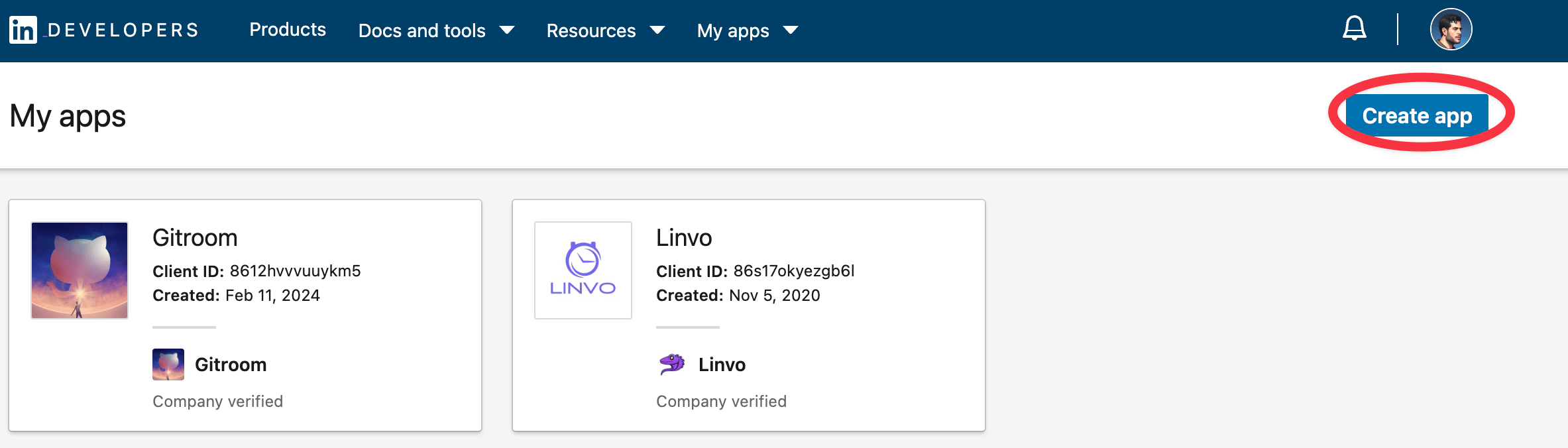 Fill in all the details, then head over to **Products** and add all three:
* Share on LinkedIn
* Advertising API
* Sign in with LinkedIn using OpenID connect
Fill in all the details, then head over to **Products** and add all three:
* Share on LinkedIn
* Advertising API
* Sign in with LinkedIn using OpenID connect
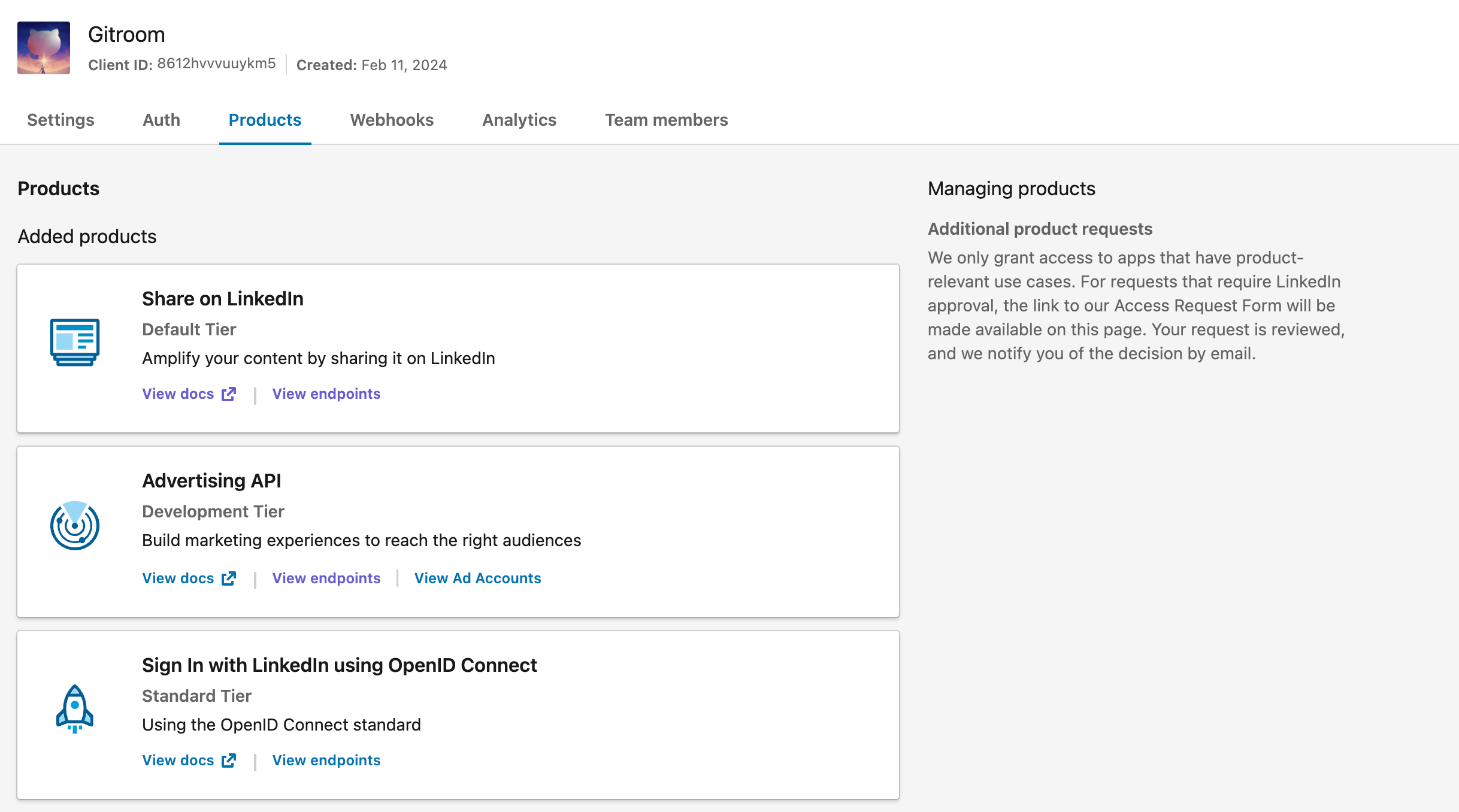 Those three together grant the seven scopes PostQueen asks for, and the connect is refused if
any of them is missing:
```
openid
profile
w_member_social
r_basicprofile
rw_organization_admin
w_organization_social
r_organization_social
```
Request the Advertising API permissions and fill in its request form, or you will not be able
to refresh your tokens. That one is easy to skip because everything appears to work until the
first token expires.
**Your LinkedIn OAuth2 Redirect URI:**
* Production: `https://postqueen.example.com/integrations/social/linkedin`
* Local development: `http://localhost:4200/integrations/social/linkedin`
* Docker: `http://localhost:4007/integrations/social/linkedin`
If you are using the "LinkedIn Page" provider, replace `linkedin` with `linkedin-page` in the redirect URI.
Copy the created `Client ID` and `Client Secret` and add them to your `.env` file.
```env theme={"system"}
LINKEDIN_CLIENT_ID=""
LINKEDIN_CLIENT_SECRET=""
```
You can find those under the Auth Tab of your LinkedIn App in the developer portal.
## Next steps
Limits, post types and settings
Every variable she reads
Invalid state, invalid\_grant and the rest
Every network, and what each one asks for
Those three together grant the seven scopes PostQueen asks for, and the connect is refused if
any of them is missing:
```
openid
profile
w_member_social
r_basicprofile
rw_organization_admin
w_organization_social
r_organization_social
```
Request the Advertising API permissions and fill in its request form, or you will not be able
to refresh your tokens. That one is easy to skip because everything appears to work until the
first token expires.
**Your LinkedIn OAuth2 Redirect URI:**
* Production: `https://postqueen.example.com/integrations/social/linkedin`
* Local development: `http://localhost:4200/integrations/social/linkedin`
* Docker: `http://localhost:4007/integrations/social/linkedin`
If you are using the "LinkedIn Page" provider, replace `linkedin` with `linkedin-page` in the redirect URI.
Copy the created `Client ID` and `Client Secret` and add them to your `.env` file.
```env theme={"system"}
LINKEDIN_CLIENT_ID=""
LINKEDIN_CLIENT_SECRET=""
```
You can find those under the Auth Tab of your LinkedIn App in the developer portal.
## Next steps
Limits, post types and settings
Every variable she reads
Invalid state, invalid\_grant and the rest
Every network, and what each one asks for