> ## Documentation Index
> Fetch the complete documentation index at: https://docs.postqueen.ai/llms.txt
> Use this file to discover all available pages before exploring further.
# Facebook setup
> Register the Facebook application and give PostQueen its keys
On your own instance the Meta app is yours: create it in Meta for Developers, then put its App ID and App Secret in your environment.
**NOTE:** Please be advised that Instagram and Facebook can use the same app (no need to create two separate apps)
Select a business portfolio, then create a [new app in Facebook developers](https://developers.facebook.com/apps/creation/).
Please be advised that for public applications, you will need to verify your business.
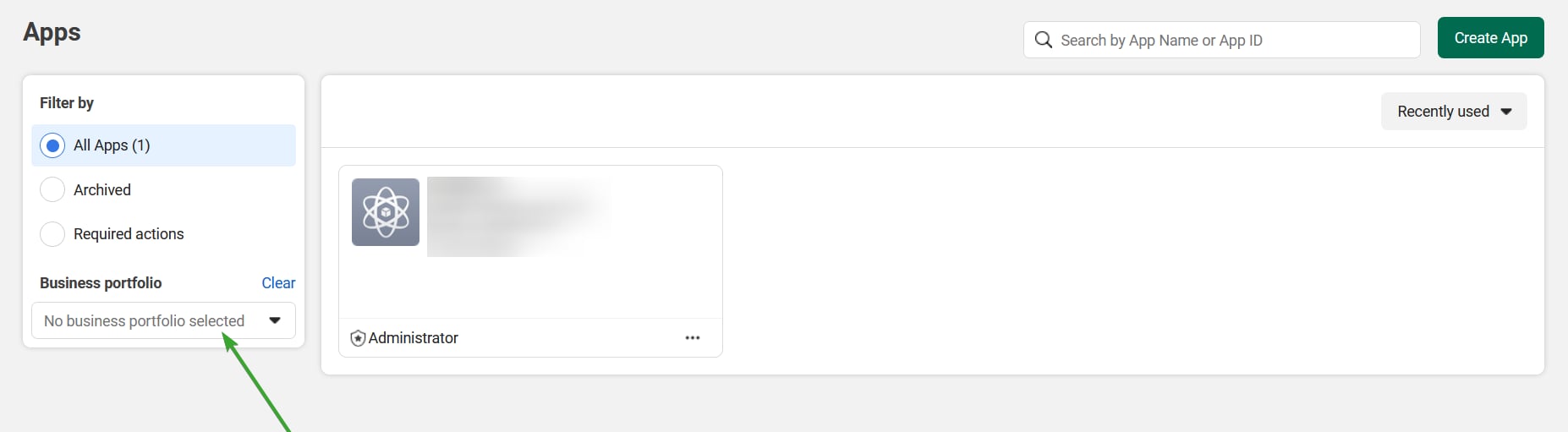
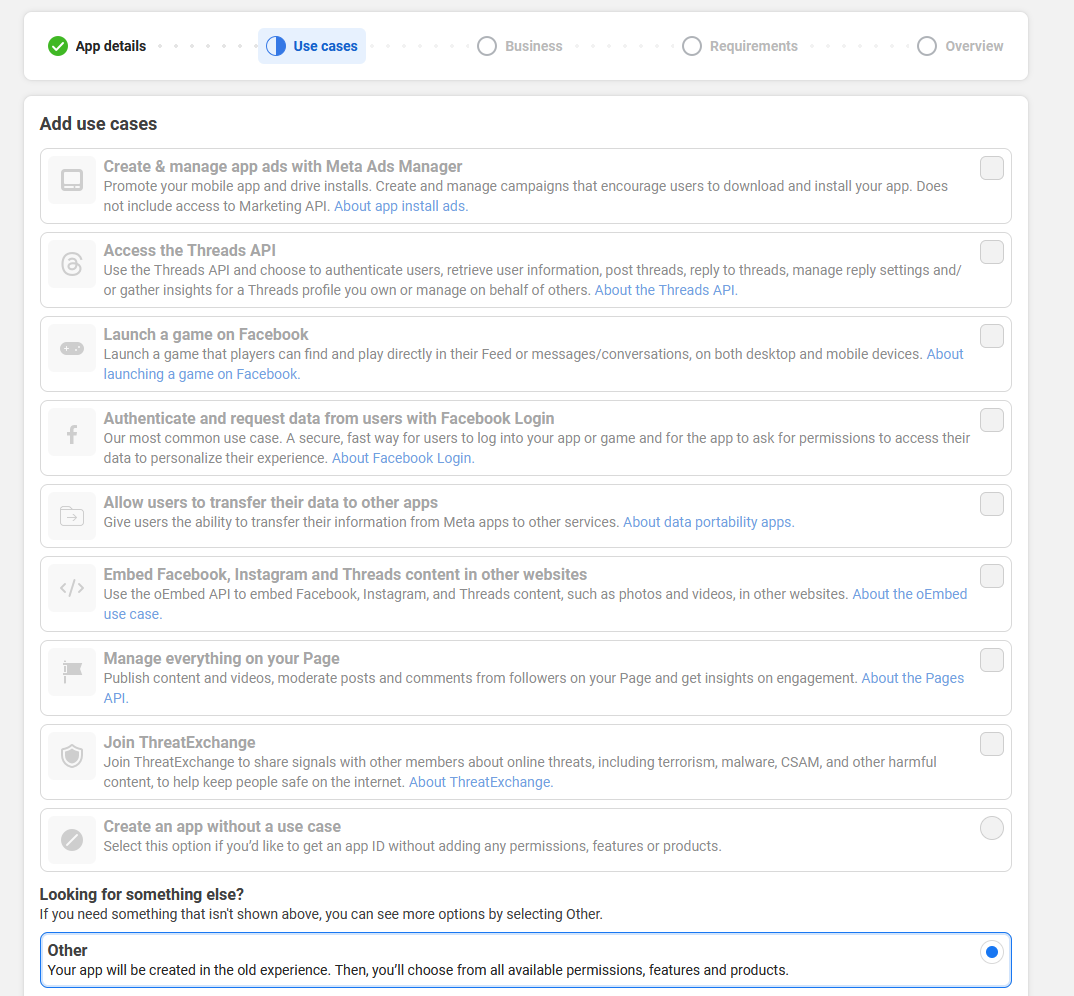
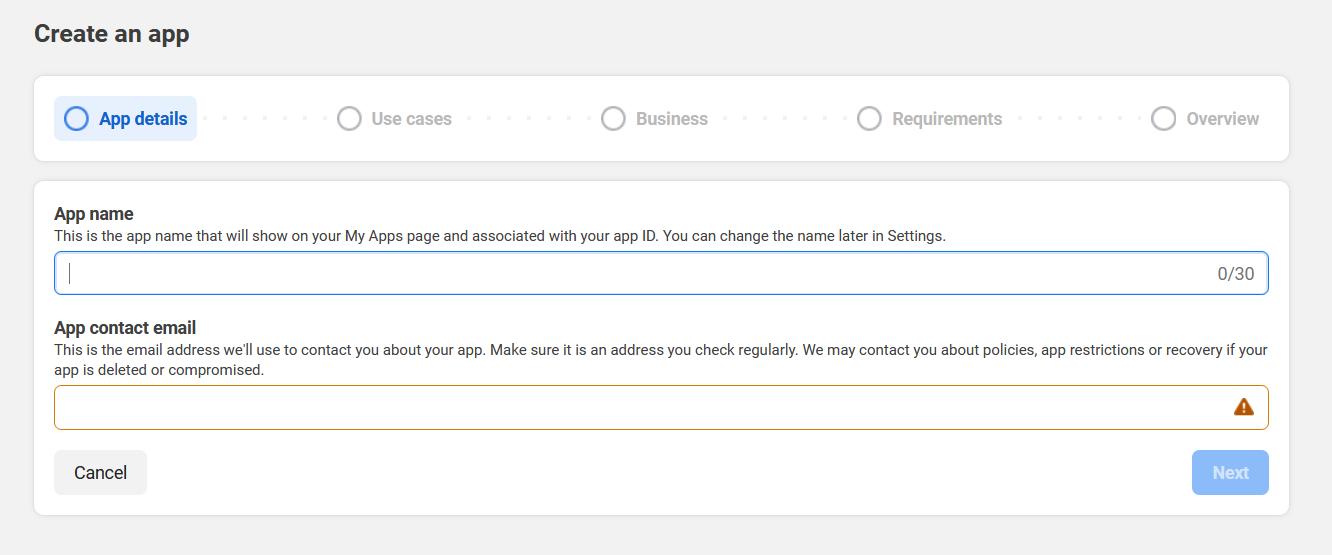 Select "Other" and click next
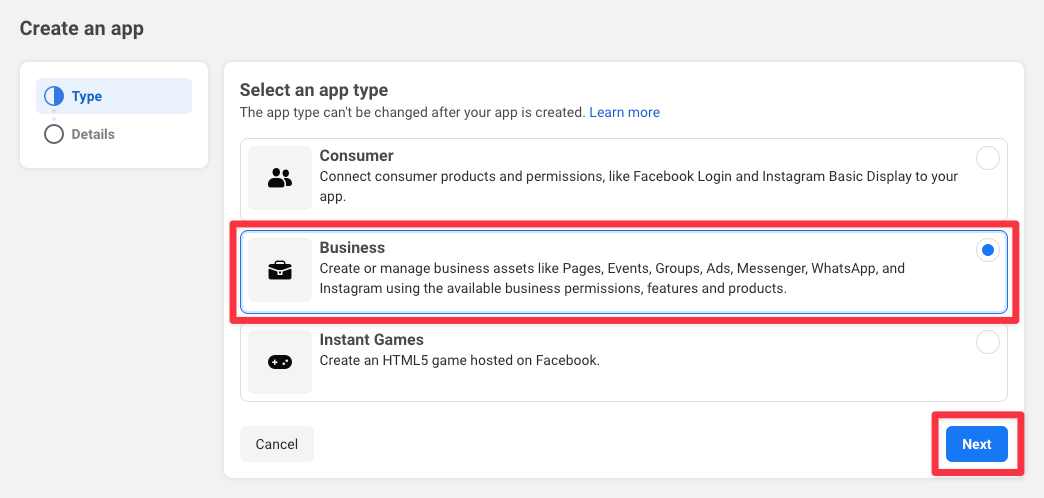
 Then select business
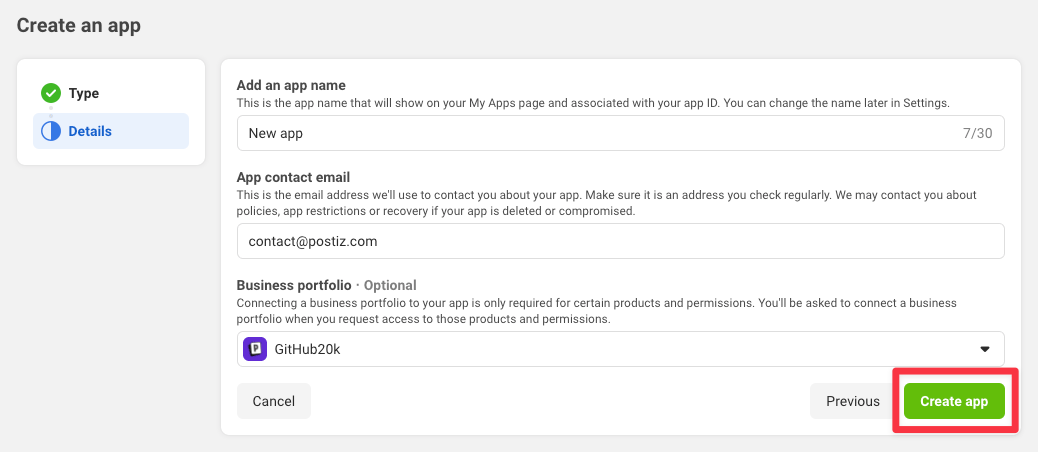
 Add all your details and click Create App
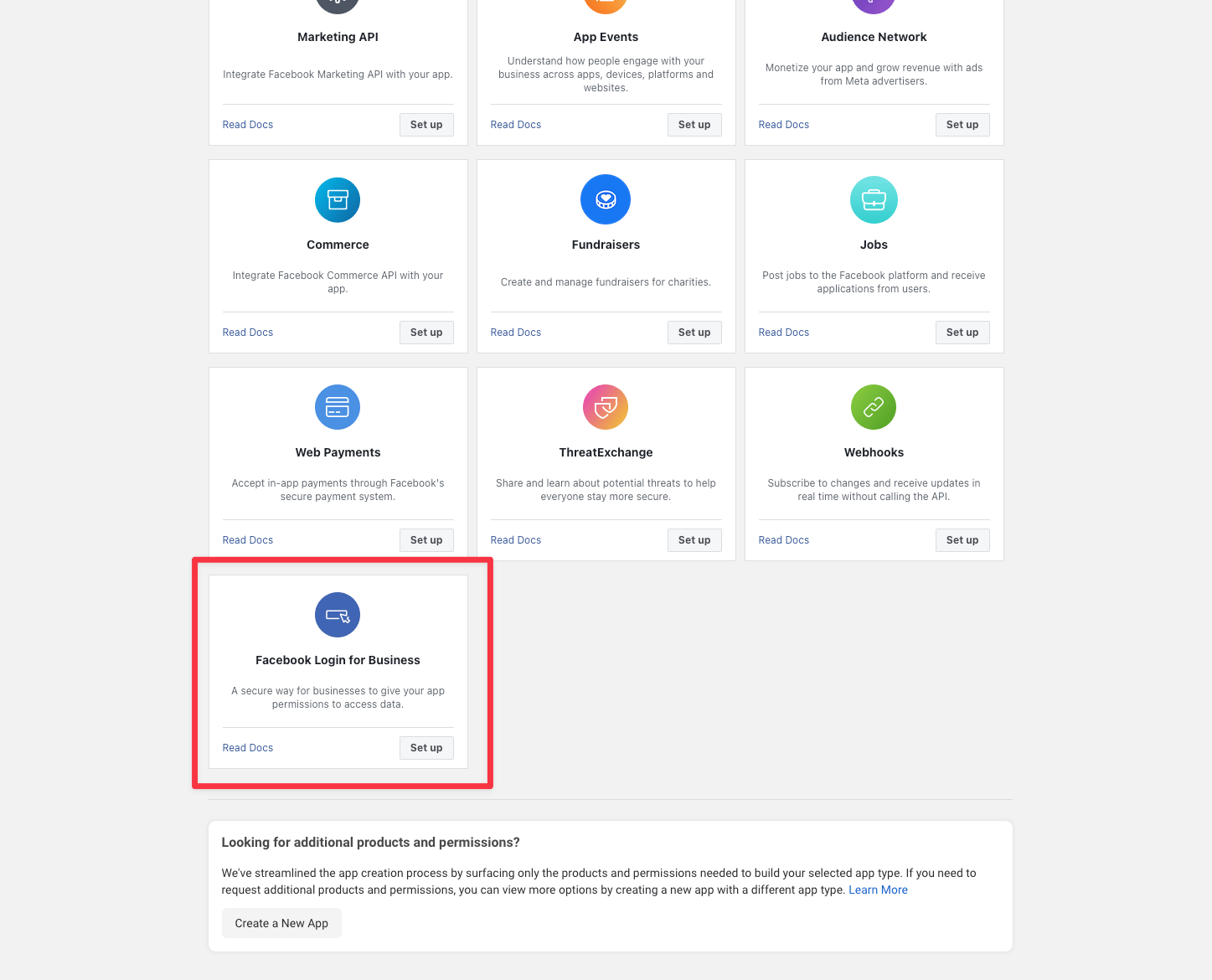 Set up login for business
Set up a redirect URI back to the application
Set up login for business
Set up a redirect URI back to the application
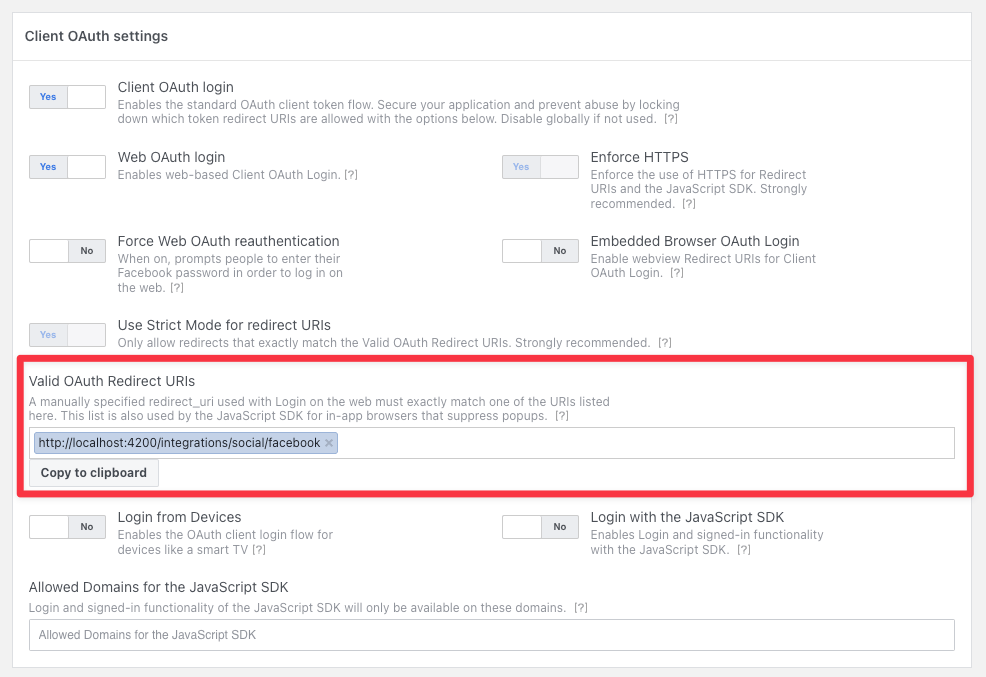 **Your Facebook OAuth2 Redirect URI:**
* Production: `https://postqueen.example.com/integrations/social/facebook`
* Local development: `http://localhost:4200/integrations/social/facebook`
* Docker: `http://localhost:4007/integrations/social/facebook`
**Your Facebook OAuth2 Redirect URI:**
* Production: `https://postqueen.example.com/integrations/social/facebook`
* Local development: `http://localhost:4200/integrations/social/facebook`
* Docker: `http://localhost:4007/integrations/social/facebook`
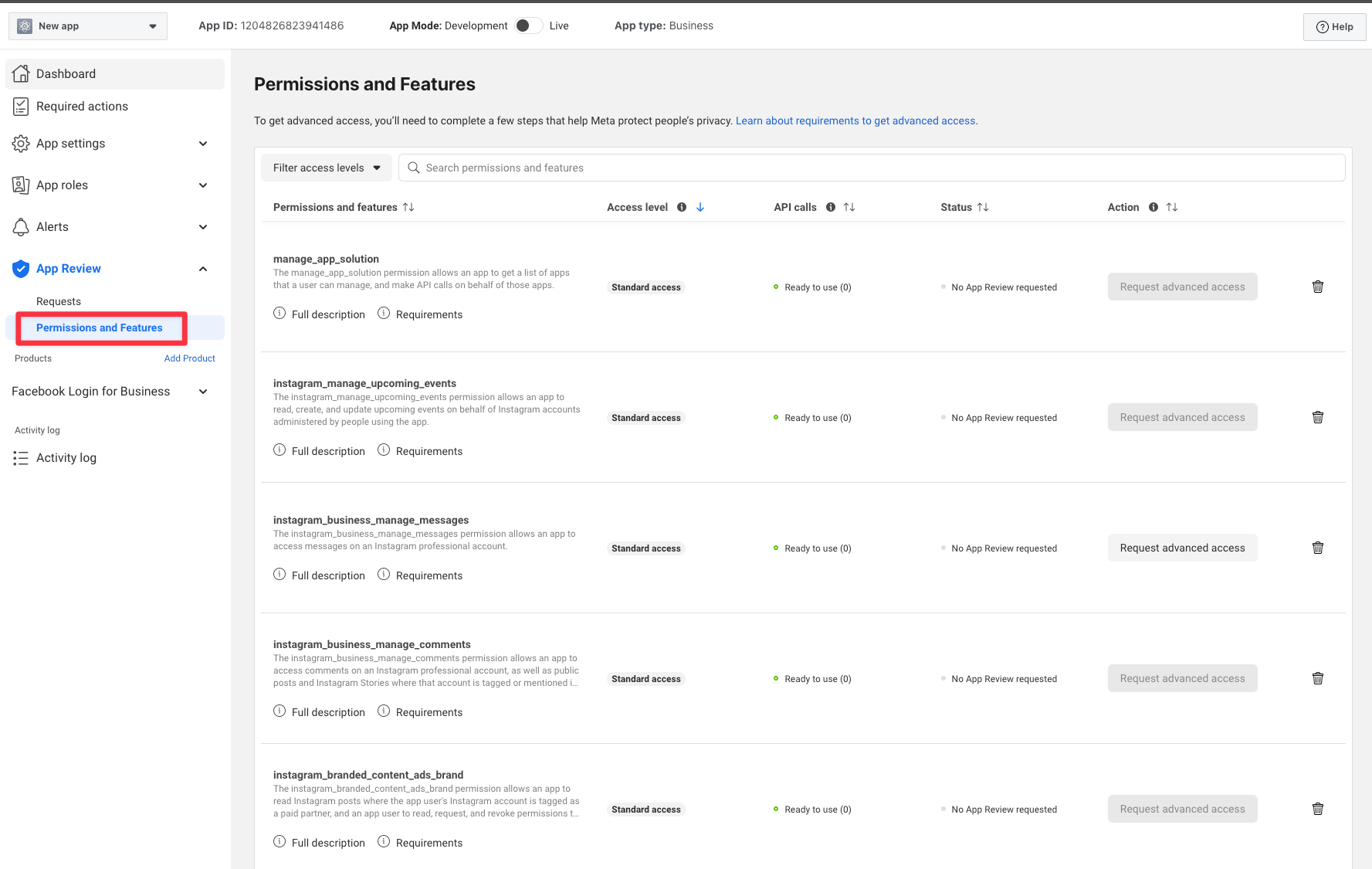 Go to advanced permission and request access for the following scopes:
* `pages_show_list`
* `business_management`
* `pages_manage_posts`
* `pages_manage_engagement`
* `pages_read_engagement`
* `read_insights`
If your PostQueen install is for personal use only these advanced permissions are not required for PostQueen to function.
Change the App Mode from 'Development' to 'Live'. If you do not do this then posts made via the API will display for yourself but will not be visible for other users.
Go to advanced permission and request access for the following scopes:
* `pages_show_list`
* `business_management`
* `pages_manage_posts`
* `pages_manage_engagement`
* `pages_read_engagement`
* `read_insights`
If your PostQueen install is for personal use only these advanced permissions are not required for PostQueen to function.
Change the App Mode from 'Development' to 'Live'. If you do not do this then posts made via the API will display for yourself but will not be visible for other users.
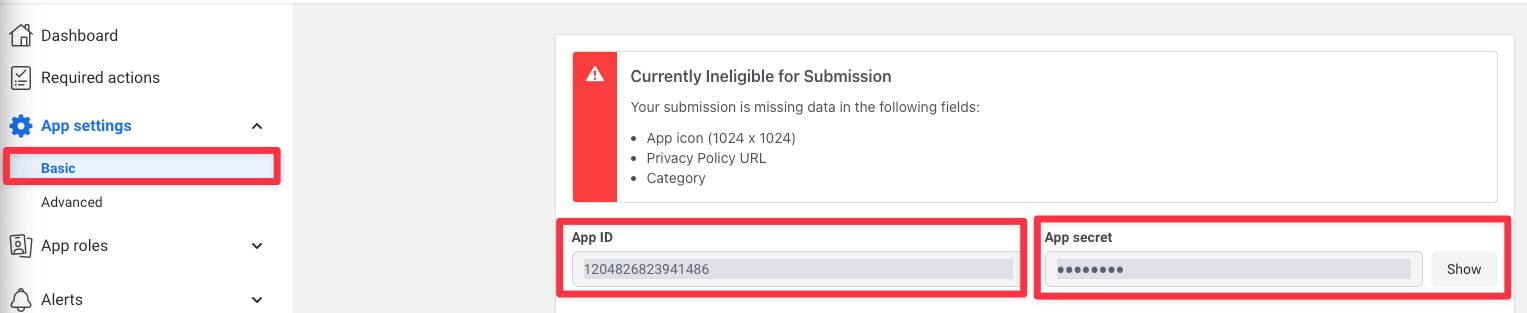 Go to basic permissions copy your App ID and App Secret and paste them in your `.env` file
```env theme={"system"}
FACEBOOK_APP_ID="app id"
FACEBOOK_APP_SECRET="app secret"
```
Facebook should now be working!
## Troubleshooting
### Image is missing from the published post
Check the **App Mode** of your Facebook app. In **Development** mode, posts with media are only visible to app developers/testers. Everyone else sees the post without the image. Switch the app to **Live** mode to make the image visible to all users.
### Facebook posts work for you but not for other users
Same root cause as above: the app is in Development mode. Only roles you have explicitly added (developers, testers, admins) can see content published via the API. Set the app to Live.
## Next steps
Limits, post types and settings
Every variable she reads
Invalid state, invalid\_grant and the rest
Every network, and what each one asks for
Go to basic permissions copy your App ID and App Secret and paste them in your `.env` file
```env theme={"system"}
FACEBOOK_APP_ID="app id"
FACEBOOK_APP_SECRET="app secret"
```
Facebook should now be working!
## Troubleshooting
### Image is missing from the published post
Check the **App Mode** of your Facebook app. In **Development** mode, posts with media are only visible to app developers/testers. Everyone else sees the post without the image. Switch the app to **Live** mode to make the image visible to all users.
### Facebook posts work for you but not for other users
Same root cause as above: the app is in Development mode. Only roles you have explicitly added (developers, testers, admins) can see content published via the API. Set the app to Live.
## Next steps
Limits, post types and settings
Every variable she reads
Invalid state, invalid\_grant and the rest
Every network, and what each one asks for