> ## Documentation Index
> Fetch the complete documentation index at: https://docs.postqueen.ai/llms.txt
> Use this file to discover all available pages before exploring further.
> ## Agent Instructions
> PostQueen's hosted API is https://api.postqueen.ai. The public API base is https://api.postqueen.ai/public/v1 and takes the raw API key in the Authorization header, with no Bearer prefix.
> The MCP server for posting is https://api.postqueen.ai/mcp/YOUR_API_KEY (or /mcp with Authorization: Bearer YOUR_API_KEY). docs.postqueen.ai/mcp only searches these docs and cannot post.
> The API key is under Connections > API Keys in the app, and only workspace admins can see it.
# WordPress
> Connect a WordPress site to PostQueen with an Application Password, what you can publish to it, and the limits PostQueen checks before a post is scheduled.
export const ChannelStatus = ({status, children}) => {
const look = ({
available: {
color: 'green',
label: 'Available'
},
'in-review': {
color: 'yellow',
label: 'In review'
},
soon: {
color: 'gray',
label: 'Soon'
}
})[status] || ({
color: 'gray',
label: status
});
return
{look.label}
{children ? {children} : null}
;
};
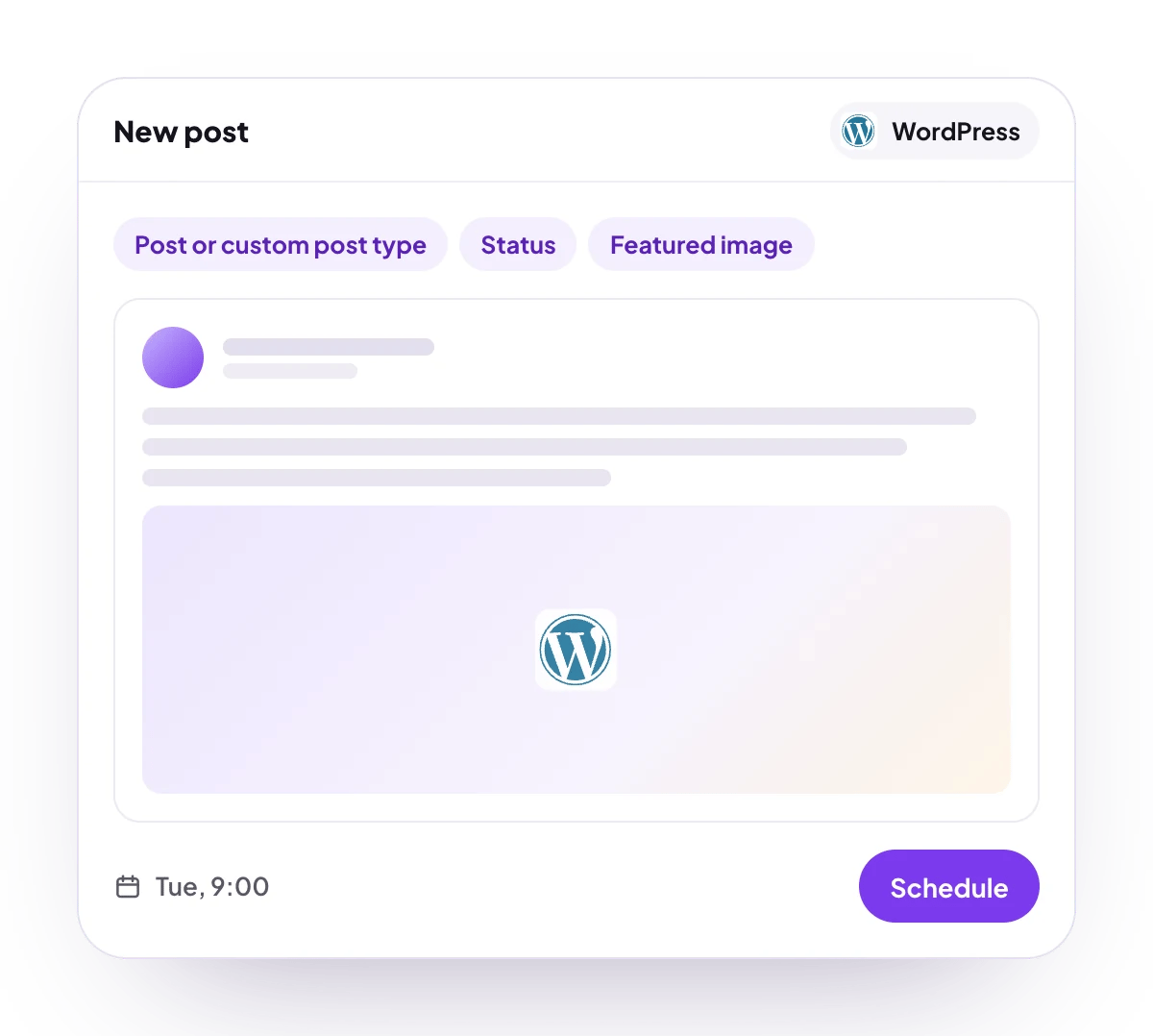
Publish posts, pages or any custom post type to your WordPress site on schedule, or hand them over as drafts, with a title, formatted body, featured image, categories and tags. You connect with the site address, your username and an Application Password, and no plugin is needed.
## What you can post
A body of up to 100,000 characters with headings, bold, underline, lists and links, and a title of at least 2 characters.
One featured image, uploaded to your media library. Pictures inside the body are not uploaded.
A post, a page or any custom post type your site offers, published, saved as a draft, sent for review or kept private.
No analytics for WordPress.
**Not supported:** excerpts, WordPress's own scheduled status (PostQueen publishes at the time instead), video or audio uploads, images inside the body, and follow-up comments.
## Checked before scheduling
PostQueen refuses a post that breaks these rules and shows the message in the composer:
| Rule | Message |
| -------------------------------- | ---------------------------------------------------- |
| A title of at least 2 characters | “title must be longer than or equal to 2 characters” |
| A post type is picked | “type should not be null or undefined” |
| Text within 100,000 characters | “post is too long, please fix it” |
The size of the featured image is your site's rule, and PostQueen does not check it first: your server's upload limit applies.
## Connect WordPress
Your site's REST API has to be reachable from the internet, and the WordPress user has to be allowed to create posts. WordPress offers Application Passwords by default only on sites served over `https`.
In your WordPress admin, open **Users**, then **Profile**, and scroll to **Application Passwords**. Name it `PostQueen`, choose **Add New Application Password**, and copy the generated password. WordPress shows it only once.
In PostQueen, open **Channels** and choose **Add Channel**, then **WordPress** and **Enter details**.
Type the site root in **Domain URL**, for example `https://example.com`, your WordPress username in **Username**, and the Application Password, spaces and all, in **Password**. Choose **Connect**.
The channel appears in the **Channels** list with your WordPress avatar and name.
Your login password does not work here: WordPress takes only an Application Password for this kind of access.
**Never share your API keys, passwords or access tokens with anyone, including PostQueen staff.**
A key, app password or private key a channel asks for goes into its connect form in PostQueen and nowhere else. Nobody from PostQueen will ask you to send one by email or chat, and you can disconnect the channel at any time.
## Post settings
Each WordPress post in the composer has these settings:
* **Title**: required, at least 2 characters. The post's address (its slug) is made from it.
* **Select type**: required. Where the post goes: a post, a page or a custom post type from your site.
* **Status**: **Publish**, **Draft**, **Pending** (sent for review) or **Private**. It starts on **Publish**.
* **Categories** and **WordPress Tags**: picked from your site. The first 100 of each are listed.
* **Cover picture**: the featured image.
At the scheduled time PostQueen sends the post with the status you picked, so **Publish** puts it live and **Draft** leaves it in WordPress for you to finish. The field names and values for the API are on [WordPress posting settings](/public-api/providers/wordpress).
## Comments and threads
WordPress takes no follow-up comments, so the composer shows no **Add comment** button for a WordPress post.
## Good to know
* Only sites reachable on the public internet can be connected. An address on a private or local network is refused.
* A security plugin or a server setting that blocks the REST API, or strips the Authorization header, makes the connect fail with a message that says so.
* If you revoke the Application Password, publishing stops. Create a new one and enter it with **Update Credentials** under **Access** on the channel's page.
* **Invite by link** does not offer WordPress, because the Application Password is typed into PostQueen. Connect it with **Connect myself**.
* During the free trial, a WordPress account that another PostQueen workspace already connected is refused until you end the trial.
## Troubleshooting
PostQueen could not open the site. Check **Domain URL**, including `https`, and that the site loads from outside your network.
Check the username and paste the Application Password again. If both are right, allow the REST API and the Authorization header in your security plugin or server settings.
The site answered with a page instead of REST API data, often a security or maintenance plugin. Allow the REST API and connect again.
The WordPress user cannot create posts of the type you picked. Give it a role such as Author or Editor, or connect with another user.
## Next steps
Write once for several channels, then schedule it, save a draft or post now.
Which networks you can connect today, what each one posts, and its text limit.
Ask Claude, ChatGPT, Grok Bot or another agent to schedule the post for you.
Why a post fails and what to do about it.