> ## Documentation Index
> Fetch the complete documentation index at: https://docs.postqueen.ai/llms.txt
> Use this file to discover all available pages before exploring further.
> ## Agent Instructions
> PostQueen's hosted API is https://api.postqueen.ai. The public API base is https://api.postqueen.ai/public/v1 and takes the raw API key in the Authorization header, with no Bearer prefix.
> The MCP server for posting is https://api.postqueen.ai/mcp/YOUR_API_KEY (or /mcp with Authorization: Bearer YOUR_API_KEY). docs.postqueen.ai/mcp only searches these docs and cannot post.
> The API key is under Connections > API Keys in the app, and only workspace admins can see it.
# Google Business Profile
> What PostQueen will post to Google Business Profile, and the limits it checks before a post is scheduled.
export const ChannelStatus = ({status, children}) => {
const look = ({
available: {
color: 'green',
label: 'Available'
},
'in-review': {
color: 'yellow',
label: 'In review'
},
soon: {
color: 'gray',
label: 'Soon'
}
})[status] || ({
color: 'gray',
label: status
});
return
{look.label}
{children ? {children} : null}
;
};
Cannot be connected on PostQueen yet.
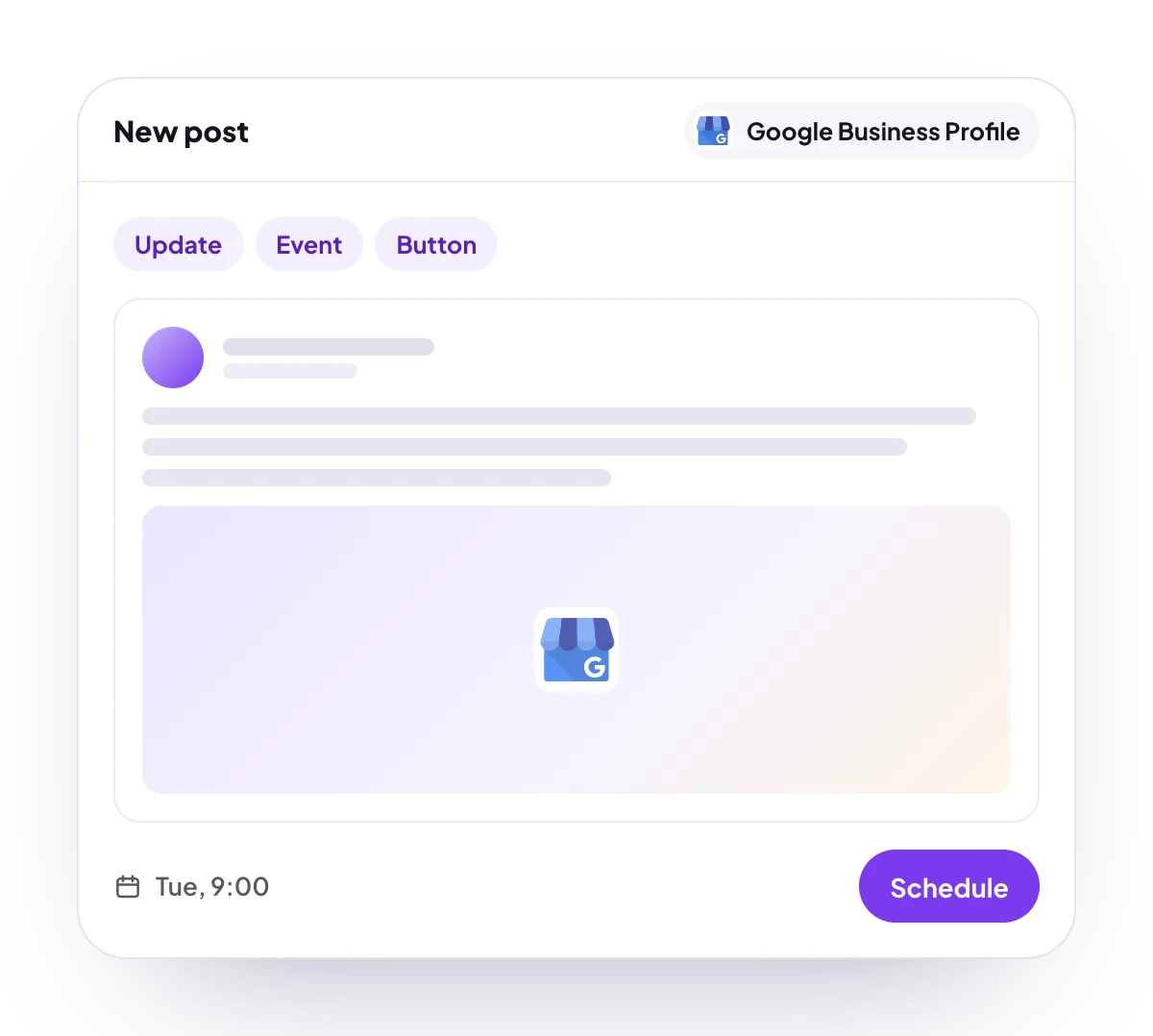
PostQueen will post updates, events and offers with a photo to the Business Profile locations you manage, and add a button such as Book or Call to updates and events.
## What you can post
Up to 1,500 characters.
One photo, or none. No video.
Update, event and offer. Events and offers carry a title and start and end dates.
For the location, over 7, 30 or 90 days: website clicks, phone calls, direction requests, and map views on desktop and on mobile. No numbers for each post, and no follower count.
**Not supported:** video, product posts, comments or follow-ups, and analytics for each post.
## Connect Google Business Profile
Google Business Profile is listed in **Add Channel** as **Google My Business**, but it cannot be connected on PostQueen yet. The location has to be verified on Google: unverified locations do not accept posts.
## Post settings
Each Google Business Profile post in the composer has these settings:
* **Post Type**: **Standard Update**, **Event** or **Offer**. It starts on **Standard Update**.
* **Call to Action**: **None**, **Book**, **Order Online**, **Shop**, **Learn More**, **Sign Up** or **Call**. Every button except **Call** needs a **Call to Action URL**, and is left off the post without one. **Call** dials the phone number verified on the profile. Offers have no button choice: Google shows its own.
* For an event, under **Event Details**: **Event Title**, **Start Date** and **End Date**, all required, then **Start Time (optional)** and **End Time (optional)**.
* For an offer, under **Offer Details**: **Title**, **Start Date** and **End Date**, all required, then **Coupon Code (optional)**, **Redeem Online URL (optional)** and **Terms & Conditions (optional)**.
The field names and values for the API are on [Google Business Profile posting settings](/public-api/providers/gmb).
## Good to know
* Before a post is scheduled, PostQueen checks that it has at most one photo and no video, and that an event or an offer has its title and both dates.
* Events without start and end times, and every offer, are sent without times, and Google may refuse them.
* Photo size and format are Google's rules, and PostQueen does not check them first: JPG or PNG, from 10 KB to 5 MB.
* Every post is sent to Google marked as English, whatever language it is written in.
* The link to a published post is its Google Search link when Google returns one, and the location's Business Profile page otherwise.
* Google may refuse a post with a phone number in the text that it cannot match to the business, and some listings cannot publish posts at all.
## Next steps
Write once for several channels, then schedule it, save a draft or post now.
Which networks you can connect today, what each one posts, and its text limit.
Ask Claude, ChatGPT, Grok Bot or another agent to schedule the post for you.
Why a post fails and what to do about it.