> ## Documentation Index
> Fetch the complete documentation index at: https://docs.postqueen.ai/llms.txt
> Use this file to discover all available pages before exploring further.
> ## Agent Instructions
> PostQueen's hosted API is https://api.postqueen.ai. The public API base is https://api.postqueen.ai/public/v1 and takes the raw API key in the Authorization header, with no Bearer prefix.
> The MCP server for posting is https://api.postqueen.ai/mcp/YOUR_API_KEY (or /mcp with Authorization: Bearer YOUR_API_KEY). docs.postqueen.ai/mcp only searches these docs and cannot post.
> The API key is under Connections > API Keys in the app, and only workspace admins can see it.
# DEV (dev.to)
> Connect DEV (dev.to) to PostQueen with an API key, what you can publish to it, and the limits PostQueen checks before an article is scheduled.
export const ChannelStatus = ({status, children}) => {
const look = ({
available: {
color: 'green',
label: 'Available'
},
'in-review': {
color: 'yellow',
label: 'In review'
},
soon: {
color: 'gray',
label: 'Soon'
}
})[status] || ({
color: 'gray',
label: status
});
return
{look.label}
{children ? {children} : null}
;
};
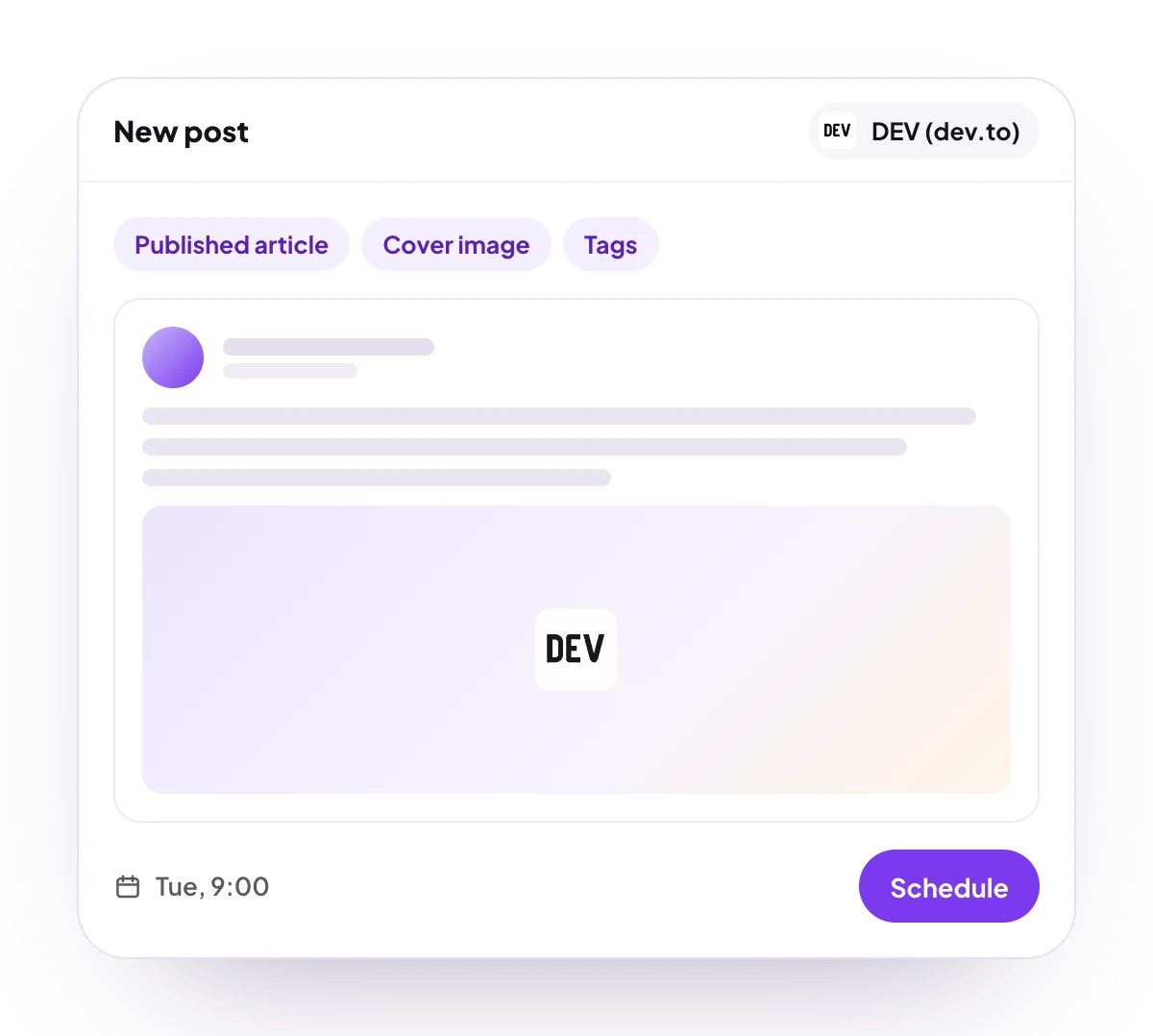
Publish Markdown articles to DEV on schedule with a title, cover image, up to 4 tags, an organization and a canonical URL. You connect with a personal DEV API key, and the article goes live at the time you pick.
## What you can post
An article body of up to 100,000 characters, written in Markdown, and a title of 2 to 128 characters.
One cover image. Pictures inside the article are not uploaded.
A published article, with a cover image, up to 4 tags, a canonical link and, if you like, a DEV organization.
No analytics for DEV.
**Not supported:** DEV drafts (an article is always published), series, images inside the article, code-block editing in the editor, and follow-up comments.
## Checked before scheduling
PostQueen refuses a post that breaks these rules and shows the message in the composer:
| Rule | Message |
| ------------------------------------------------ | ------------------------------------------------------- |
| A title of at least 2 characters | “title must be longer than or equal to 2 characters” |
| A title of at most 128 characters, as DEV allows | “title must be shorter than or equal to 128 characters” |
| At most 4 tags | “tags must contain no more than 4 elements” |
| **Canonical Link** is a web address | “Invalid URL” |
| Text within 100,000 characters | “post is too long, please fix it” |
DEV's own rules are not checked first. DEV refuses a canonical URL that another of your articles already uses, and PostQueen then shows “Canonical URL already exists”. DEV also takes about one article a second from an account.
## Connect DEV
On DEV, open **Settings**, then **Extensions** ([dev.to/settings/extensions](https://dev.to/settings/extensions)). Under **DEV Community API Keys**, describe the key, for example `PostQueen`, and generate it. Copy it right away: DEV does not show it again.
In PostQueen, open **Channels** and choose **Add Channel**, then **Dev.to** and **Enter details**.
Paste the key in **API key** and choose **Connect**.
The channel appears in the **Channels** list with your DEV avatar and name.
**Never share your API keys, passwords or access tokens with anyone, including PostQueen staff.**
A key, app password or private key a channel asks for goes into its connect form in PostQueen and nowhere else. Nobody from PostQueen will ask you to send one by email or chat, and you can disconnect the channel at any time.
## Post settings
Each DEV post in the composer has these settings:
* **Title**: required, 2 to 128 characters.
* **Canonical Link**: where the article first appeared. Type a web address, or choose the lightning icon next to the label to pick another post you scheduled in PostQueen: its live address is filled in when the article is published.
* **Cover picture**: the image at the top of the article.
* **Select organization**: publish under a DEV organization. It lists only organizations you have already published an article for, and does not show at all when there are none.
* **Tags (Maximum 4)**: tags from DEV's list.
The field names and values for the API are on [DEV posting settings](/public-api/providers/devto).
## Comments and threads
DEV takes no follow-up comments, so the composer shows no **Add comment** button for a DEV post.
## Good to know
* The article is published on DEV at the scheduled time. It is never saved as a DEV draft.
* **Invite by link** does not offer DEV, because the API key is typed into PostQueen. Connect it with **Connect myself**.
* If you delete the key on DEV, publishing stops. Generate a new one and enter it with **Update Credentials** under **Access** on the channel's page.
* During the free trial, a DEV account that another PostQueen workspace already connected is refused until you end the trial.
## Troubleshooting
DEV did not accept the API key. Copy the key again from **Settings**, **Extensions**, or generate a new one, and connect again.
Another article on your DEV account already uses that canonical URL. Change **Canonical Link**, or leave it empty, and schedule the article again.
**Select organization** lists only organizations you have already published for. Publish one article for that organization on DEV first, then open the post again.
## Next steps
Write once for several channels, then schedule it, save a draft or post now.
Which networks you can connect today, what each one posts, and its text limit.
Ask Claude, ChatGPT, Grok Bot or another agent to schedule the post for you.
Why a post fails and what to do about it.