> ## Documentation Index
> Fetch the complete documentation index at: https://docs.postqueen.ai/llms.txt
> Use this file to discover all available pages before exploring further.
# n8n
> Install the n8n-nodes-postqueen community node and let your workflows schedule, upload, and generate for you
The n8n node puts seven PostQueen operations on your canvas, from scheduling a post to generating a
video with AI. It talks to the same public API as the [CLI](/cli/introduction) and
[MCP](/mcp/introduction), so everything a workflow schedules lands on the same calendar you already
review.
 ## Install
The node requires n8n running on Node.js 20.15 or newer.
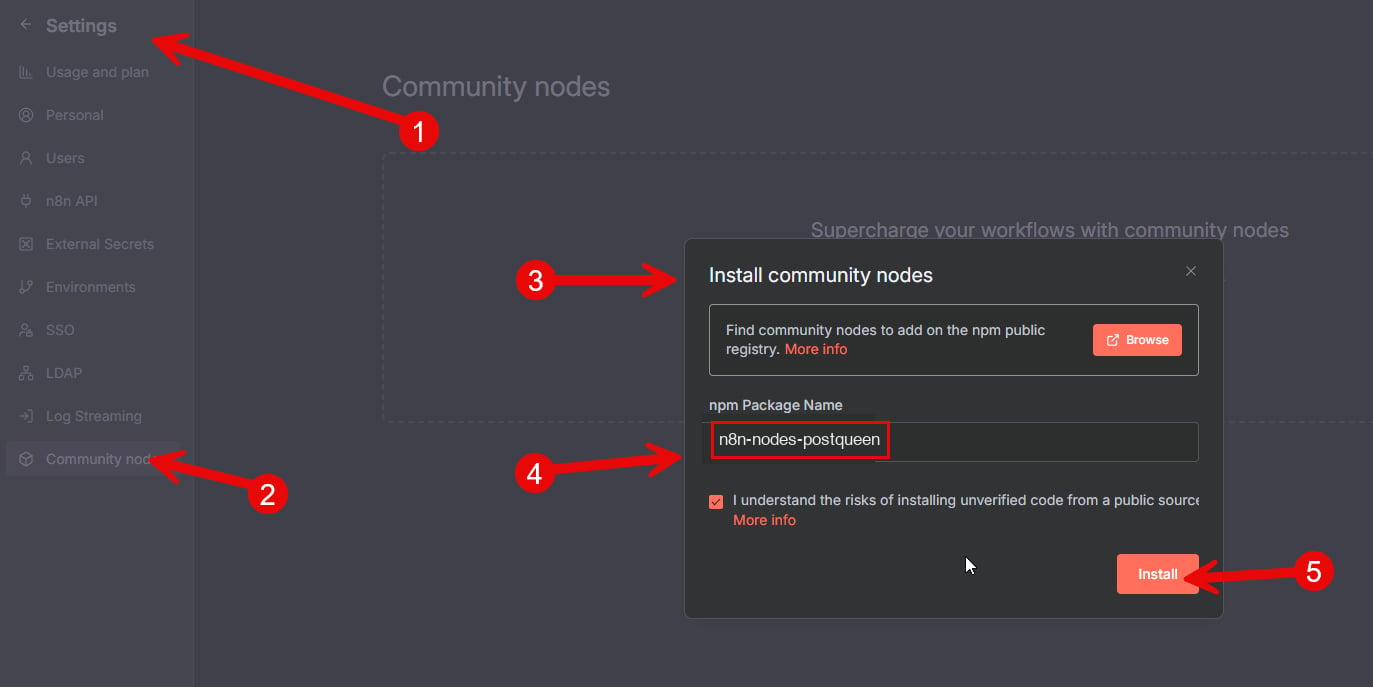
1. Open **Settings**.
2. Choose **Community Nodes**.
3. Click **Install**.
4. Enter `n8n-nodes-postqueen` as the npm package name.
5. Click **Install** again to confirm.
## Install
The node requires n8n running on Node.js 20.15 or newer.
1. Open **Settings**.
2. Choose **Community Nodes**.
3. Click **Install**.
4. Enter `n8n-nodes-postqueen` as the npm package name.
5. Click **Install** again to confirm.
 Go to your n8n installation folder, usually `~/.n8n`. If there is no `custom` folder, create one
with a `package.json`, then install the package:
```bash theme={"system"}
mkdir -p ~/.n8n/custom
cd ~/.n8n/custom
npm init -y
npm install n8n-nodes-postqueen
```
Create a folder on your host machine for custom nodes and install the package there:
```bash theme={"system"}
mkdir -p ~/n8n-custom-nodes
cd ~/n8n-custom-nodes
npm init -y
npm install n8n-nodes-postqueen
```
Then mount that folder into the container and point n8n at it with `N8N_CUSTOM_EXTENSIONS`:
```bash theme={"system"}
docker run -d --name n8n \
-v ~/n8n-custom-nodes:/home/node/n8n-custom-nodes \
-e N8N_CUSTOM_EXTENSIONS="/home/node/n8n-custom-nodes" \
-p 5678:5678 n8nio/n8n
```
## Credentials
Two fields and the node is talking to your account:
| Field | Description |
| ----------- | --------------------------------------------------------------------------------------------------------------------------------------- |
| **API Key** | Your PostQueen Public API key. In [app.postqueen.ai](https://app.postqueen.ai), open Settings > Developers > Public API and hit Reveal. |
| **Host** | Base URL of the PostQueen API. Defaults to `https://api.postqueen.ai` (cloud). |
Create a new **PostQueen API** credential in n8n, paste your key, and set the host if you self-host.
n8n validates the credential against a live endpoint when you save, so a typo shows up immediately.
Self-hosting? The **Host** value must end with `/api`, for example `https://postqueen.example.com/api`. Without that suffix the node cannot reach your instance's API.
### Check it before you build anything
Drop a **PostQueen** node into a blank workflow, choose **Get Channels**, and execute the node on
its own.
Your connected channels come back as JSON with their ids. Doing this first separates a credential
problem from a workflow problem, which is much harder to tell apart later.
The key or the host. Check the key is pasted in full, and if you self-host, that **Host** ends
with `/api`. Without that suffix the request lands on the web interface rather than the API,
which fails without explaining itself.
Community nodes need n8n restarted before they show up. If it is still missing after a
restart, check whether your n8n allows community nodes at all, since some hosted plans
restrict them.
Check the date. Nothing validates that it is in the future, so a past date is accepted and
goes out on the next pass. Send ISO 8601 in UTC.
## Operations
Seven operations cover everything the node can do:
| Operation | Description |
| ------------------ | -------------------------------------------------------------------------- |
| **Create Post** | Schedule, draft, or immediately publish a post to one or more channels. |
| **Delete Post** | Delete a post by its ID. |
| **Generate Video** | Generate a video with AI. |
| **Get Channels** | List your connected channels (integrations). |
| **Get Posts** | List posts within a start/end date range, optionally filtered by customer. |
| **Upload File** | Upload a file (image or video) from a binary property. |
| **Video Function** | Run a video helper function, such as loading available voices. |
### Fields on Generate Video
| Field | What to put in it |
| --------------------- | --------------------------------------------------------------- |
| **Video Type** | The type to render, for example `image-text-slides` or `veo3`. |
| **Output Format** | `vertical` or `horizontal`. |
| **Custom Parameters** | Optional key/value pairs such as `prompt`, `voice` or `images`. |
Need the list of voices? Run **Video Function** with the function name `loadVoices` and the
identifier of the video type you plan to use, such as `image-text-slides`. Both fields are required
on that operation.
There is no PostQueen trigger node. Triggers come from n8n itself: a Schedule trigger, an RSS feed, or a webhook. Form submissions work too. Any of them can start a workflow that ends with a new post on your calendar.
## Workflow ideas
**Blog on autopilot.** An RSS trigger watches your blog, an AI node writes a caption for each new
article, and **Create Post** schedules it to every channel you have connected. You publish the
article and walk away: she carries it out to every feed while you write the next one.
Go to your n8n installation folder, usually `~/.n8n`. If there is no `custom` folder, create one
with a `package.json`, then install the package:
```bash theme={"system"}
mkdir -p ~/.n8n/custom
cd ~/.n8n/custom
npm init -y
npm install n8n-nodes-postqueen
```
Create a folder on your host machine for custom nodes and install the package there:
```bash theme={"system"}
mkdir -p ~/n8n-custom-nodes
cd ~/n8n-custom-nodes
npm init -y
npm install n8n-nodes-postqueen
```
Then mount that folder into the container and point n8n at it with `N8N_CUSTOM_EXTENSIONS`:
```bash theme={"system"}
docker run -d --name n8n \
-v ~/n8n-custom-nodes:/home/node/n8n-custom-nodes \
-e N8N_CUSTOM_EXTENSIONS="/home/node/n8n-custom-nodes" \
-p 5678:5678 n8nio/n8n
```
## Credentials
Two fields and the node is talking to your account:
| Field | Description |
| ----------- | --------------------------------------------------------------------------------------------------------------------------------------- |
| **API Key** | Your PostQueen Public API key. In [app.postqueen.ai](https://app.postqueen.ai), open Settings > Developers > Public API and hit Reveal. |
| **Host** | Base URL of the PostQueen API. Defaults to `https://api.postqueen.ai` (cloud). |
Create a new **PostQueen API** credential in n8n, paste your key, and set the host if you self-host.
n8n validates the credential against a live endpoint when you save, so a typo shows up immediately.
Self-hosting? The **Host** value must end with `/api`, for example `https://postqueen.example.com/api`. Without that suffix the node cannot reach your instance's API.
### Check it before you build anything
Drop a **PostQueen** node into a blank workflow, choose **Get Channels**, and execute the node on
its own.
Your connected channels come back as JSON with their ids. Doing this first separates a credential
problem from a workflow problem, which is much harder to tell apart later.
The key or the host. Check the key is pasted in full, and if you self-host, that **Host** ends
with `/api`. Without that suffix the request lands on the web interface rather than the API,
which fails without explaining itself.
Community nodes need n8n restarted before they show up. If it is still missing after a
restart, check whether your n8n allows community nodes at all, since some hosted plans
restrict them.
Check the date. Nothing validates that it is in the future, so a past date is accepted and
goes out on the next pass. Send ISO 8601 in UTC.
## Operations
Seven operations cover everything the node can do:
| Operation | Description |
| ------------------ | -------------------------------------------------------------------------- |
| **Create Post** | Schedule, draft, or immediately publish a post to one or more channels. |
| **Delete Post** | Delete a post by its ID. |
| **Generate Video** | Generate a video with AI. |
| **Get Channels** | List your connected channels (integrations). |
| **Get Posts** | List posts within a start/end date range, optionally filtered by customer. |
| **Upload File** | Upload a file (image or video) from a binary property. |
| **Video Function** | Run a video helper function, such as loading available voices. |
### Fields on Generate Video
| Field | What to put in it |
| --------------------- | --------------------------------------------------------------- |
| **Video Type** | The type to render, for example `image-text-slides` or `veo3`. |
| **Output Format** | `vertical` or `horizontal`. |
| **Custom Parameters** | Optional key/value pairs such as `prompt`, `voice` or `images`. |
Need the list of voices? Run **Video Function** with the function name `loadVoices` and the
identifier of the video type you plan to use, such as `image-text-slides`. Both fields are required
on that operation.
There is no PostQueen trigger node. Triggers come from n8n itself: a Schedule trigger, an RSS feed, or a webhook. Form submissions work too. Any of them can start a workflow that ends with a new post on your calendar.
## Workflow ideas
**Blog on autopilot.** An RSS trigger watches your blog, an AI node writes a caption for each new
article, and **Create Post** schedules it to every channel you have connected. You publish the
article and walk away: she carries it out to every feed while you write the next one.
 **A video channel that grows overnight.** A daily Schedule trigger runs **Generate Video** with your
prompt, as `veo3` or `image-text-slides`, vertical or horizontal. Add a voiceover if you want one.
**Create Post** then queues the finished video to your channel, so a new upload is waiting every
morning whether you opened your laptop or not. Video generation is not something the `postqueen` CLI
offers, so this node is where you reach for it without writing code.
**A video channel that grows overnight.** A daily Schedule trigger runs **Generate Video** with your
prompt, as `veo3` or `image-text-slides`, vertical or horizontal. Add a voiceover if you want one.
**Create Post** then queues the finished video to your channel, so a new upload is waiting every
morning whether you opened your laptop or not. Video generation is not something the `postqueen` CLI
offers, so this node is where you reach for it without writing code.
 **One clip, three short-form feeds.** A new video lands in Drive, Dropbox or S3, **Upload File**
brings it in, and a single **Create Post** schedules it to TikTok, Instagram and YouTube together.
Upload first and pass the returned path into the post. Those three networks only accept media from
trusted domains, so linking a raw external URL will not work.
**One clip, three short-form feeds.** A new video lands in Drive, Dropbox or S3, **Upload File**
brings it in, and a single **Create Post** schedules it to TikTok, Instagram and YouTube together.
Upload first and pass the returned path into the post. Those three networks only accept media from
trusted domains, so linking a raw external URL will not work.
 **Queue guard.** Every Monday, **Get Posts** pulls the next seven days of your calendar. If the
queue looks thin, a Slack message tells you before your followers notice a gap.
**Queue guard.** Every Monday, **Get Posts** pulls the next seven days of your calendar. If the
queue looks thin, a Slack message tells you before your followers notice a gap.
 **A launch announced from a spreadsheet.** A row lands in the sheet your team already fills in, and
**Create Post** turns it into the announcement across every channel. Nobody opens PostQueen.
**A launch announced from a spreadsheet.** A row lands in the sheet your team already fills in, and
**Create Post** turns it into the announcement across every channel. Nobody opens PostQueen.
 **Bring the good ones back.** A Friday Schedule trigger picks a post that did well, and **Create
Post** puts it back on the calendar for a quieter slot next week.
**Bring the good ones back.** A Friday Schedule trigger picks a post that did well, and **Create
Post** puts it back on the calendar for a quieter slot next week.
 She runs on your terms. Leave her alone and she is a true autopilot: whatever lands on the calendar
goes out on time without another word from you.
Want a closer look first? Everything is visible on the calendar before it publishes, and setting
**Create Post** to draft saves the post without scheduling it, so it stays there until you publish
it.
## Source and releases
The node's source, plus ready-made versions of every workflow here.
The package page with versions and release notes.
## Next steps
The API this node calls, if you want to go beyond the node.
Every field of the create-post request body, with per-provider settings.
Using another automation tool? The same recipes work in Zapier.
Prefer Make? It calls the same API and the same ideas carry over.
She runs on your terms. Leave her alone and she is a true autopilot: whatever lands on the calendar
goes out on time without another word from you.
Want a closer look first? Everything is visible on the calendar before it publishes, and setting
**Create Post** to draft saves the post without scheduling it, so it stays there until you publish
it.
## Source and releases
The node's source, plus ready-made versions of every workflow here.
The package page with versions and release notes.
## Next steps
The API this node calls, if you want to go beyond the node.
Every field of the create-post request body, with per-provider settings.
Using another automation tool? The same recipes work in Zapier.
Prefer Make? It calls the same API and the same ideas carry over.