> ## Documentation Index
> Fetch the complete documentation index at: https://docs.postqueen.ai/llms.txt
> Use this file to discover all available pages before exploring further.
> ## Agent Instructions
> PostQueen's hosted API is https://api.postqueen.ai. The public API base is https://api.postqueen.ai/public/v1 and takes the raw API key in the Authorization header, with no Bearer prefix.
> The MCP server for posting is https://api.postqueen.ai/mcp/YOUR_API_KEY (or /mcp with Authorization: Bearer YOUR_API_KEY). docs.postqueen.ai/mcp only searches these docs and cannot post.
> The API key is under Connections > API Keys in the app, and only workspace admins can see it.
# NanoClaw
> Add PostQueen's MCP server to a NanoClaw agent group, with your key in the OneCLI vault, and post from your chat apps.
export const AgentStatus = ({status, label, children}) => {
const look = ({
tested: {
color: 'green',
icon: 'badge-check'
},
'partly-tested': {
color: 'green',
icon: 'badge-check'
},
'vendor-docs': {
color: 'surface',
icon: 'book-open'
},
'not-possible': {
color: 'gray',
icon: 'circle-slash'
}
})[status] || ({
color: 'gray',
icon: 'circle-question-mark'
});
const cut = status === 'partly-tested' ? -1 : (label || '').indexOf(', ');
const rest = cut > 0 ? label.slice(cut + 2) : '';
const pill = status === 'partly-tested' ? 'Partly tested' : cut > 0 ? label.slice(0, cut) : label;
const note = status === 'partly-tested' ? label : cut > 0 ? rest.charAt(0).toUpperCase() + rest.slice(1) + '.' : null;
return
{pill}
{note || children ?
{note}
{note && children ? ' ' : null}
{children}
: null}
;
};
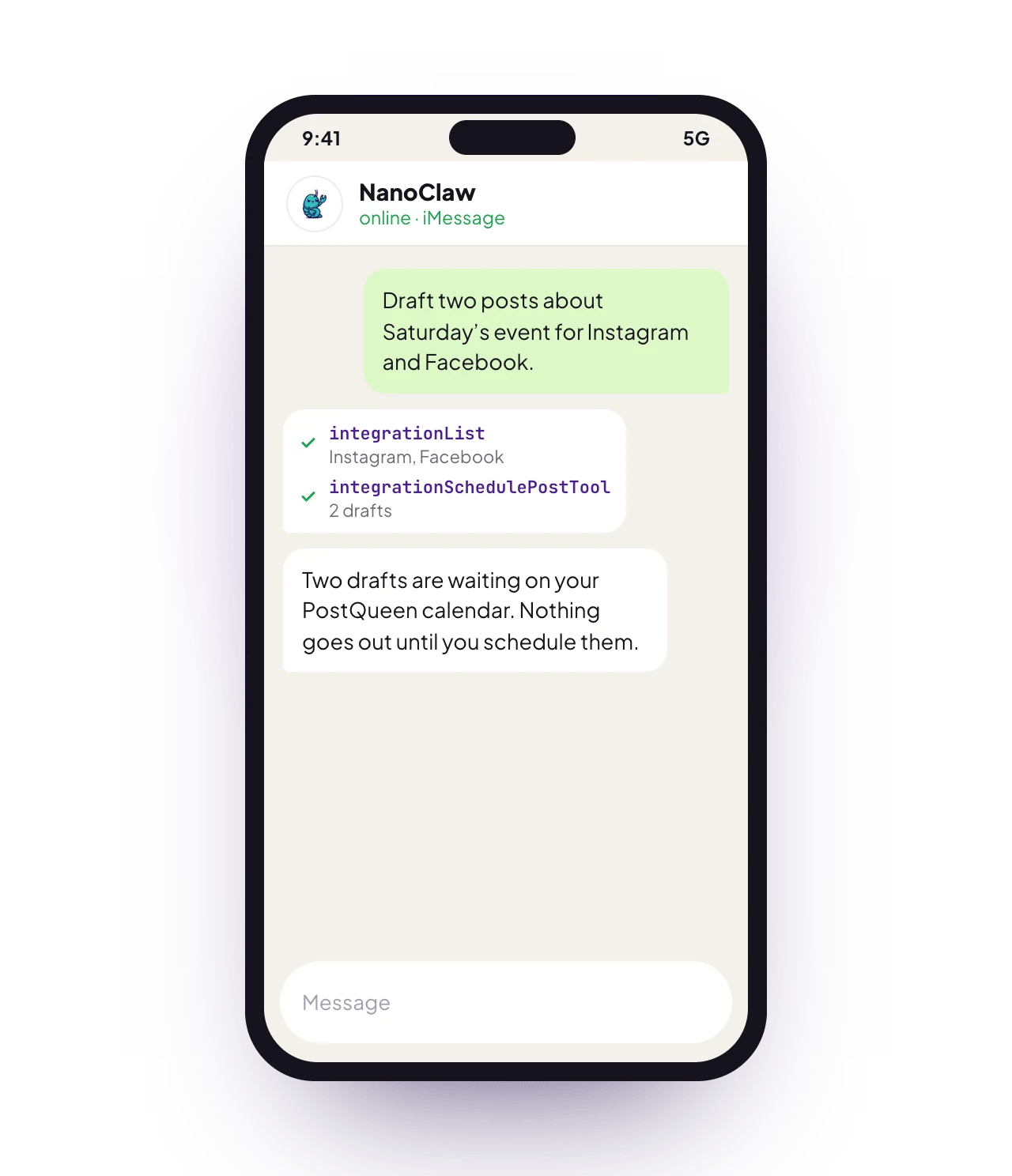
NanoClaw is an open-source assistant that runs each agent in its own Docker container on your machine, built on the Claude Agent SDK. You talk to it over Slack, Telegram, Discord, WhatsApp, iMessage and other chat apps. Add PostQueen's MCP server to an agent group and you can ask it, from any of those apps, to write, schedule and check your posts.
## Before you start
* **Plans:** NanoClaw is free and open source (MIT). You run it yourself with an Anthropic API key or a Claude subscription.
* **Platforms:** your own macOS or Linux machine, or Windows through WSL2, with Docker. The installer adds Node 22, pnpm and Docker if they are missing.
* **NanoClaw, installed**, with at least one agent group. Follow [NanoClaw's install guide](https://docs.nanoclaw.dev/installation).
* **A PostQueen API key.** A workspace admin copies it from **Connections**.
**Where the API key is:** in the app, open **Connections > API Keys**. Only a workspace Admin or Super Admin can reveal or rotate it; other members see it masked. A workspace has one key, and each agent card on **Connections** shows your MCP address with the key already filled in.
## Connect NanoClaw
NanoClaw keeps keys in its OneCLI vault and adds them to the agent's requests, so the agent itself never sees your key. Run these on the machine that runs NanoClaw.
```bash theme={"system"}
onecli secrets create --name PostQueen --type generic \
--value YOUR_API_KEY --host-pattern api.postqueen.ai \
--header-name Authorization --value-format "Bearer {value}"
```
```bash theme={"system"}
ncl groups list
```
Use the group's id in place of `YOUR_GROUP_ID`. The address has no key in it:
```bash theme={"system"}
ncl groups config add-mcp-server --id YOUR_GROUP_ID \
--name postqueen --url https://api.postqueen.ai/mcp
ncl groups restart --id YOUR_GROUP_ID
```
## Check that it works
Message the agent in one of your chat apps: "List my PostQueen channels." It answers with the channels you connected in PostQueen. If the tools do not load, see the fallback in [Good to know](#good-to-know).
## Good to know
* **Fallback if the tools do not load:** NanoClaw does not say that its MCP client sends requests through the vault. If PostQueen's tools do not load, add the server with the key as a header instead, then restart the group:
```bash theme={"system"}
ncl groups config add-mcp-server --id YOUR_GROUP_ID \
--name postqueen --url https://api.postqueen.ai/mcp \
--headers '{"Authorization":"Bearer YOUR_API_KEY"}'
```
The key then sits in the group's config, where the agent can read it.
* **Do not use the address with the key in it.** NanoClaw expects keys in the vault, not in a URL.
* **Use the MCP server, not the PostQueen CLI or skill.** NanoClaw's containers never get your environment, and the CLI does not send its requests through the vault.
* **The agent can add the server itself** with its `add_mcp_server` tool, which needs admin approval in NanoClaw. The key still has to go into the vault first.
* **Ask for drafts when you want to check first.** A draft waits on your PostQueen calendar, and nothing publishes until you schedule it.
* **What it cannot do over MCP:** delete a post, or change a post's text or time. Do that on the calendar in the app. [The MCP tools](/mcp/tools) lists what it can do.
## Other ways to connect
| Way | Address | Status |
| ----------------------------------------- | ------------------------------ | -------------------------------------------- |
| The key in the OneCLI vault | `https://api.postqueen.ai/mcp` | From NanoClaw's docs. The route above |
| The key as a header in the group's config | `https://api.postqueen.ai/mcp` | From NanoClaw's docs. The fallback above |
| Sign in with PostQueen | Not offered | NanoClaw has no sign-in flow for MCP servers |
## Try this first
```text wrap theme={"system"}
List my PostQueen channels. Then draft two short Bluesky posts about Saturday's event and save them in PostQueen as drafts for Friday at 10am.
```
The drafts appear on your PostQueen calendar, ready for you to check and schedule. [Prompts to try](/mcp/examples) has more.
## Run it on a schedule
Ask your agent in chat for a recurring task, such as the one below. It creates the task with `ncl tasks create`, and `ncl tasks list` shows every series.
```text wrap theme={"system"}
Every weekday at 9am, save one post idea from my notes as a PostQueen draft.
```
Source: [NanoClaw, scheduled tasks](https://docs.nanoclaw.dev/guides/scheduled-tasks).
## Troubleshooting
| Symptom | Fix |
| ---------------------------------------------- | -------------------------------------------------------------------------------------------------------------------------------------------------------- |
| PostQueen tools do not load | Restart the group with `ncl groups restart`. If they still do not load, add the server with the key as a header, as [Good to know](#good-to-know) shows. |
| You put the key in the address | NanoClaw expects keys in the OneCLI vault. Save it there and use `https://api.postqueen.ai/mcp`. |
| The PostQueen CLI does nothing inside NanoClaw | Its containers never get your environment. Use the MCP server. |
| The key is refused | Copy it again from **Connections > API Keys**. Only a workspace Admin or Super Admin can reveal it. |
| You followed an OpenClaw guide | OpenClaw is a different app with its own setup. See [OpenClaw](/agents/openclaw). |
More fixes are on [Troubleshooting agents](/agents/troubleshooting). To pick a chat app, see [Chat channels](/agents/chat-channels).
## Is it the same as OpenClaw?
No. The names are close, but they are different apps with different setups:
| Product | What it is | How it connects |
| ---------------------------- | ------------------------------------------------------------ | ------------------------------------------------- |
| **NanoClaw** (this page) | An assistant that runs each agent in its own container | PostQueen's MCP server, with the key in its vault |
| [OpenClaw](/agents/openclaw) | A personal agent with an always-on gateway to your chat apps | The PostQueen CLI and skill |
## Next steps
Which agents can post to PostQueen, how each one connects, and what PostQueen has tested.
What each of the 21 tools does, and what an agent cannot do.
The order an agent calls the tools in, with prompts that work.
What to do when a connection or a command fails.