> ## Documentation Index
> Fetch the complete documentation index at: https://docs.postqueen.ai/llms.txt
> Use this file to discover all available pages before exploring further.
> ## Agent Instructions
> PostQueen's hosted API is https://api.postqueen.ai. The public API base is https://api.postqueen.ai/public/v1 and takes the raw API key in the Authorization header, with no Bearer prefix.
> The MCP server for posting is https://api.postqueen.ai/mcp/YOUR_API_KEY (or /mcp with Authorization: Bearer YOUR_API_KEY). docs.postqueen.ai/mcp only searches these docs and cannot post.
> The API key is under Connections > API Keys in the app, and only workspace admins can see it.
# Claude Cowork
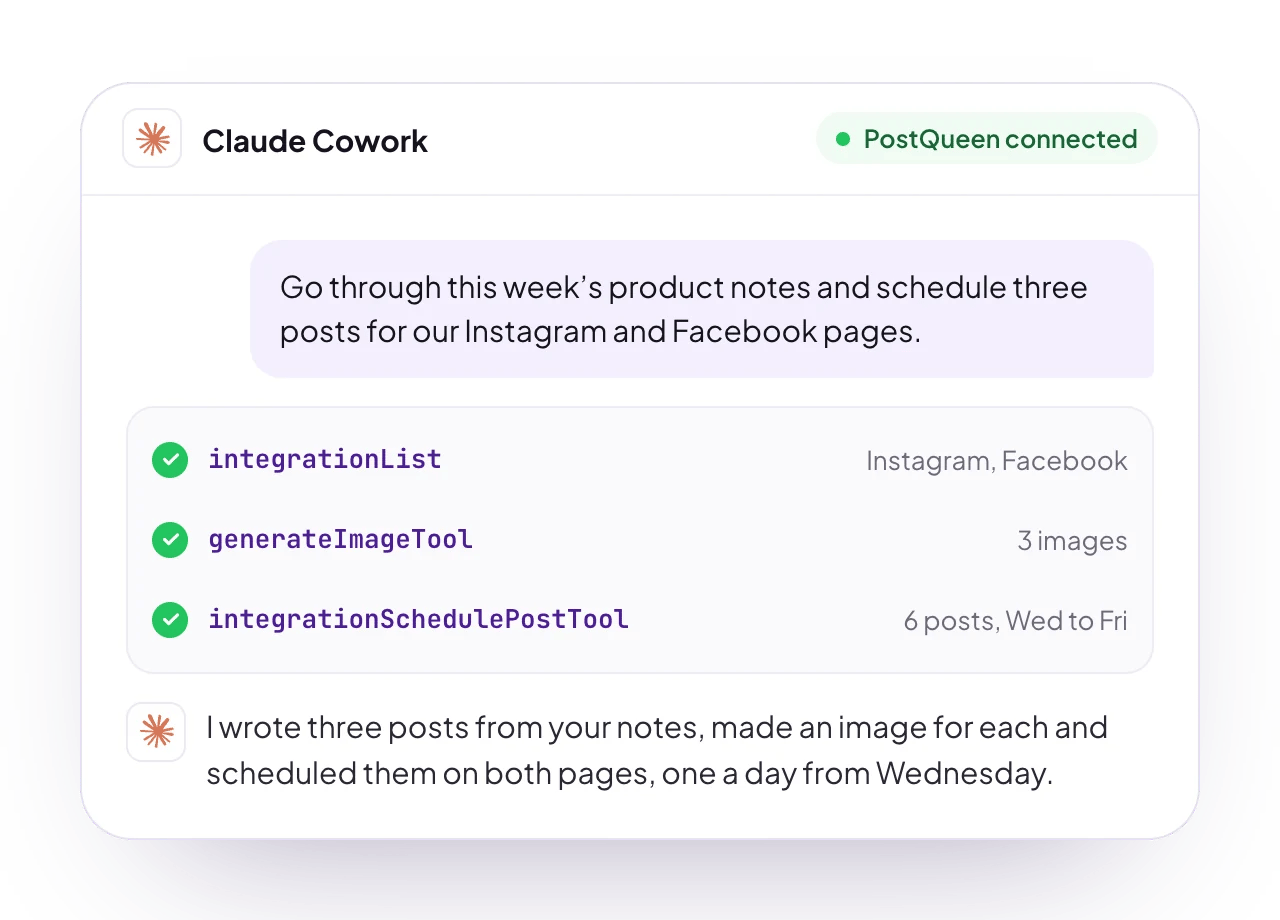
> Turn on the PostQueen connector in a Claude Cowork session, then let Cowork write, schedule and check your posts, on demand or on a schedule.
export const AgentStatus = ({status, label, children}) => {
const look = ({
tested: {
color: 'green',
icon: 'badge-check'
},
'partly-tested': {
color: 'green',
icon: 'badge-check'
},
'vendor-docs': {
color: 'surface',
icon: 'book-open'
},
'not-possible': {
color: 'gray',
icon: 'circle-slash'
}
})[status] || ({
color: 'gray',
icon: 'circle-question-mark'
});
const cut = status === 'partly-tested' ? -1 : (label || '').indexOf(', ');
const rest = cut > 0 ? label.slice(cut + 2) : '';
const pill = status === 'partly-tested' ? 'Partly tested' : cut > 0 ? label.slice(0, cut) : label;
const note = status === 'partly-tested' ? label : cut > 0 ? rest.charAt(0).toUpperCase() + rest.slice(1) + '.' : null;
return
{pill}
{note || children ?
{note}
{note && children ? ' ' : null}
{children}
: null}
;
};
Claude Cowork is Anthropic's agent mode for everyday knowledge work, built on the same architecture as Claude Code with no terminal needed. It uses the same PostQueen connector as Claude: add it once, then switch it on in a Cowork session and hand Cowork the posting work.
## Before you start
* **Plans:** Pro, Max, Team and Enterprise, not Free. On Enterprise, Cowork on the web and mobile needs an admin to turn it on.
* **Platforms:** Claude Desktop on macOS and Windows; in beta on claude.ai and in the iOS and Android apps.
* **A PostQueen API key.** A workspace admin copies it, or the ready-made address, from **Connections**.
**Where the API key is:** in the app, open **Connections > API Keys**. Only a workspace Admin or Super Admin can reveal or rotate it; other members see it masked. A workspace has one key, and each agent card on **Connections** shows your MCP address with the key already filled in.
## Connect Claude Cowork
Skip this step if Claude already has it. In Claude, open **Customize > Connectors**, then **+ > Add custom connector**. Name it `PostQueen` and paste your key address as the URL, with no slash at the end:
```text wrap theme={"system"}
https://api.postqueen.ai/mcp/YOUR_API_KEY
```
Click **Add**. [The Claude page](/agents/claude) has the full steps, including the Team and Enterprise ones.
In a Cowork session, turn PostQueen on from the **+** menu in the chat box, or from **Customize > Connectors**.
Ask Cowork to list your connected PostQueen channels.
## Check that it works
Ask Cowork: "List my PostQueen channels." It answers with the channels you connected in PostQueen. If it does not use PostQueen, open the **+** menu in the chat box and check that the connector is on for this session.
## Good to know
* **Use the connector, not a terminal.** A key you set in a terminal or an environment variable on your own computer does not reach Cowork's cloud sessions.
* **Only a workspace admin can connect PostQueen.** The API key is shown to admins only, and only admins can approve the sign-in. Both give full access to the workspace.
* **Upload from your device.** PostQueen's upload widget opens an **Upload Media** panel in Cowork, where you add a photo or video from your device.
* **No PostQueen plugin is published** for Claude yet. Use the custom connector.
* **Ask for drafts when you want to check first.** A draft waits on your PostQueen calendar, and nothing publishes until you schedule it.
* **What it cannot do over MCP:** delete a post, or change a post's text or time. Do that on the calendar in the app. [The MCP tools](/mcp/tools) lists what it can do.
## Other ways to connect
| Way | Address | Status |
| ---------------------- | -------------------------------------------- | -------------------------------------- |
| The key in the address | `https://api.postqueen.ai/mcp/YOUR_API_KEY` | From Anthropic's docs. The route above |
| Sign in with PostQueen | `https://api.postqueen.ai/mcp-oauth-dynamic` | From Anthropic's docs, not tested yet |
The key address has 21 tools. The sign-in address has 20, all but `ask_postqueen`.
To sign in instead of using a key, add the connector with `https://api.postqueen.ai/mcp-oauth-dynamic` as the URL, click **Connect** and sign in to PostQueen. Only a workspace admin can approve. [The Claude page](/agents/claude#other-ways-to-connect) has the steps. The sign-in covers Claude and Cowork at once, and you revoke it in PostQueen under **Connections > Approved Apps**.
## Try this first
```text wrap theme={"system"}
List my PostQueen channels. Then go through this week's product notes and write three short Bluesky posts from them. Save each one in PostQueen as a draft, one a day from Wednesday at 10am.
```
The drafts appear on your PostQueen calendar, ready for you to check and schedule. [Prompts to try](/mcp/examples) has more.
## Run it on a schedule
Cowork runs scheduled tasks. Open **Scheduled** in the Cowork sidebar, give the task a prompt and pick how often it runs: hourly, daily, weekly, on weekdays, or only when you start it. Scheduled tasks run in the cloud, even when your computer is asleep or Claude Desktop is closed, and they use your connectors, PostQueen included.
```text wrap theme={"system"}
Every Monday, turn this week's product notes into three Bluesky posts and save them in PostQueen as drafts.
```
Source: [Anthropic, schedule recurring tasks in Claude Cowork](https://support.claude.com/en/articles/13854387-schedule-recurring-tasks-in-claude-cowork).
## Troubleshooting
| Symptom | Fix |
| ------------------------------------------- | -------------------------------------------------------------------------------------------------------------------------------- |
| PostQueen is missing in a Cowork session | Turn it on from the **+** menu in the chat box, or from **Customize > Connectors**. |
| A key you set on your computer does nothing | Cowork's cloud sessions do not see your computer's environment. Add PostQueen as a connector. |
| Cowork is missing on the web or mobile | On Enterprise, an admin turns on Cowork for the web and mobile. |
| The key is refused | Copy the address again from the Claude Cowork card on **Connections**. Only a workspace Admin or Super Admin can reveal the key. |
| “Only an admin can approve” | Ask a PostQueen workspace admin to sign in and approve. |
More fixes are on [Troubleshooting agents](/agents/troubleshooting).
## Is it the same as Claude or Claude Code?
Cowork and Claude share one connector; Claude Code has its own setup:
| Product | What it is | How it connects |
| ---------------------------------- | ---------------------------------------------------- | ----------------------------------------------------- |
| **Claude Cowork** (this page) | Claude's agent mode for everyday work | The Claude connector, switched on in a Cowork session |
| [Claude](/agents/claude) | Anthropic's assistant on the web, desktop and mobile | A custom connector |
| [Claude Code](/agents/claude-code) | Anthropic's coding agent for the terminal and IDEs | One `claude mcp add` command |
## Next steps
Which agents can post to PostQueen, how each one connects, and what PostQueen has tested.
What each of the 21 tools does, and what an agent cannot do.
The order an agent calls the tools in, with prompts that work.
What to do when a connection or a command fails.